Firmware Update for App-Compatible Devices
Description
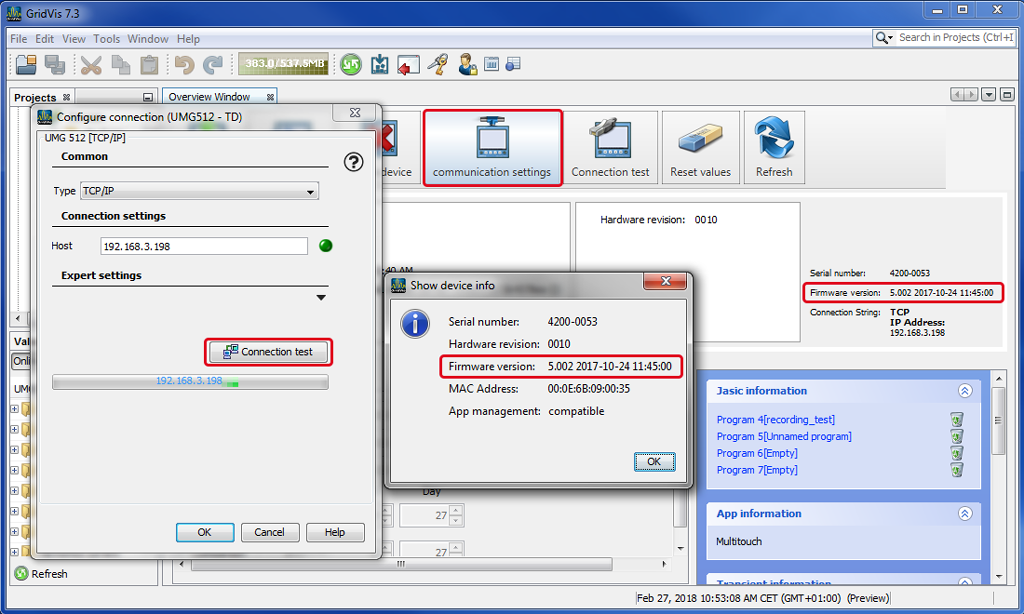
Janitza measuring devices require the latest firmware to use some functionalities. For example, the devicesUMG 604, UMG 605, UMG 508, UMG 509, UMG 511, UMG 512, to establish app compatibility require device firmware > 5.0. The firmware version of your device can be found in the GridVis software in the
overview window of your measuring device.
Window Display Device Information of the function Connection settings > Connection test.
If your device does not have the latest firmware, perform a firmware update .
Load firmware file
Download the current filmware file for your measuring device from our website ( www. janitza.de > Downloads > Firmware ).
Save the firmware file (Zip file) on your computer.
Note
Do not unpack the Zip file (firmware)! The GridVis software will process the Zip file directly!
Function in the GridVis software
Open the GridVis software.
Mark the device for the firmware update.
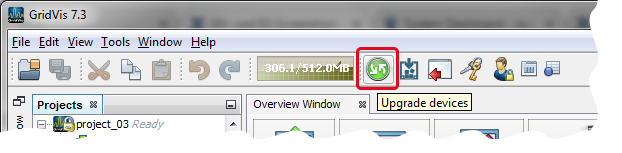
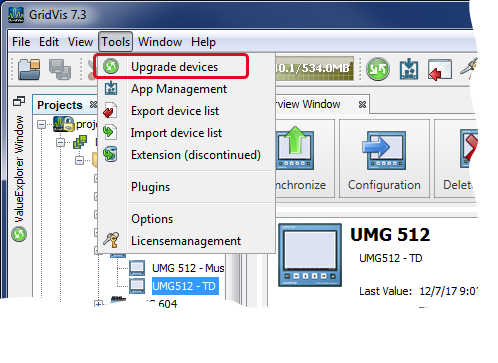
In the symbol bar, click on the button "
 " or the submenu entry Update Device(s) in the menu performance entry Extras.
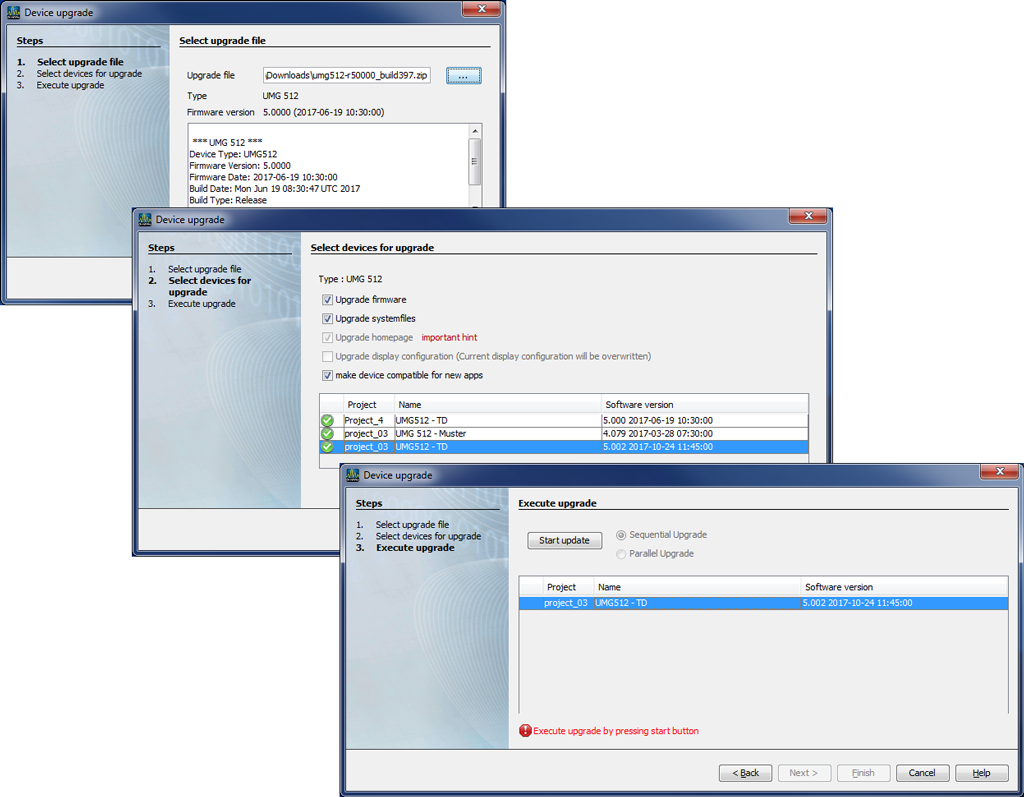
The assistant Update Device Firmware appears.
Assistant Update Device Firmware
In the first step, load the previously saved Zip file (firmware) by clicking on the button "..."
Click on the button Continue.
In the second step, mark the measuring devices to be updated and mark the desired checkboxes.
Click on the button Continue.
In the third step, click on the button Start Update.
A progress bar shows how far along the update is in the status bar of the GridVis software interface.
The symbol "
 " in the project line shows the successful update of the firmware.
Click on the button Done to close the assistant.
Make sure, as described at the start, that in the overview window of your device, your firmware update was successful.