Device Selection
Assistant App Management Open
Start the GridVis software.
Install the app-compatible Janitza devices (cf. Apps - Overview ). You can find information on device installation in the product documents or in the download center www.janitza.de .
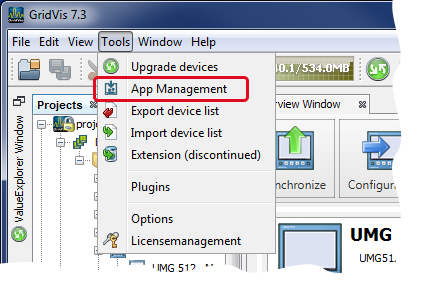
In the GridVis software menu bar, click on the button Extras.
Open the assistant App Management by clicking on the button in the drop-down menu.
or
Click directly on the button "
 " in the symbol bar.
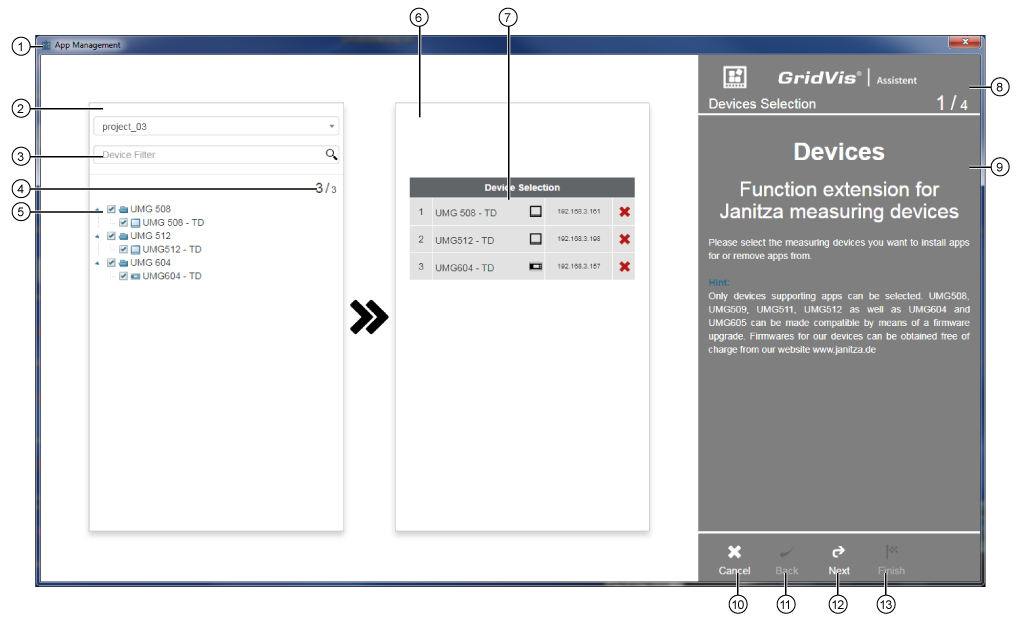
Assistant App Management - Selection of devices
Note
After it has been opened, the assistant may require App Management several seconds to display your app-compatible devices
|
Pos. |
Description |
|
1 |
Guides the user through the app configuration on app-compatible devices. Provides help in the selection of your app. |
|
2 |
Shows all installations, app-compatible devices in the GridVis software. |
|
3 |
Searches and filters for installed app-compatible devices. Useful for a large number of installed app-compatible devices. |
|
4 |
Shows the number of selected devices in the display area. Select devices by clicking the checkbox in front of the device names (cf. Pos. 5). |
|
5 |
Click on the triangle in front of the device type to open all of the devices of this type integrated in the GridVis software.
Click on the checkbox in front of the device names to select one or more devices you would like to install the apps on. Click on the checkbox in front of the device types to select all of the devices assigned to the device type you would like to install the apps on. |
|
6 |
|
|
7 |
Table of devices you would like to install the apps on, with the information:
|
|
8 |
Shows the action step (screen grab above: Device Selection) with the number and the total number of the action steps. |
|
9 |
Shows descriptions about the apps, devices or the respective action step. |
|
10 |
Aborts the installation process and closes the assistant App Management. |
|
11 |
Takes the user in one action step back in the assistant. If the function is active, the icon white appears. |
|
12 |
If the entries are correct, the icon white appears and takes the user to the next action step in the assistant. |
|
13 |
If the entries are correct, the icon white appears and closes the assistant. |
 )
) " or front board attachable device"
  ") and