Create a new security realm
You can define users and their rights in a user directory.
There is one active user directory in the GridVis for each project that works with a JanDB (Janitza database), or a MySQL or MSSQL database.
For projects that work with a MySQL database (MSSQL), it is possible to define one user directory for several projects with MySQL databases (MSSQL) in one main project.
User directories from projects with JanDB cannot be combined with user directories from projects with MySQL databases (MSSQL).
Note
The function Create a new security realm (set up user management) is available in the GridVis edition Standard and higher. In the GridVis edition Essentials in the status entry in the window User administration overview, it will show that there is no license.
An assistant offers support for creating a new security realm (user management). A new security realm can be created in 2 ways:
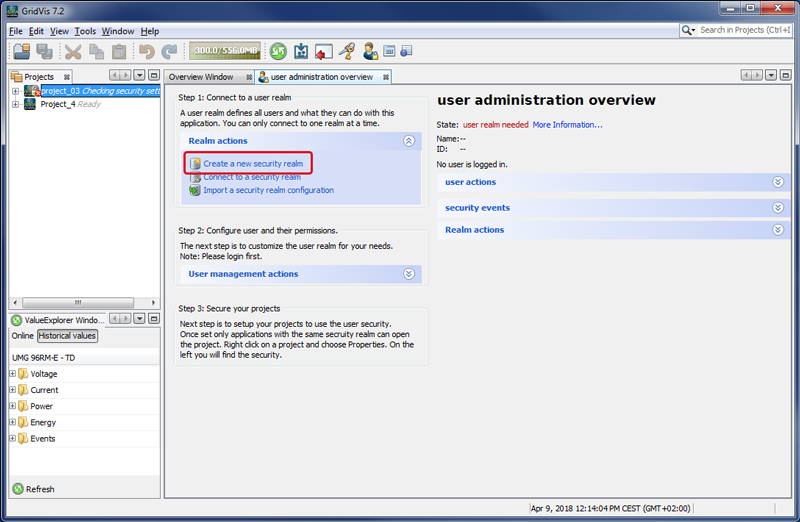
After you have opened the window User administration overview, (menu Window > menu entry User administration > button User administration overview), click in step 1 on the button Create a new security realm or
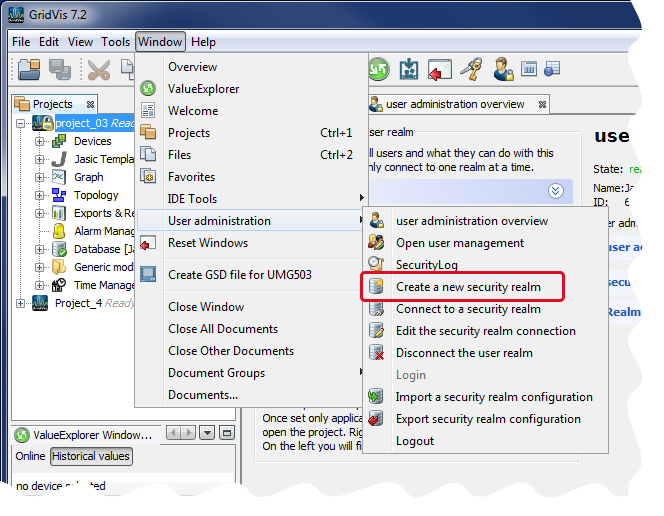
click on the button Create a new security realm in the submenu User administration of the menu bar entry Window (see figures on the right).
The dialog box Create a new security realm will appear.
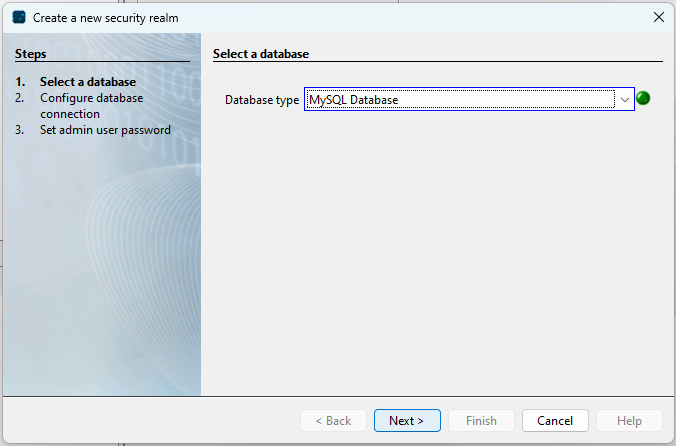
In the first step, choose a database type (JanDB, MySQL, MySQL).
Confirm the selection with the button Next.
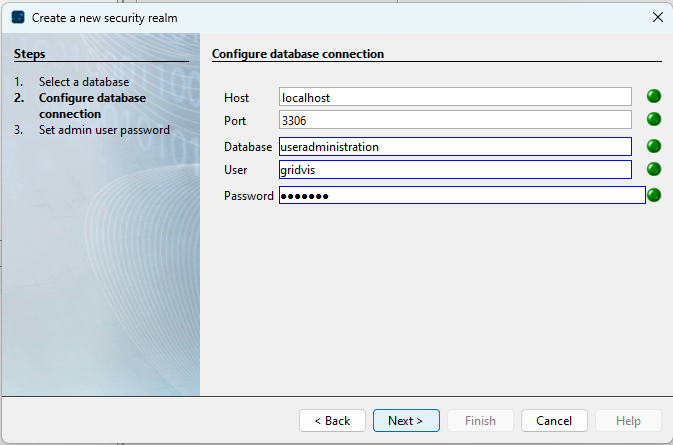
In the second step, Configure database connection will appear.
You will need the configuration data (host, port, database name, user name and password) of the MySQL database (MSSQL database) to configure the database connection.
Note
To create a MySQL database (MSSQL database) you may have to ask your network administrator for the connection data of the MySQL server.
Enter the database connection data into the entry fields.
Confirm what you’ve entered with the button Continue.
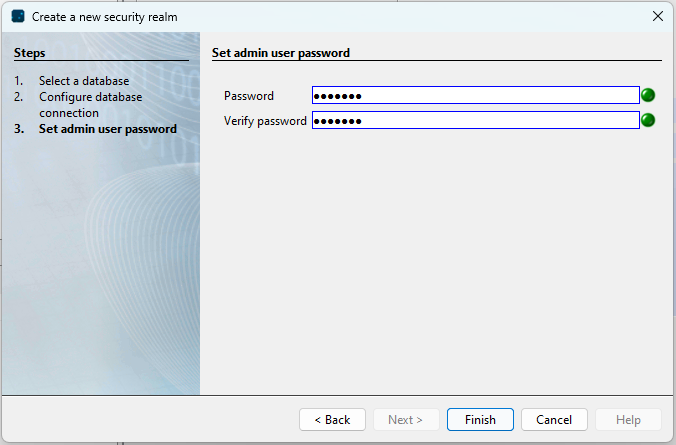
The third step, Set admin user password, will appear.
In the third step, set an admin user password and confirm it in the entry field Verify password. Please keep the admin user password in a safe place! You will need it for other user administration settings.
Confirm what you’ve entered with the button Finish.
If no database is available with the entered configuration data on your MySQL server (MSSQL server), a query will be sent via GridVis.
Confirm the window Question with the button Yes, and the Gridvis software will create the database with your user directory on your MySQL server (MSSQL server).
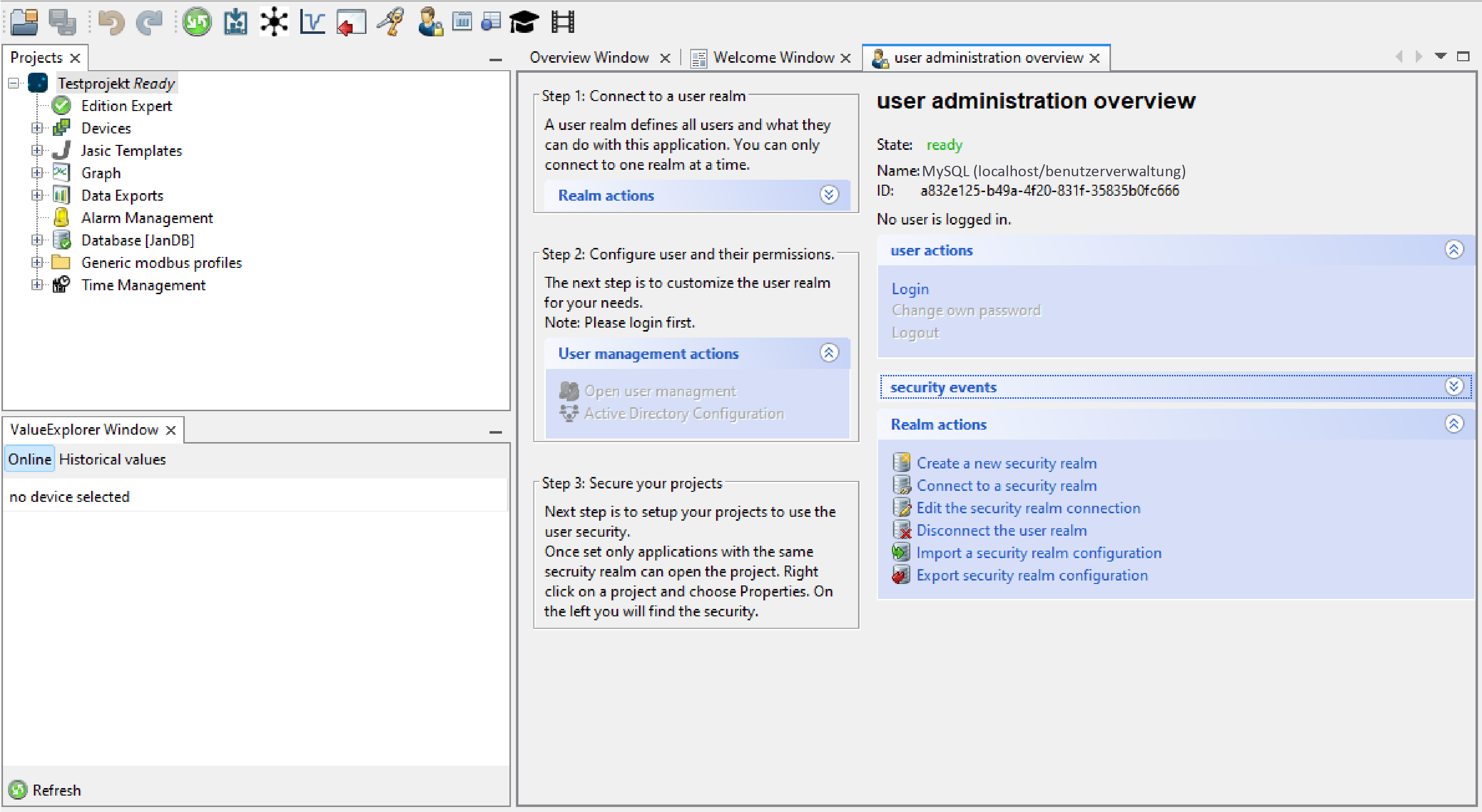
In the window User administration overview under Status, the entry Ready (name and ID of the user management MySQL database) and the message No user is logged in will appear.
To configure more users, log in as the GridVis administrator. Confirm in the area User Actions with the button Login.
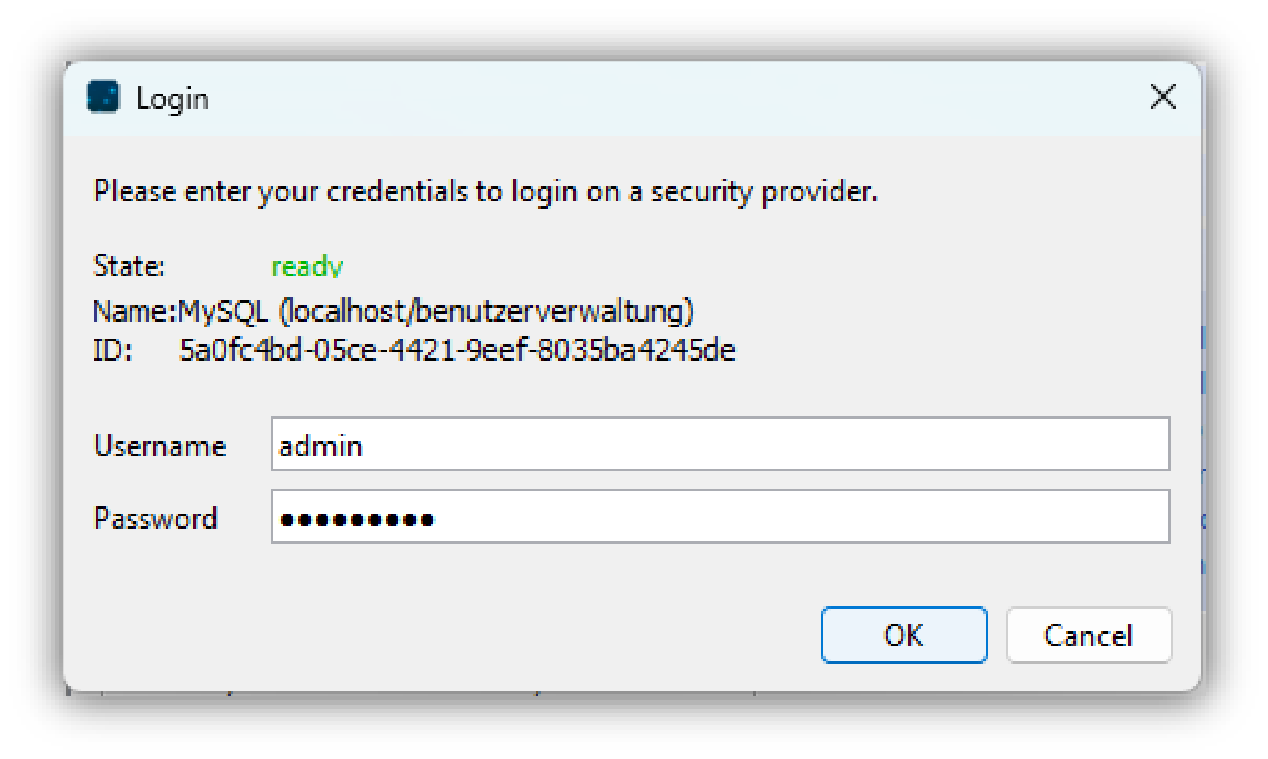
The window Login will appear.
In the window Login enter the user name admin (preset) and the previously entered administrator password.
Confirm what you’ve entered by clicking on the button OK.
Back in the window User administration overview your login status (in our case as GridVis administrator) is displayed.
The GridVis administrator configures other users in the User Editor .