Synchronizing devices
Valid for
|
GridVis edition |
Software platform |
|
|
|



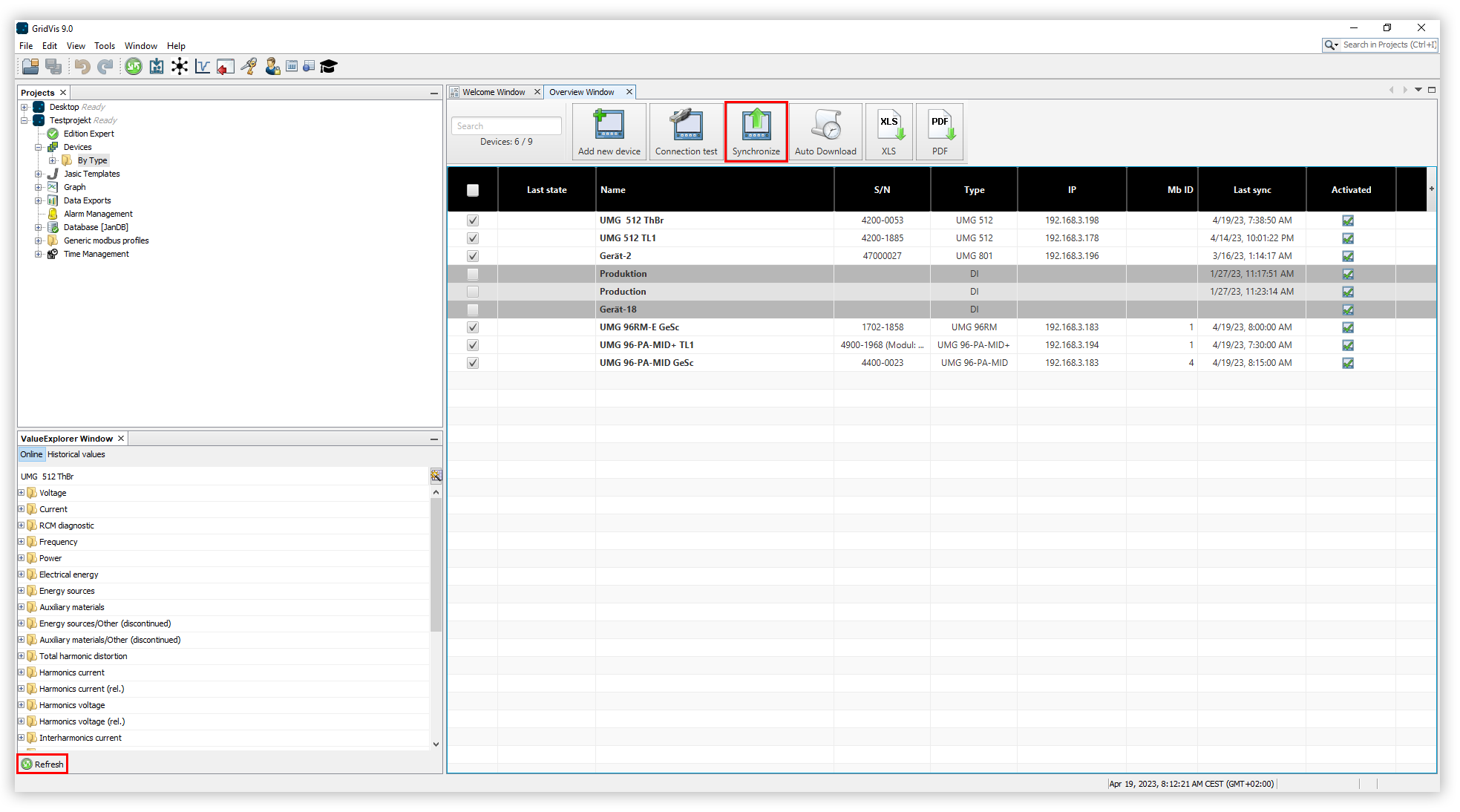
In the project tree, open the entry Devices. This is located in the left menu bar of the GridVis application.
Double-click the entry By type.
The Overview window of the device opens. This shows all devices that have been added to the project.
Use the selection boxes to select the devices you want to read out.
Click the Synchronize button.
Click the Update button to finish reading the devices.
Note
Please note that the process may take a few minutes. The progress is displayed at the bottom of the GridVis screen.
Synchronize devices automatically
The measurement data of your devices can also be read out automatically at a specific time. To set up an automatic readout, proceed as follows:
Open the Devices entry in the project tree. This is located in the left-hand menu bar of the GridVis application.
Double-click the entry By type.
The Overview window of the device opens. This shows all devices that have been added to the project.
Use the selection boxes to select the devices for which you want to configure automatic readout.
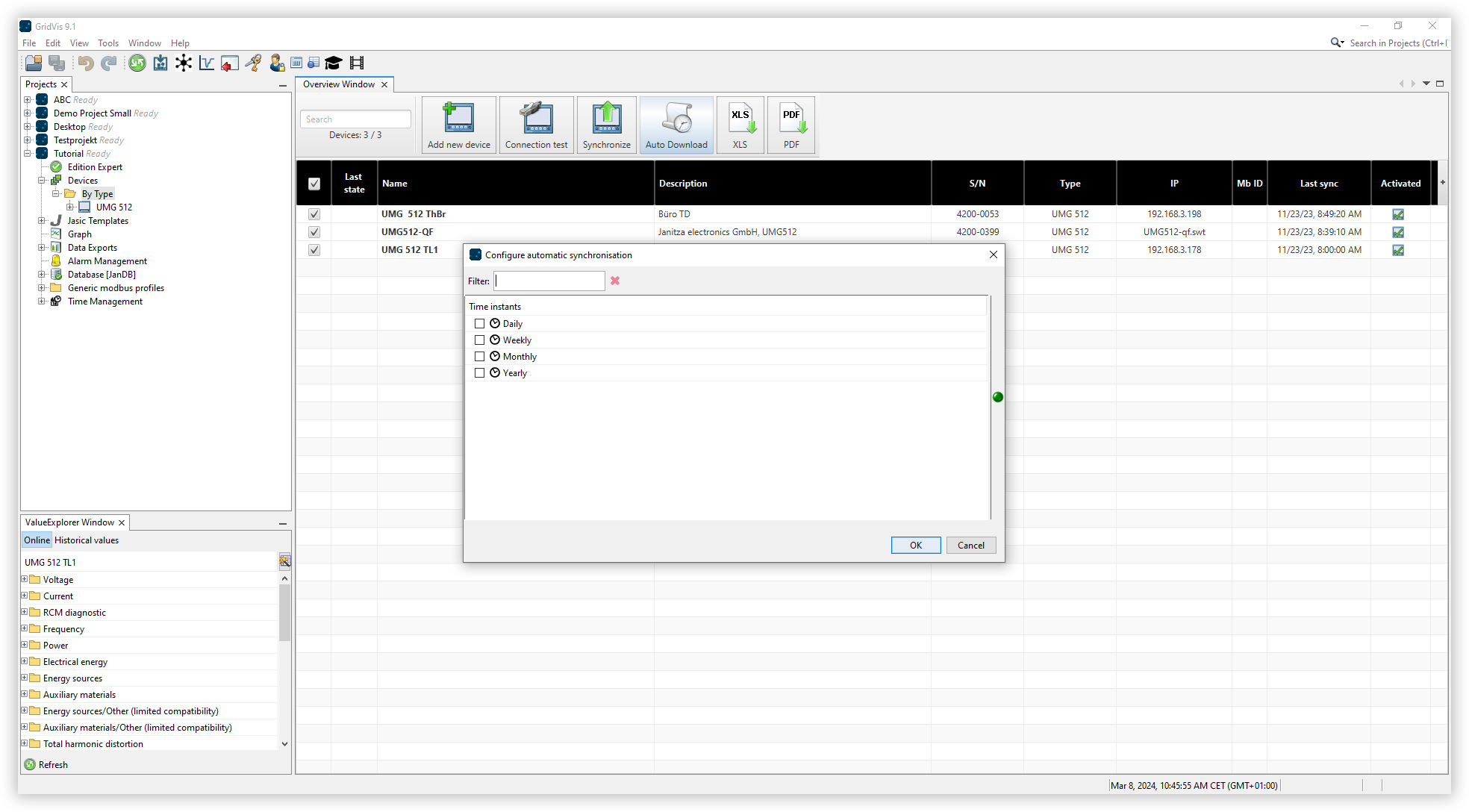
Click on the Auto download button.
Select a schedule for the automatic readout and then click on the OK button. In the Time Management, you can edit the schedules and add your own.
Note
Automatic readout can also be configured by right-clicking on the device in the project tree.