Virtual Device - Configuration
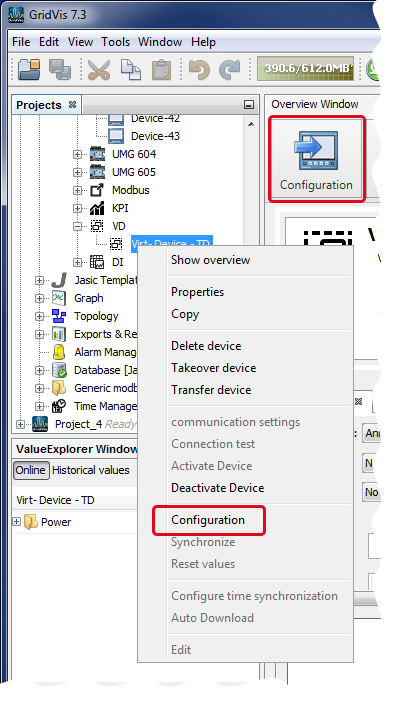
To configure your virtual device, click on
the button Configuration in the overview window or
in the window Projects in the context menu (right mouse-click on your virtual device) on the entry Configuration.
The configuration window of your virtual device will open.
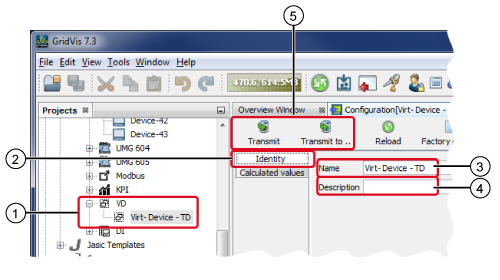
|
Pos. |
Description |
|
1 |
Double-click to open the overview window of the virtual device. |
|
2 |
Data for identifying the device. |
|
3 |
Assign a Name to the virtual device. |
|
4 |
Assign a Description to your virtual device. |
|
5 |
Click on the buttons to transfer your data to your device. The button Transfer To opens a dialog box. In the dialog box you can choose the configuration aspects that should be transferred to your device. |
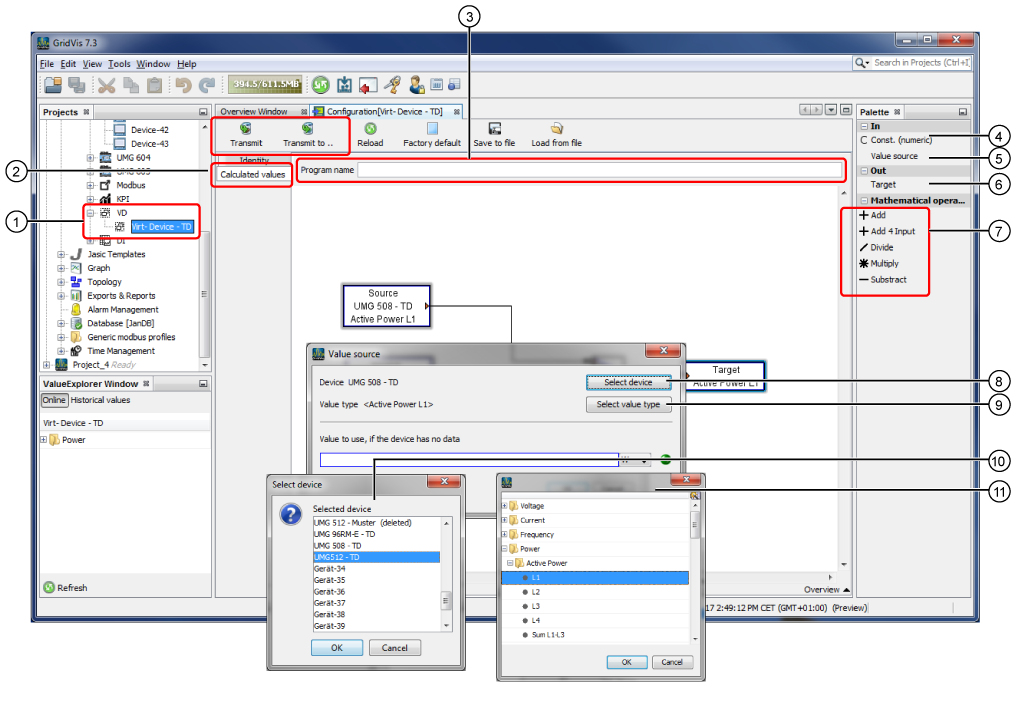
The following positions take you to the fundamentals of graphical programming (Jasic). You can find a detailed description of this under Graphical Programming - Jasic .
|
Pos. |
Description |
|
1 |
Double-click to open the overview window of the virtual device. |
|
2 |
Jasic interface for the graphical programming of the virtual device. In the graphical interface, the Jasic building blocks are:
|
|
3 |
Assign a Program Name to the Jasic program. |
|
The window Palette - Entry variables (Jasic building blocks) |
|
|
4 |
These constants contain numerical values. Drag the building block using "drag-and-drop" from the window "Palette" to the graphical interface Calculated Values. Double-clicking on the building block opens the configuration window for the numerical constants. |
|
5 |
With the building block Value Source you define the Device and the Value Type for the calculation. Drag the building block using drag-and-drop from the window Palette to the graphical interface Calculated Values. Double-clicking on the building block opens the configuration window Value Source (see Ill. above). |
|
Window Palette - Output/Actions (Jasic building block) |
|
|
6 |
The building block Target contains the result of your calculation. Drag the building block using drag-and-drop from the window Palette to the graphical interface Calculated Values. Double-clicking on the building block opens the configuration window Target. |
|
Window Palette - Mathematical Operations (Jasic building blocks) |
|
|
7 |
|
|
|
|
|
|
|
|
|
|
|
|
|
|
8 |
A single click opens the window Select Device (Pos.10). |
|
9 |
A single click opens the window Select Value Type (Pos.11). |
|
10 |
List of devices. Activate the device and click on the button OK. |
|
11 |
List of value types. Activate value type and click on the button OK. |
 Adds 2 value types.
 Adds 4 value types.
 Divides 2 value types.
 Multiplies 2 value types.
 Subtracts 2 value types.