Importing data from MSCONS files
Valid for
|
GridVis-Editionen |
Software-Plattform |
|
|
|


Creating a virtual device
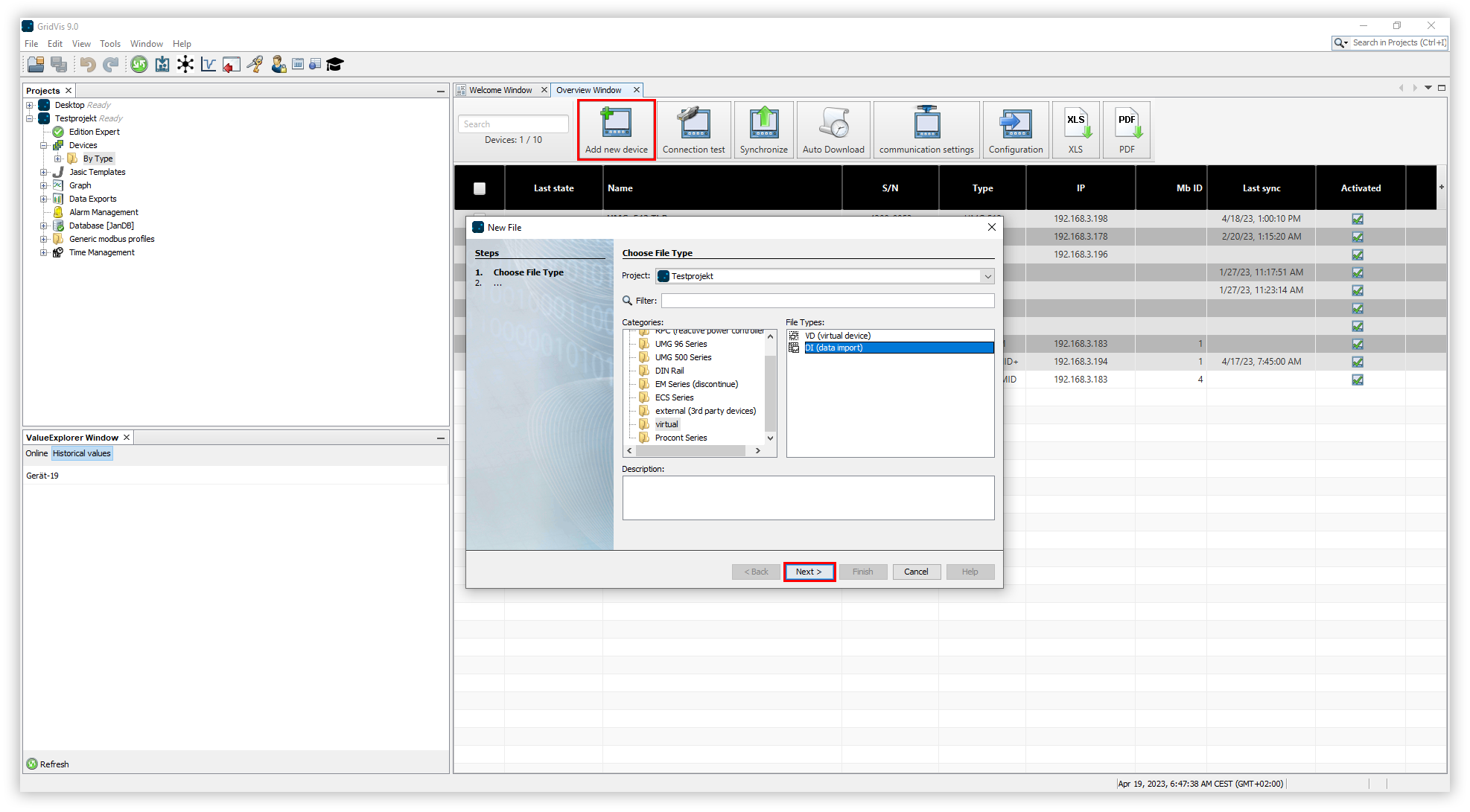
A virtual device is created in GridVis to import MSCONS files. This allows the data import to be managed via the device tree. Proceed as follows to import MSCONS files into GridVis:
In the project tree, open the entry Devices. This is located in the left menu bar of the GridVis application.
Double-click the entry By type.
The Overview window opens. This shows all devices that have been added to the project. Click the Add new device button here.
The New file window opens. In the Categories area, select the entry Virtual (virtual measurement points) from the list. In the File types area, select the entry DI (Data Import). Then click the Next button.
The New DI (data import) window opens. In the drop-down list, select the item MSCONS Import and click the Done button.
Editing a virtual device
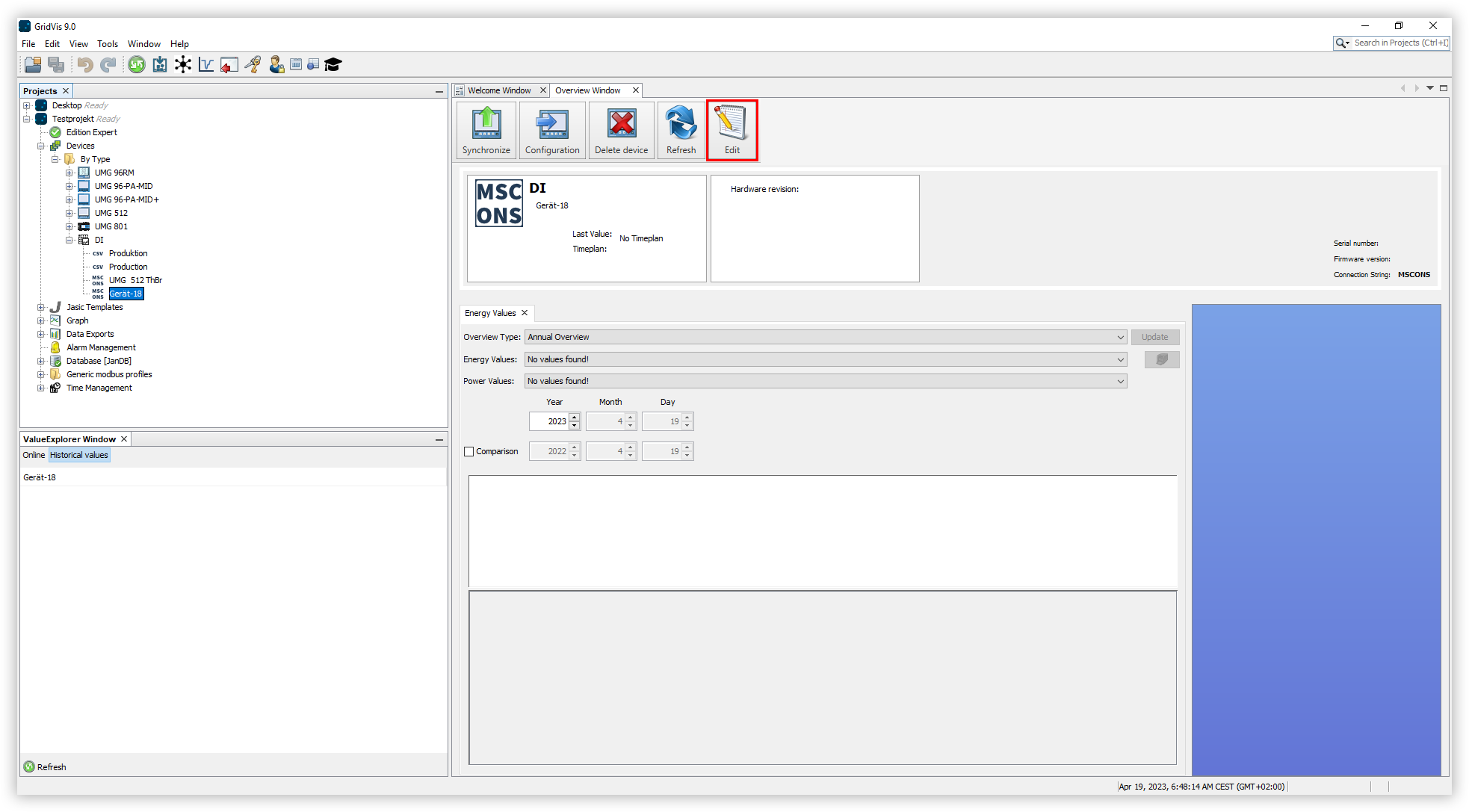
In the project tree, open the item Devices and then the item By type.
Open the item DI and click the virtual device you added earlier.
The Overview window of the device opens. Click the Edit button here.
The MSCONS Import window opens. Here click the Browse button.
The Open window opens. Select a valid MSCONS file and click the Open button.
In the MSCONS Import window, select the desired device in the Device selection list box and click the Import button.
A message appears after a successful import. Click the OK button here.
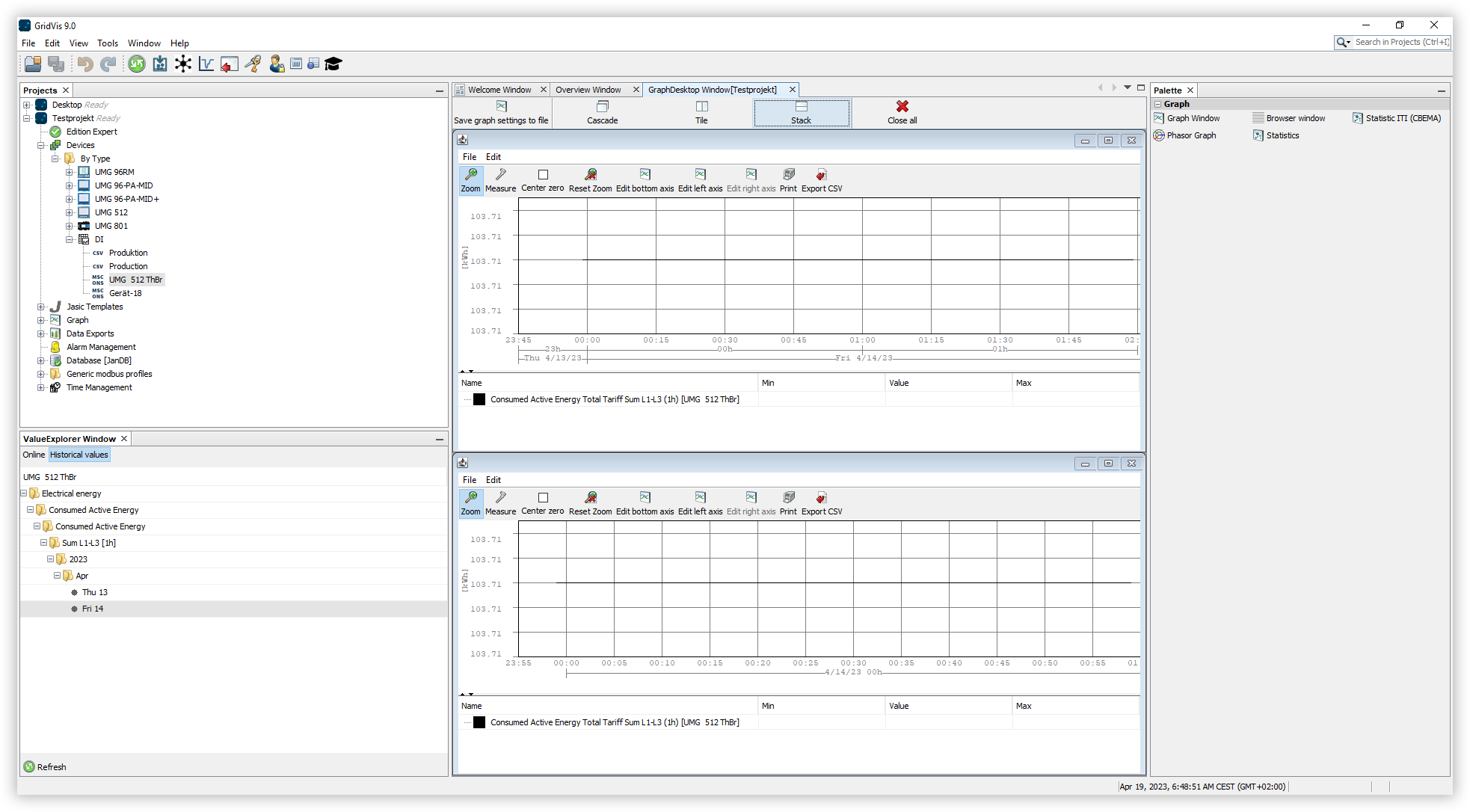
Retrieving imported values
In the Value tree window, choose between the two tabs Online values and Historical values.
Open the desired measured value folder in the value tree.
There are two options for displaying the online values and the historical values of the device:
Right-click on the desired measured value and select the item Show in graph from the list.
Drag and drop the desired measured value into the Overview window of the device.