Database Action
Database Cleaning
Exporting and Importing Projects
Recovering Deleted Devices
Valid for
|
GridVis edition |
Software platform |
|
|
|



Database actions offer you many different functions, such as cleaning the database, restoring deleted devices or exporting measured values. Proceed as follows to perform a database action:
In the project tree, double-click the Database. This is located in the left menu bar of the GridVis application.
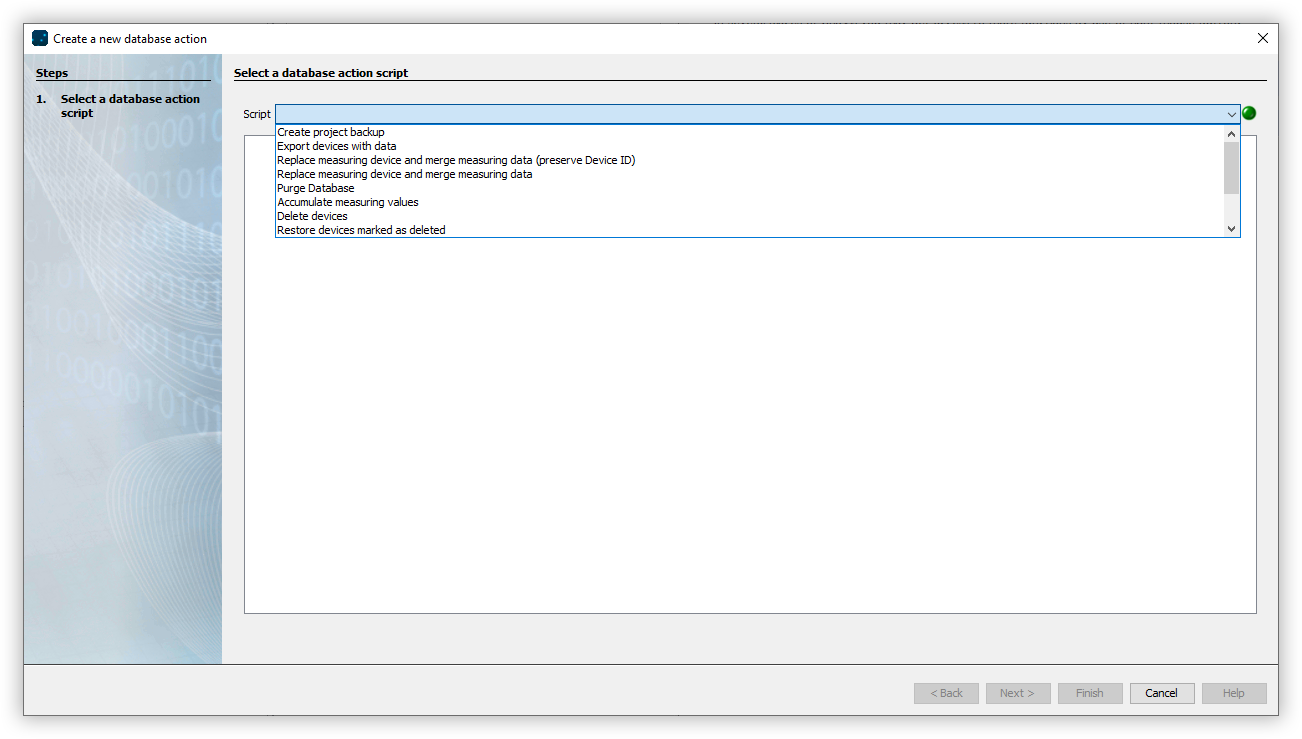
The Create New Database Action window opens. Select the script that suits your purpose here.
After you have configured the script, you can save it or run it directly once.
The following scripts are available use:
Create project backup
Export devices with data
Replace measuring device and merge measuring data (preserve Device ID)
Replace measuring device and merge measuring data
Purge Database
Accumulate measuring values
Delete devices
Restore devices marked as removed
Remove measured values
Delete event data and measured values
Remove alarms for a time range
Remove alarms for alarm sources
Note
If you save the script, it must then be executed manually or via a schedule. To run the script, open the Database entry in the project tree. Then right-click on your script and select the menu item Execute database action or Set schedule for database action. The progress of the execution is displayed at the bottom of the GridVis screen.