User interface


Valid for

GridVis editions

Software platform

images/download/thumbnails/251037364/GridVis_Icons_Standard_Expert-version-1-modificationdate-1717400123000-api-v2.png

images/download/thumbnails/251037364/gv_web-version-1-modificationdate-1717400150000-api-v2.png


Note

The user interfaces and scope of functions differ depending on the edition of GridVis that you are using ( Standard, Expert )!

You can find a detailed overview of the functions and differences on our homepage: GridVis editions .
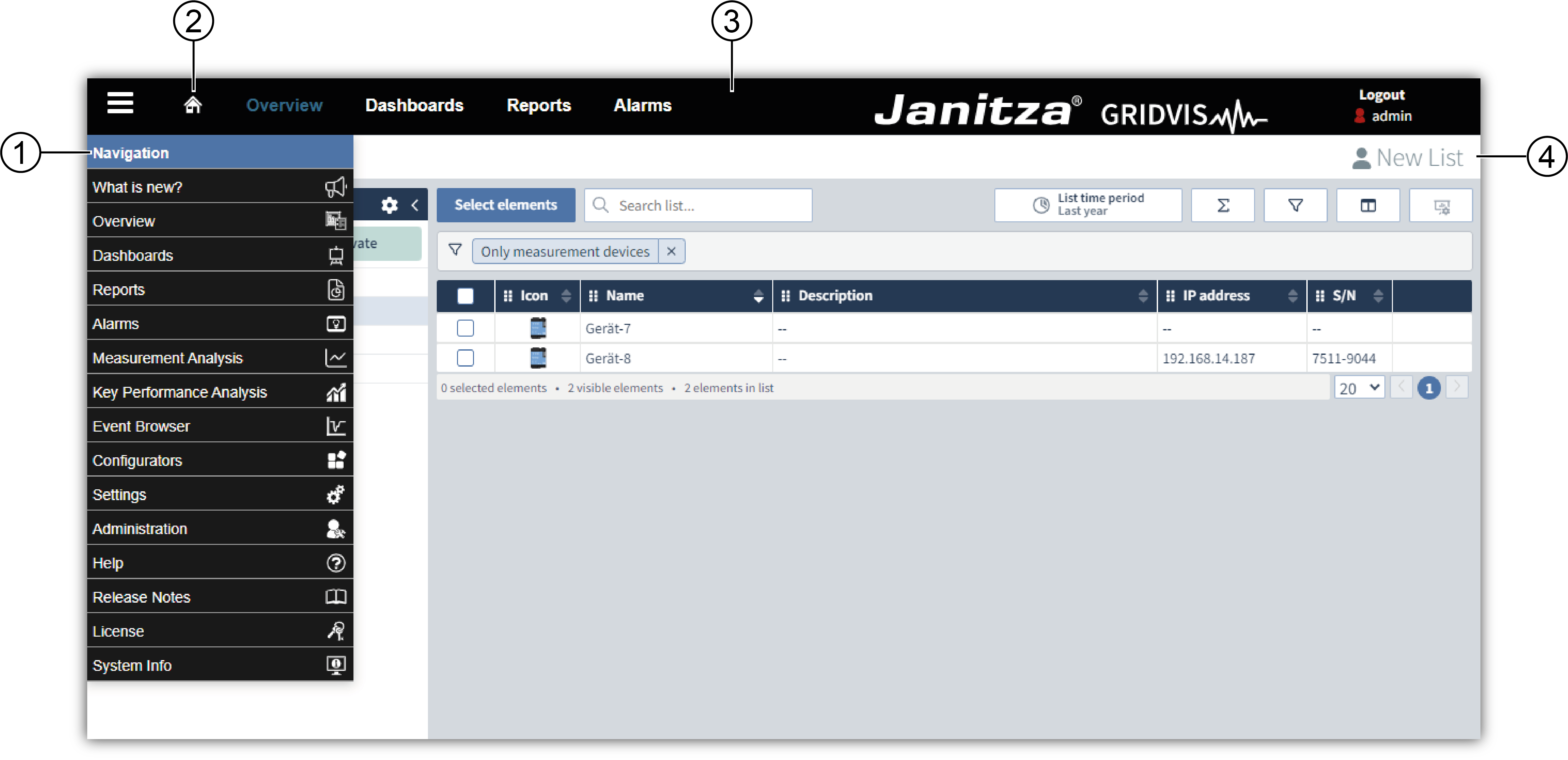
images/download/attachments/251037364/benutzeroberflaeche-web-en-version-1-modificationdate-1713186387000-api-v2.png


Position

Control element

Description

1

Navigation

  • Clicking on the burger icon images/download/thumbnails/251037364/nav_black-version-1-modificationdate-1712728406000-api-v2.png opens the Navigation menu.

  • The contents of the drop-down menu vary depending on the activated edition and the user presently logged in.

2

Home

  • Clicking on the Home images/download/thumbnails/251037364/home-version-1-modificationdate-1712728406000-api-v2.png button opens the selected start dashboard .

  • If no start dashboard has been assigned then the start page (landing page) appears.

  • Configure the start dashboard under Navigation > Settings > User Settings.

3

Navigation bar

  • Is an integral part of the user interface

  • Can be operated from all areas

  • Shows you where you are currently located (text and areas shaded in blue)

  • Shows you which user is currently logged in

  • Contains elements with a link function for navigating

4

Information bar

  • Shows you where you are currently located

  • Has no link function