General project settings
Load project
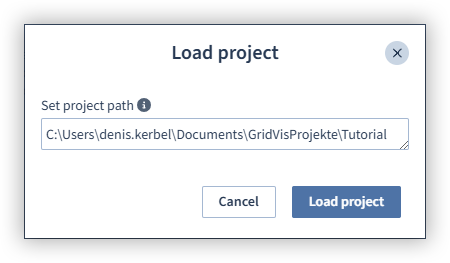
You can add a new project by clicking the + symbol. Proceed as follows to load a new project:
Click the + symbol. The Load project window opens.
Enter the project path of the project that you want to load into GridVis Web. You can find the project path in the overview window in GridVis Desktop.
Click the Load project button.
Then restart the server to use the project in GridVis Web. You can restart the server in the Server area.
Project information
This window displays the information about your project. This information includes:
The project name
The number of devices in the project
The file path
The project status
Whether it is the main project
The main project can be changed in the Server area.

Remove project
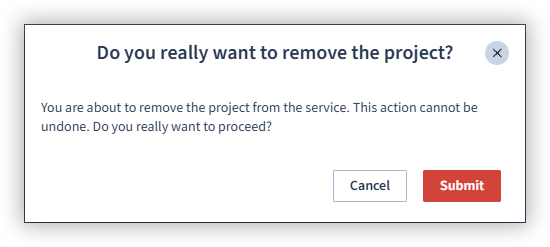
You can remove the selected project in this area. Proceed as follows to remove a project:
Click the Remove project button. A new window opens.
Click the Confirm button.
Note
Please note that this action cannot be undone. Once a project has been removed from GridVis Web, it can only be managed in GridVis Desktop.