Safety
Admin password
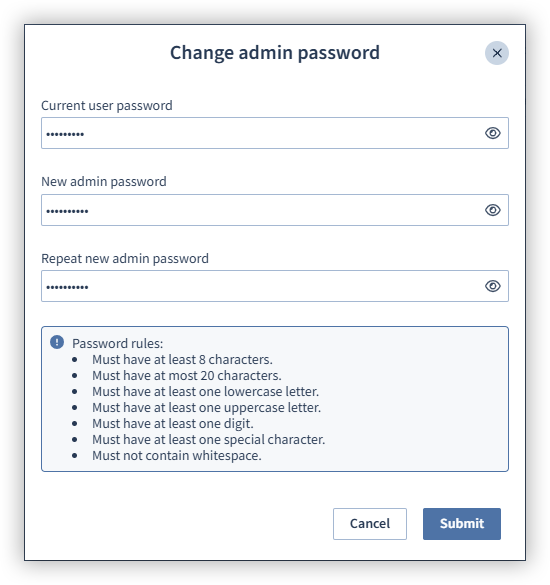
Click the Change password button to change the password of the admin user, who cannot be deactivated or removed. Please note that changes can only be made with the appropriate rights.
Note
If you change your password, it must fulfill the following conditions:
It must be between 8 and 20 characters.
It must contain at least one special character and one number.
It must include at least one lowercase letter and one uppercase letter.
SSL certificate
Enabling encryption
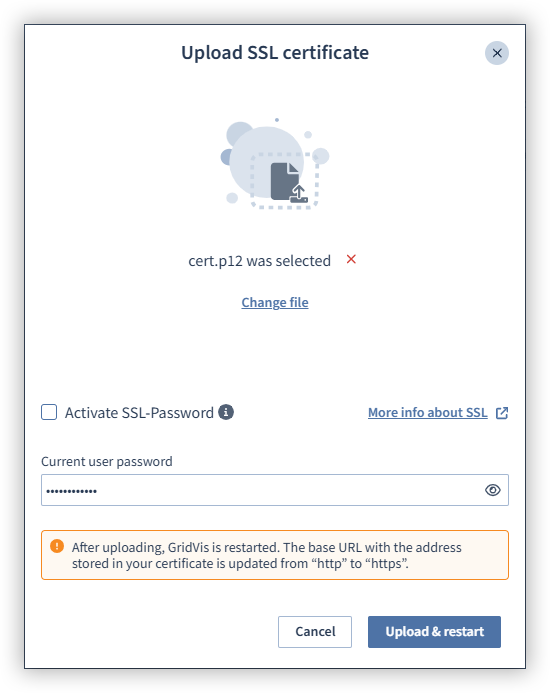
Data transmission between the GridVis service and the web browser can be encrypted using an SSL certificate. The certificate must be in p12 or pfx format.
Click the Upload SSL certificate button.
Click the Select file button and select the SSL file or drag and drop it into the window.
Select whether the SSL certificate is to be password-protected. If yes, then enter the corresponding password for the SSL file.
Enter your current user password.
Finally, click the Upload and restart button.
The certificate has been successfully added. The GridVis service will be restarted and can then only be accessed via an HTTPS connection in the web browser.
Disabling encryption
Click the Remove button.
Enter your current user password.
Click the Remove SSL certificate button.
The certificate has been successfully removed. The GridVis service is restarted and can then only be accessed via an HTTP connection in the web browser.
Enhanced security
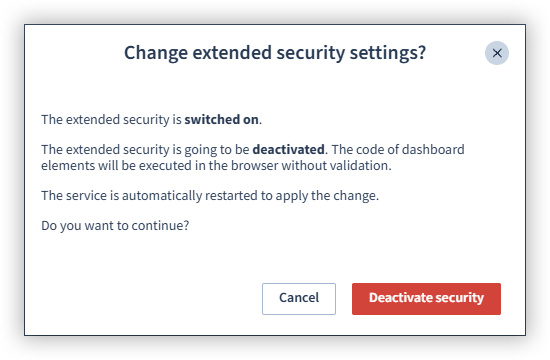
You can activate or deactivate enhanced security by clicking the Change security button. Enhanced security for dashboards prevents potentially malicious scripts from being loaded from other websites or potentially malicious code from being executed in dashboard elements. Please note that this means that certain functions will not be available, such as embedding maps or websites that require a login (including internal GridVis pages). Before deactivating this protection mechanism, make sure that the code used has been implemented by trustworthy persons and does not represent a threat. After you have activated or deactivated enhanced security, the S GridVis service is automatically restarted to apply the change.
User database
You can add and remove the user database at any time. Please note that after you have removed a user database, only the admin user is still available.
Adding a user database
Please note that a new user database can only be added after the current user database has been removed manually.
Click the Select database button.
Click the Select file button and select the user database file or drag and drop it into the window.
Enter your current user password.
Finally, click the Select database button.
The selected user database has been successfully added and can be used.
Removing a user database
Click the Remove button.
Enter your user password here and click the Remove user database button.
The GridVis service is restarted and the user database has been successfully removed.
Note
You must first create an export of a user database in GridVis Desktop before you can load a user database into GridVis Web.