Analyzing Events and Transients
/*<![CDATA[*/ div.rbtoc1768472152914 {padding: 0px;} div.rbtoc1768472152914 ul {margin-left: 0px;padding-left: ;} div.rbtoc1768472152914 li {margin-left: 0px;padding-left: 0px;} /*]]>*/
This page describes how to analyze individual events and transients with the Event Browser of GridVis.
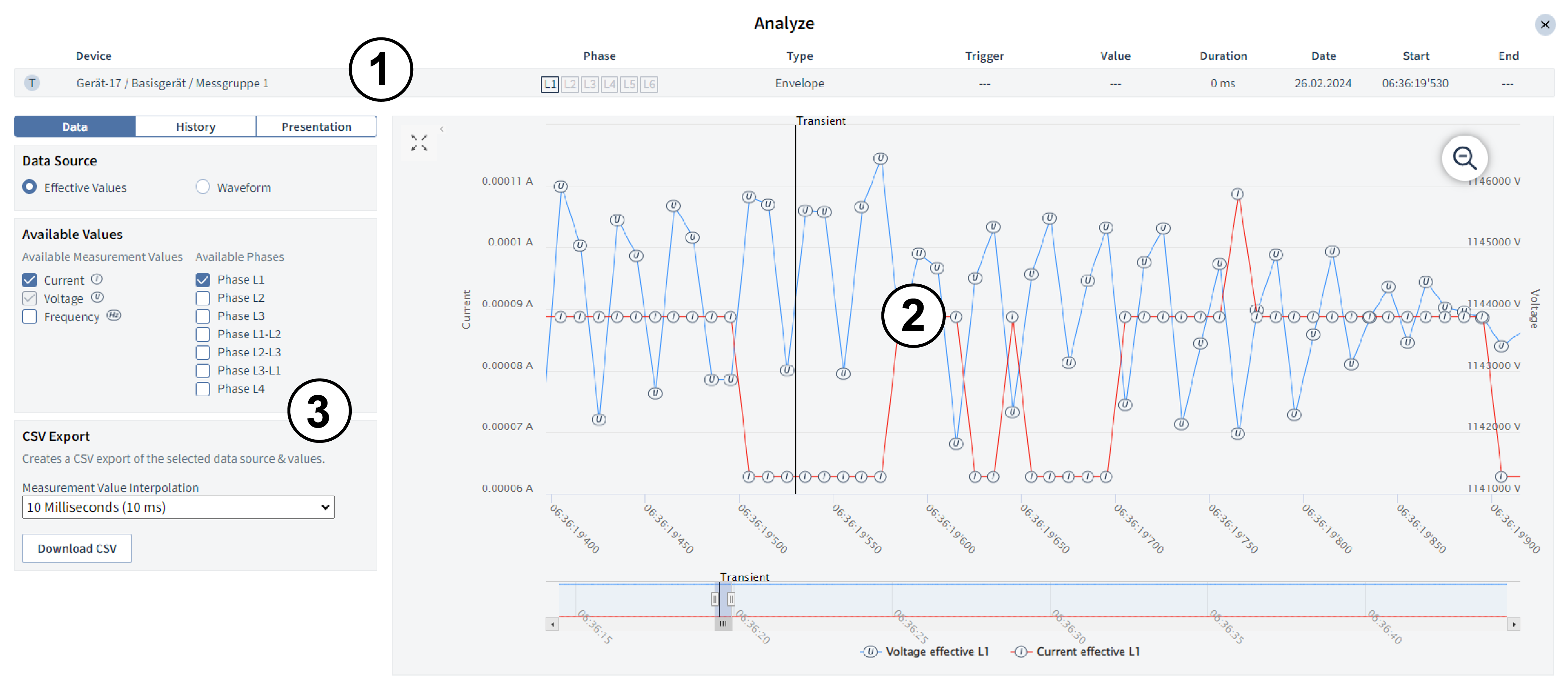
When you click on an element (event or transient) in the List view, the Analyze window opens. You can also open the Analyze window from the CBEMA chart. Note that only certain voltage events are listed in the CBEMA chart.
|
Position |
Description |
|
1 |
The Header lists all properties of the analyzed element. The displayed properties differ for events and transients. |
|
2 |
Measure value chart / CBEMA curve: The measure value chart shows the measure values recorded for the event. You can choose between effective value and full wave here depending on the device and configuration. You use the History of Device to open a device-specific CBEMA chart. |
|
3 |
You use the tabs in the sidebar to do the following:
|
Operational options
You use the Thumbnail view and sliders below the measure value chart to adjust the displayed area.
You can zoom in on an area of the chart via the mouse wheel, dragging a window with the mouse or by zooming in using two fingers (tablet).
Use the tabs of the sidebar to open the history and adjust the representation of the measure value chart.
Data
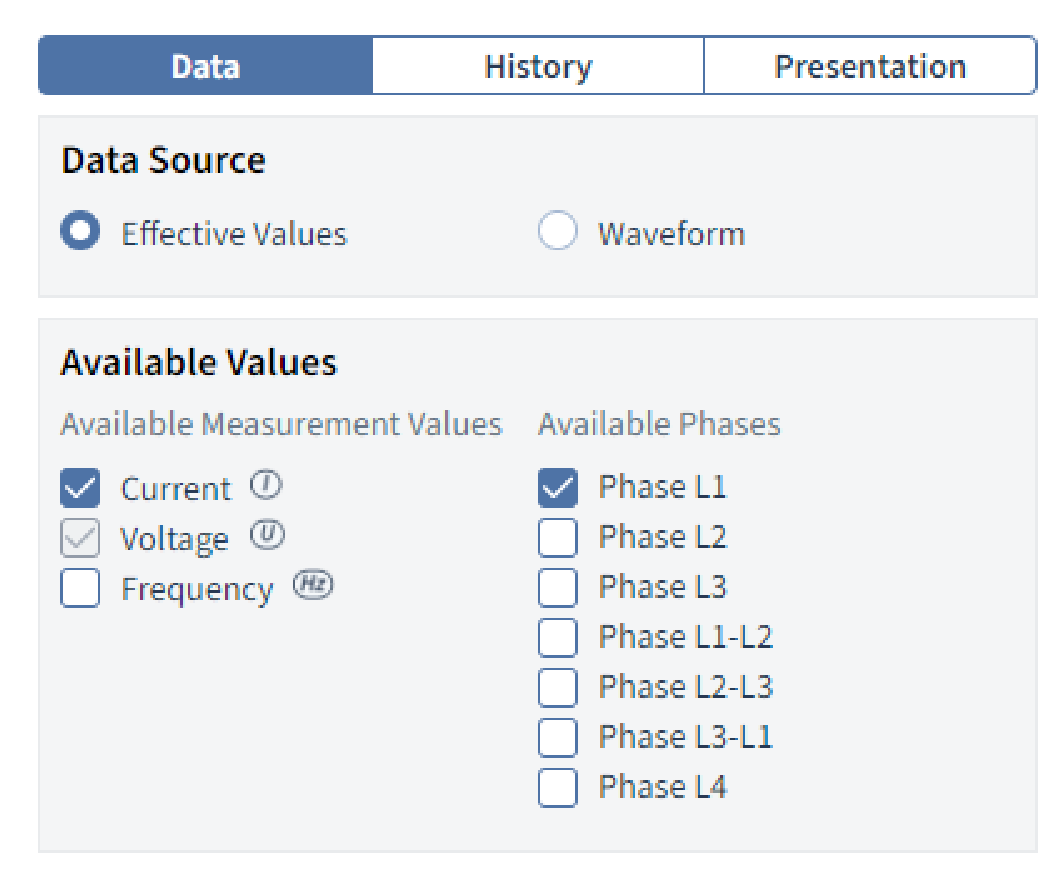
Select the data source for the measure value chart and add more measure values and phases to the chart.
Data source: The data source determines whether effective values or full waves are represented. The options depend on the device, recording configuration and event type .
Available values: The available measure values and phases depend on the device and recording configuration.
History
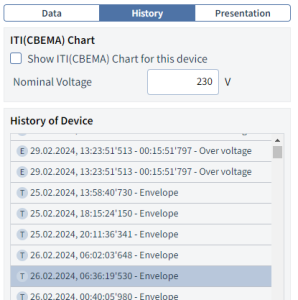
Contains a list of all events and transients recorded by the same device (History of Device). You use History to open a CBEMA chart for the corresponding device.
CBEMA Chart
By activating the checkbox, you open a CBEMA chart for the voltage events of the selected device. You use the input field to adjust the nominal voltage that serves as the reference point for the chart.
History of Device
If filters are active, they are listed in the header of the History of Device and can be removed here or temporarily deactivated by clicking on them.
By clicking on an element from the list, it is selected and displayed in the header and in the measure value or CBEMA chart.
Three-phase event
Some measurement devices also record three-phase events in addition to the single-phase events. If an event occurs in all three phases, these three events are combined into a three-phase event .
Three-phase events can be identified by the red border around the event icon.
Three-phase events are not included in the CBEMA chart.

Representation
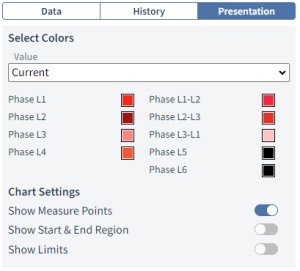
You use this tab to adjust the representation of the measure value chart.
Select colors: Use the drop-down button to select the measure value to be configured and use the color fields to adjust its color representation in the measure value chart.
Chart settings: Use the switches to activate/deactivate chart elements such as displaying the measurement points and displaying a horizontal line for the limit value. The options depend on the configuration and the device.