Creating a Project Backup
Valid for
|
GridVis edition |
Software platform |
|
|
|


Note
The project size should not exceed the following limits for a project backup:
JanDB: 150 GB
MS-SQL: 500 GB
MySQL: 150 GB
For larger projects, use the backup tools of the respective manufacturer (Microsoft, Oracle).
You can reduce your project size using the database actions Compress Measured Values and Delete Measured Values.
Please note that the network load, the database type as well as the hardware used have a strong influence on the time it takes to create the backup.
Proceed as follows to create a backup of a project:
In the project tree, double-click the Database entry. This is located in the left menu bar of the GridVis application.
The Create New Database Action window opens. Select the Create Project Backup script and click the Next button.
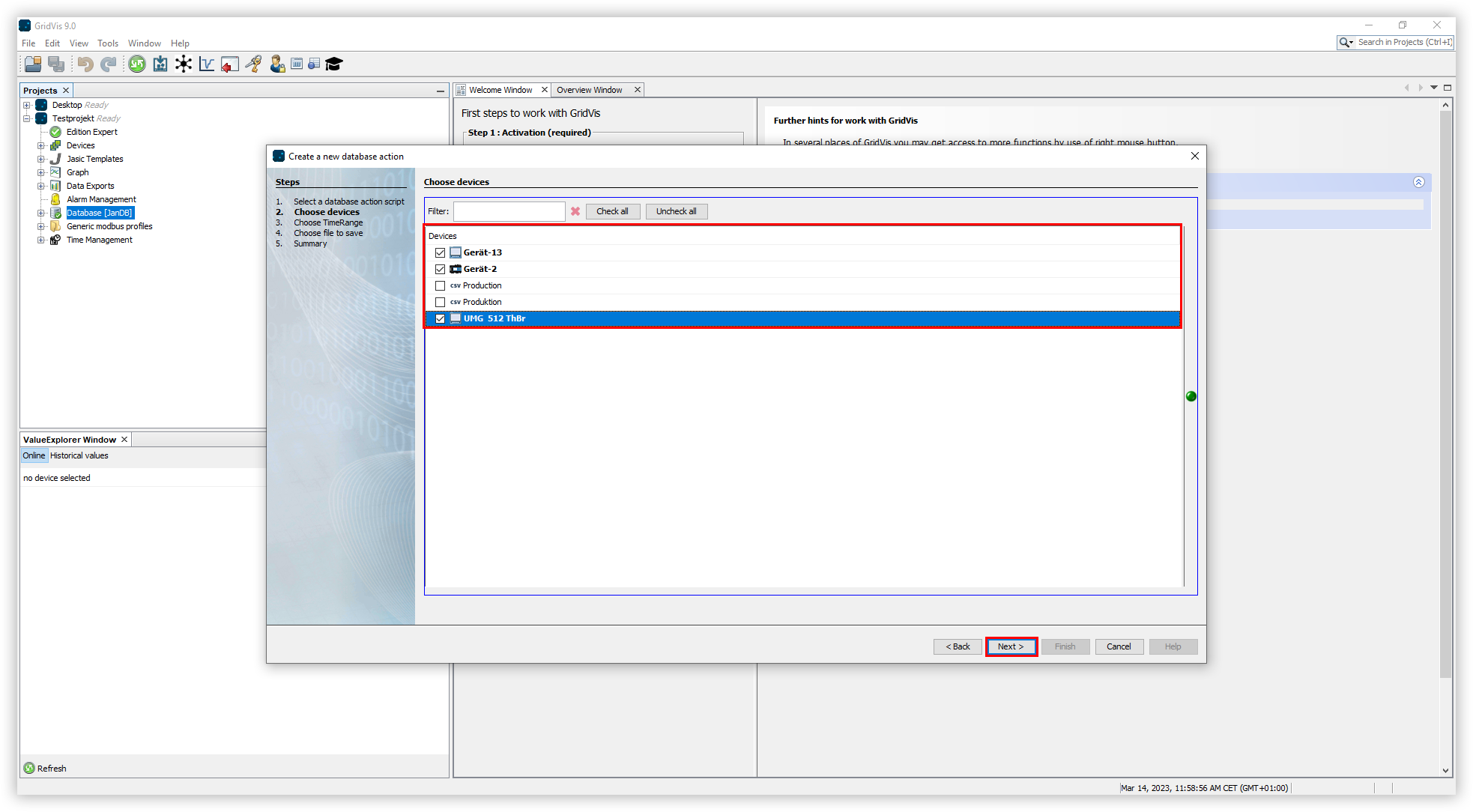
Select the devices to be included in the backup and click the Next button.
Select the period to be included in the backup and click the Next button.
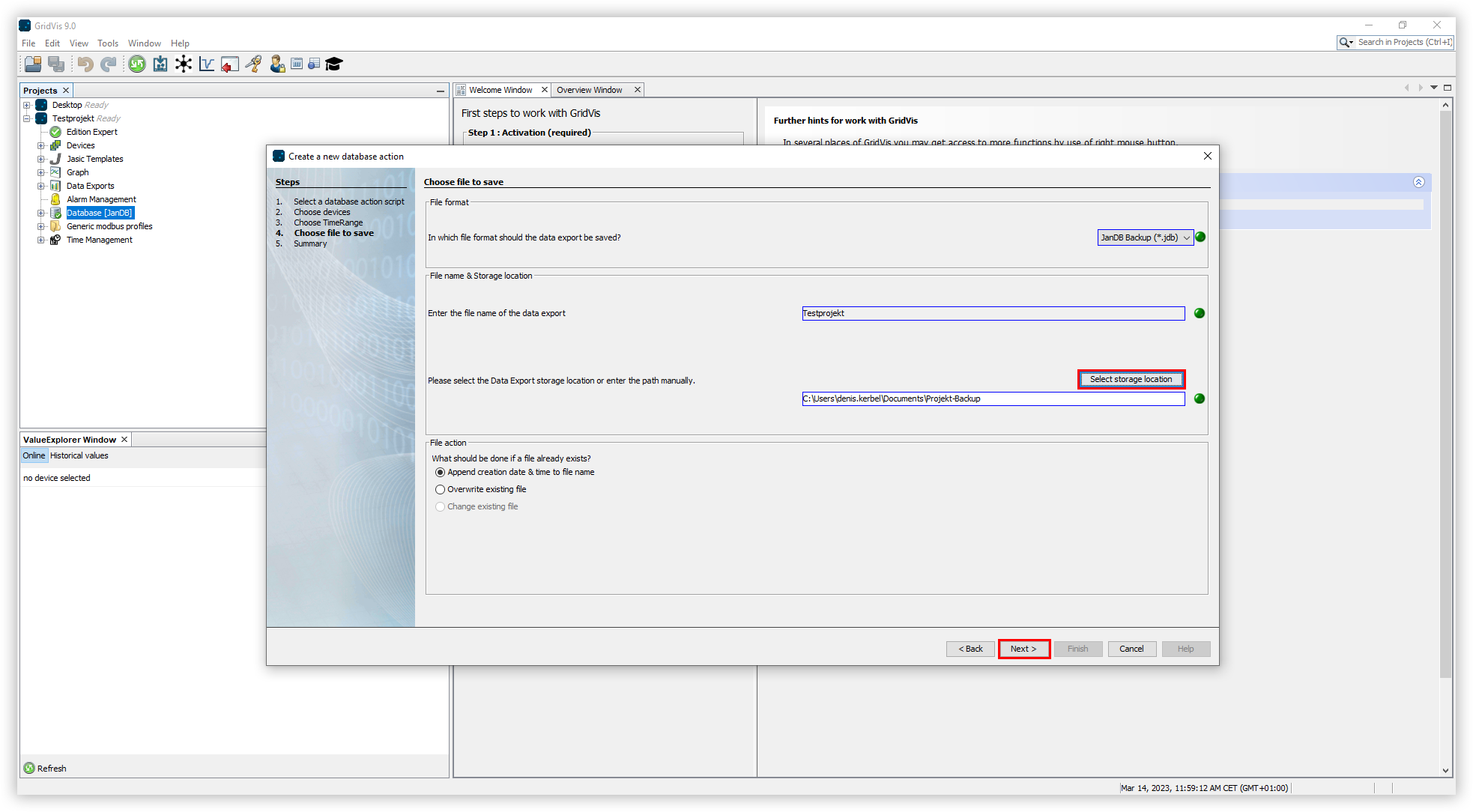
Select the storage location for the backup. To do this, click the Select Storage Location button. Then click the Next button.
Select the File Action for the backup. If the file already exists, you can overwrite it or append the creation date and time to create a new file. Then click the Next button.
The summary of the script will open. Check your settings against the summary. Then click the Done button.
The Execute Database Action Directly or Save window opens. Here you have two options to choose from:
Select Run Directly Without Saving to run the script without saving it.
Select Save Script As to save the action as a script. This way you can perform the backup faster in the future using the selected settings.
Info
If you save the script, it must then be executed manually. To run the script, open the Database entry in the project tree. Then right-click on your script and select the menu item Execute Database Action. The progress of the execution is displayed at the bottom of the GridVis screen.