Install GridVis
Unattended installation
GridVis installation

GridVis Desktop installation
Note
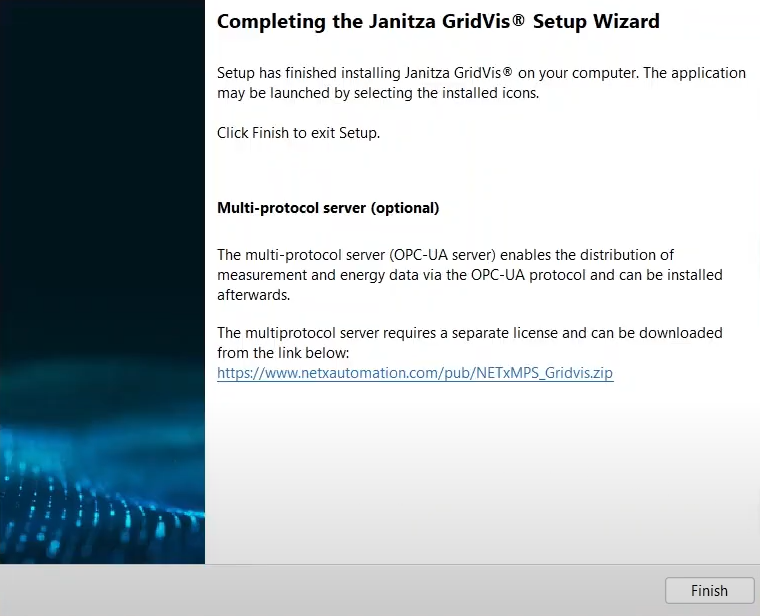
Y ou install the GridVis either via the GridVis setup wizard or as an unattended installation .
Perform a backup of your projects before installing a new GridVis edition. Information on this can be found in the section Create a project backup .
Depending on whether you are performing a new installation or updating an existing installation and depending on the GridVis platform installed, the screenshots shown may differ from the actual screen displays.
The GridVis setup wizard guides you through the different installation steps for a new installation or an existing installation:
Close all open programs before installing GridVis.
Start the GridVis setup wizard by double-clicking on the previously saved executable file/exe file (see Download GridVis ) and follow the instructions.
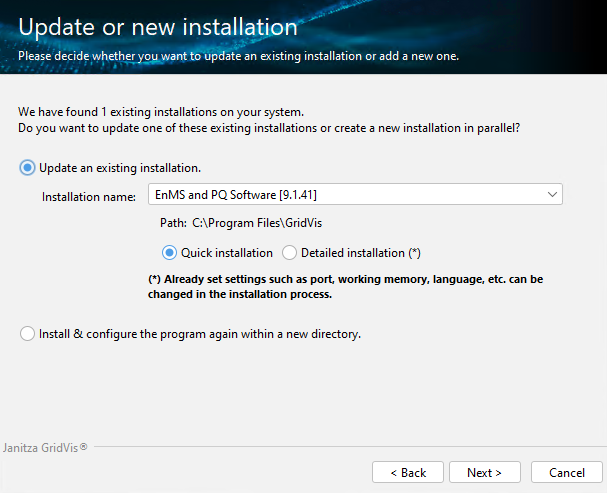
Use radio buttons to choose between Update an existing installation or Install and configure the program again within a new directory.
In the next window, read and accept the license agreements if you want to use the GridVis software. Confirm the information with the Next button.
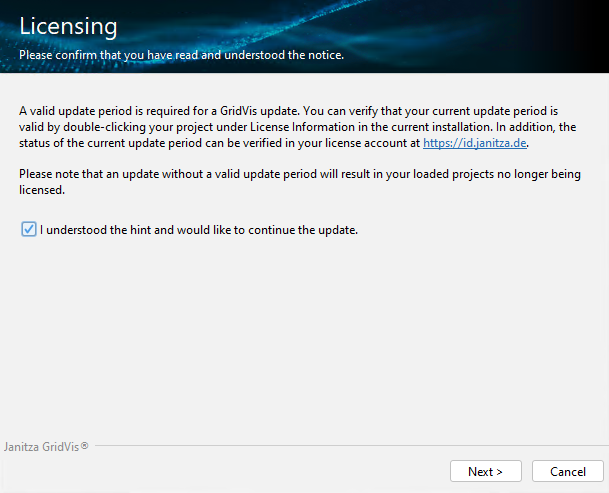
If you are updating an existing GridVis installation, check and confirm your license (checkbox I understood the hint and would like to continue the update). For more information about your licenses, see Janitza ID-Server .
Additional steps when installing GridVis Service:
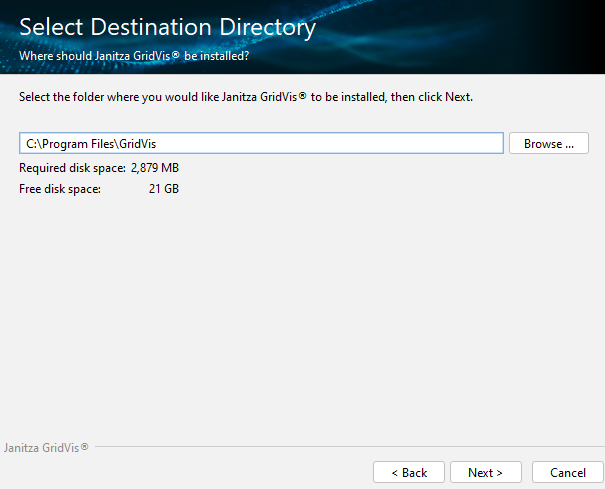
Select a target directory for the installation and configuration files via the Browse button or accept the set path.
In the following windows, select the port number of the service (internal http server, only for the Standard and Expert editions) and the memory usage. The port number (part of a network address) is used by the Service for communication between the GridVis Desktop and the Internet.
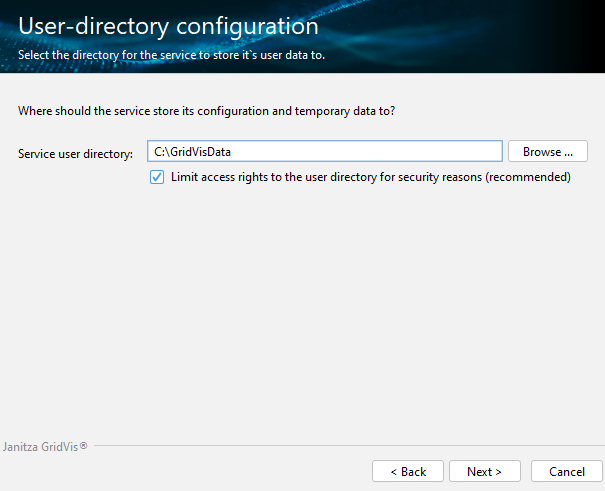
Select where the GridVis service should save its configuration and temporary data.
Optionally, you can restrict the access rights to the user directory using the checkbox.
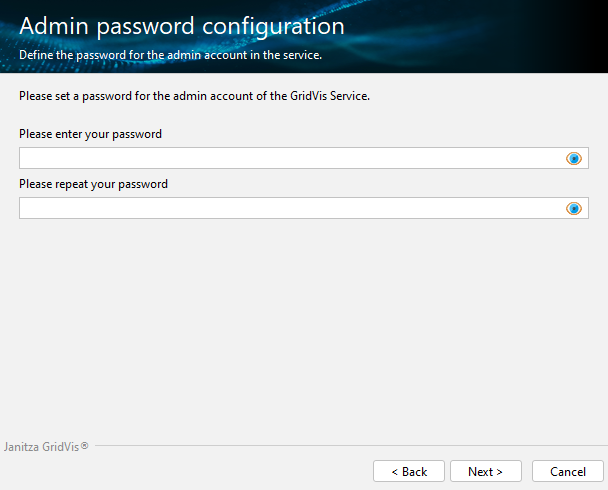
Assign an administrator password. This password is used by the GridVis service and for User Administration .
Attention!
Keep the password safe! If you have forgotten your password, you will need the assistance of Janitza technical support !
Note
Please note the password requirements.
Before you click the Finish button in the final window, please make a note of the link of the installed Service - you will need it to access the web interface later (GridVis Standard and Expert edition only).
Click the Finish button to exit the setup or follow the displayed link to open the Service (http address/network address)
Note
We recommend that you license your GridVis projects after installing and starting the GridVis. You can find more details on activation at Janitza ID-Server .