Using a license key

Obtaining a license key
You need a license key to:
Add a new license to your Janitza ID.
Add further items to an existing license.
Extend the update period of a license.
Upgrade a Standard license to an Expert license.
Convert a test phase into a full license.
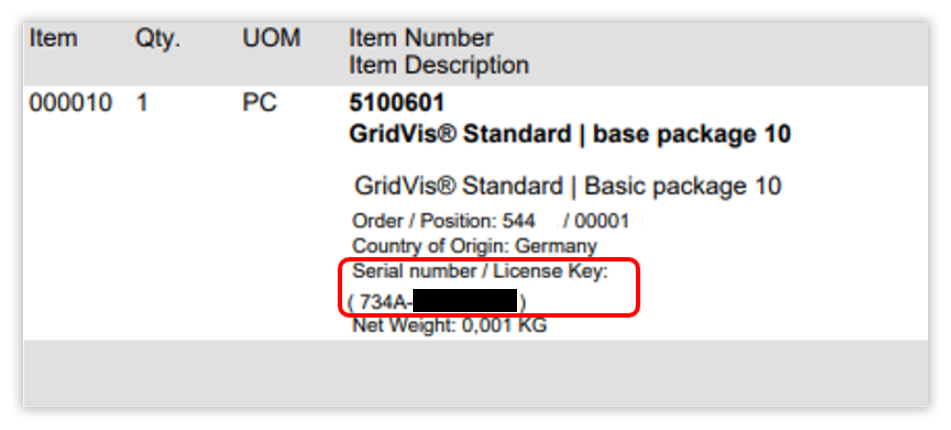
You will find the license key on the delivery note under Serial number.
Entering a license key
If you are extending an existing license, the wizard also shows you in this step for which license the action is being carried out.
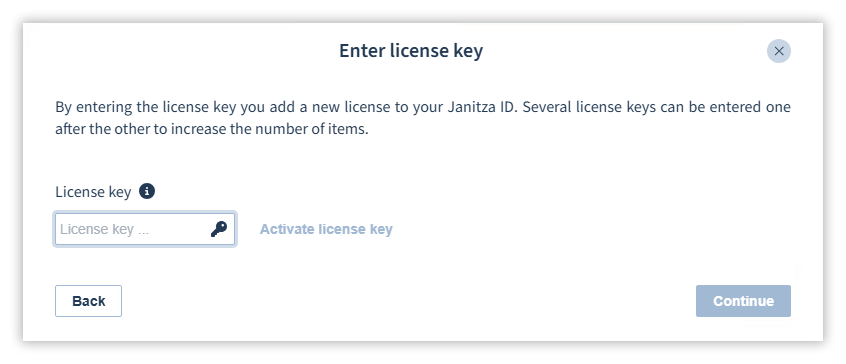
Enter the license key in the corresponding field.
Click on Activate license key.
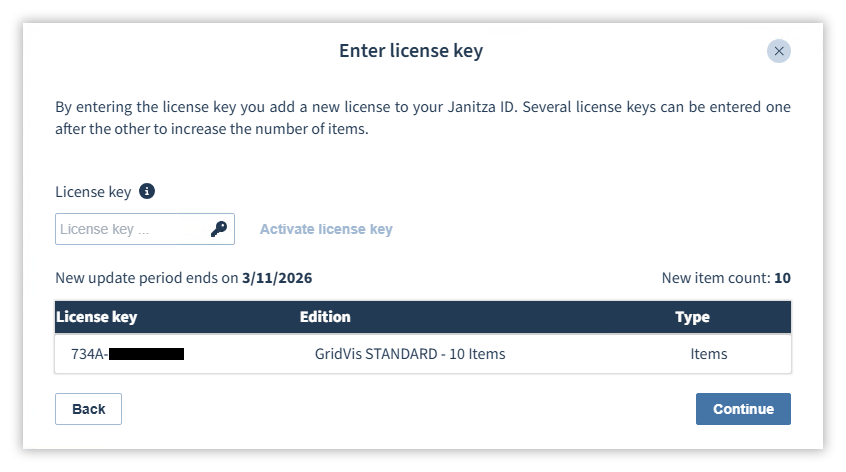
After the license key is verified, you will receive an overview of the edition, the number of items and the update period.
If required, you can activate additional license keys directly.
When you have completed your entries, confirm them with Continue.
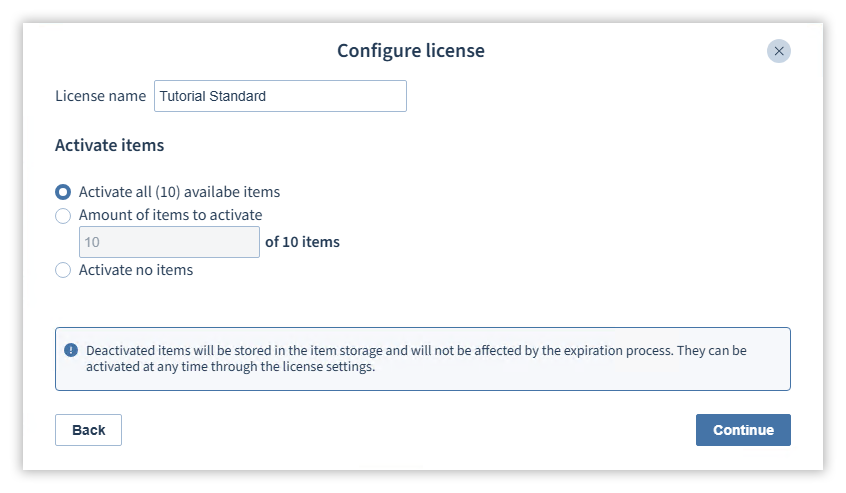
Configuring a license
If you create a new license, you must also configure it.
Items can be deactivated so that they can be used at a later date (see
Manage licenses
).
Enter a name for the license.
Select how many items you want to activate.
Confirm with Continue.
Complete action
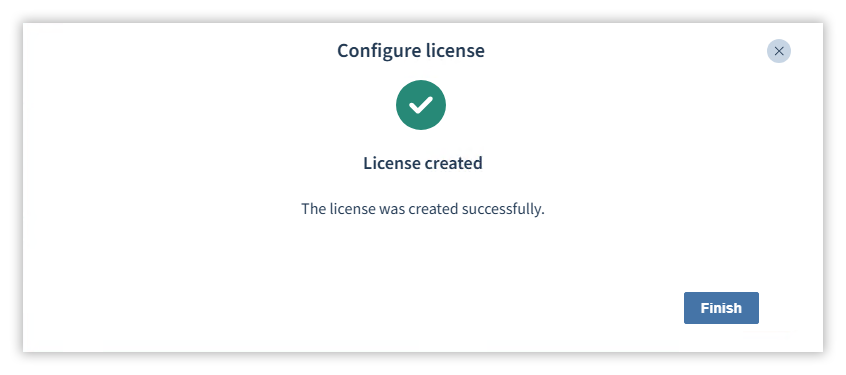
The wizard checks your entries and creates or extends your license. Close the action with the Finish button.
The license can now be used.