Manage licenses
|
|

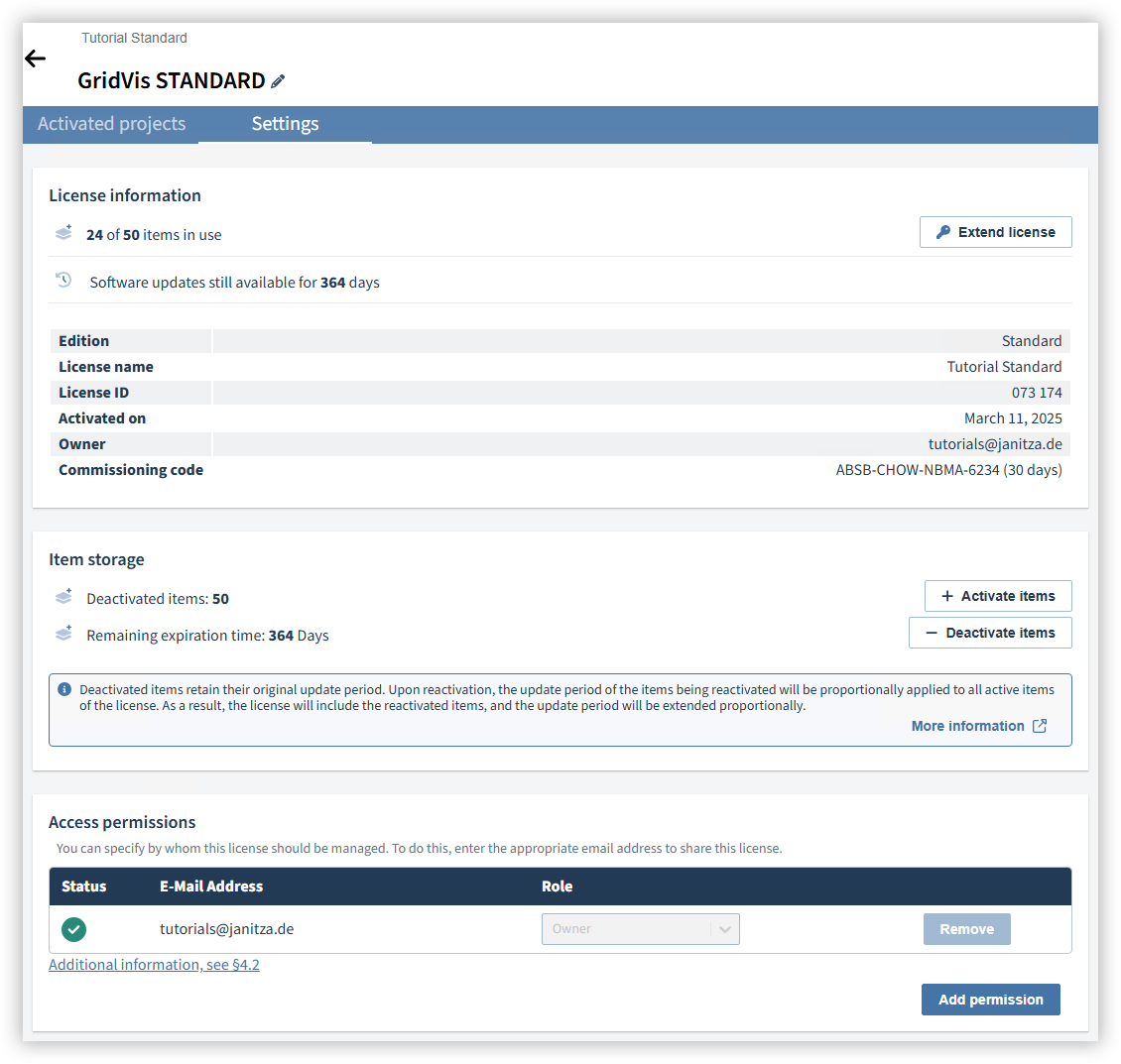
License actions
You can perform the following actions using the license tiles in the account overview:
Edition upgrade (only for the Standard edition, see Account overview )
Extend update period (only for the Standard and Expert editions, see Account overview )
Show commission code (also for the Essentials edition)
License project offline (only for the Standard and Expert editions)
Add items (only for the Standard and Expert editions, see Account overview )
Perform the following actions during a test phase:
Activate license
With a purchased license key, you can convert the test phase into a full license (see Using a license key ).
Remove test license
You can remove an expired test phase from your Janitza ID. Projects may no longer be linked to the test phase.
Activated projects
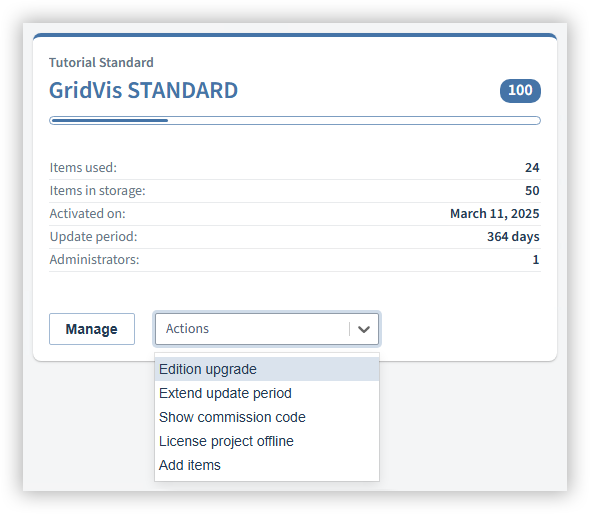
Overview
Here you get an overview of all projects activated with the license. Open the overview by clicking on Manage in the license tile in the account overview.
The number of items used is detailed for each project (devices, modules, users, data imports).
Use the filter option to hide deleted or moved projects.
Moving or removing projects
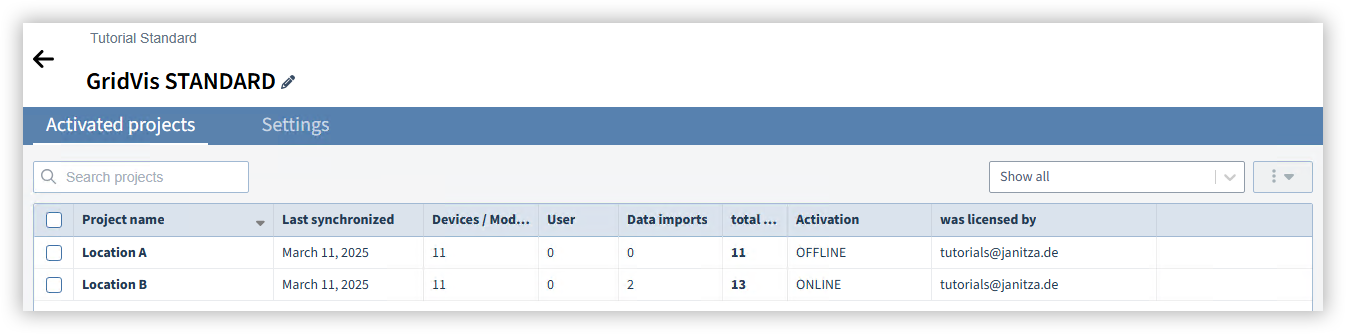
Select the project to be moved or removed.
Select the desired action in the submenu and follow the further steps of the wizard as needed. Please note that you cannot move projects licensed offline.
With the next synchronization between the GridVis and the ID server the projects will be moved or deleted. Until then, the projects are marked with a double arrow.
Adding a project description
Select the project to which you would like to add a description.
Select the desired action in the submenu.
Enter the description and add it to the project using Confirm.
Settings
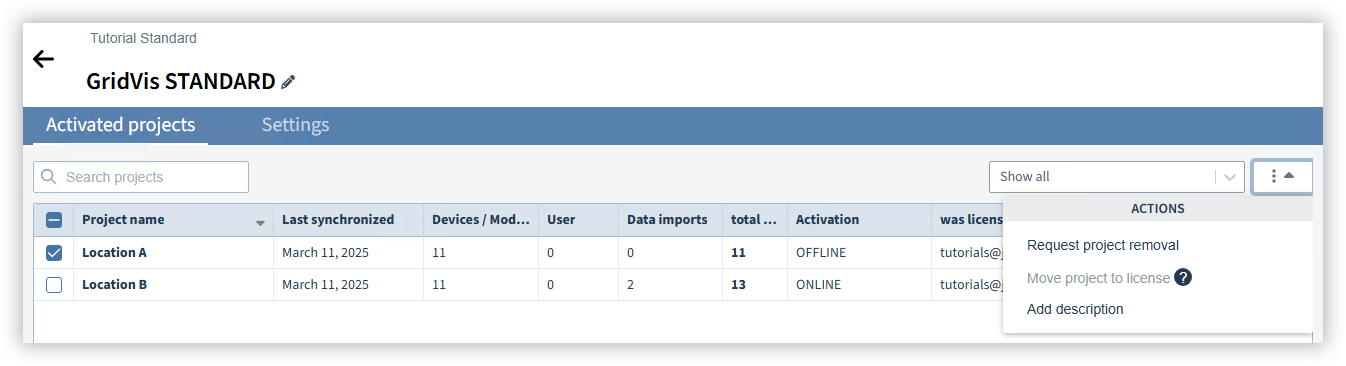
This is where you can make the settings for your license. Open the settings by clicking on Manage in the license tile in the account overview.
License name
Click on the pencil icon next to the GridVis edition to change the name of the license.License information
Detailed information about the license is shown here. To add items, extend the update period or upgrade a Standard license to an Expert license, click on Extend license. You will need a license key for this (see Using a license key ).Item storage
If you do not want to use items from the license, you can store these items in the item storage. The update period for the stored items does not expire. To be able to use items from the item storage, you must reactivate these items. The update period of the license is then extended proportionally with the update period of the activated items.Note
You can deactivate the license completely by placing all items of the license in the item storage. You cannot completely deactivate GridVis Cloud licenses, as at least one item must be active for these licenses.
If you extend the update period of the license via a license key, this extension only applies to the active items of the license.
If you upgrade a Standard license to an Expert license, the upgrade must cover the entire number of items in the license (active items and items in the item storage). After the upgrade, you can use the items in the item storage as Expert items.
Access permissions
You can grant other users access to the license. A Licensee can use the license but cannot manage it and only sees their own projects in the project overview. An Administrator manages the license in a similar way to the owner, but can be removed again.Note
Please note that, according to the terms of use, you may only share a license within a company or organization.
A user must have created a Janitza ID to gain access to the license.