Commissioning code
|
|

Showing the commissioning code
Log in to your Janitza ID (see Logging in to Janitza ID ).
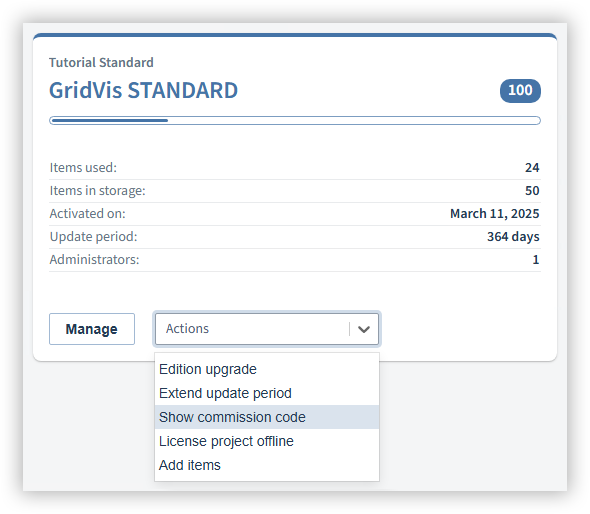
Go to the license tile of the license with which you want to license the project.
In the Actions menu, select the item Show commissioning code.
Note
You can also find the commissioning code in the settings of your license (see Manage licenses ).
You can also access your Janitza ID directly on site with a smartphone to retrieve a commissioning code.
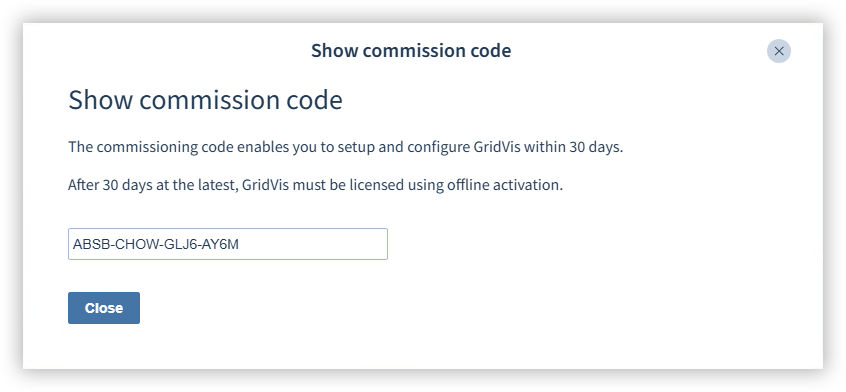
A new window will open with the commissioning code.
Copy or write down the commissioning code.
Starting the commissioning phase
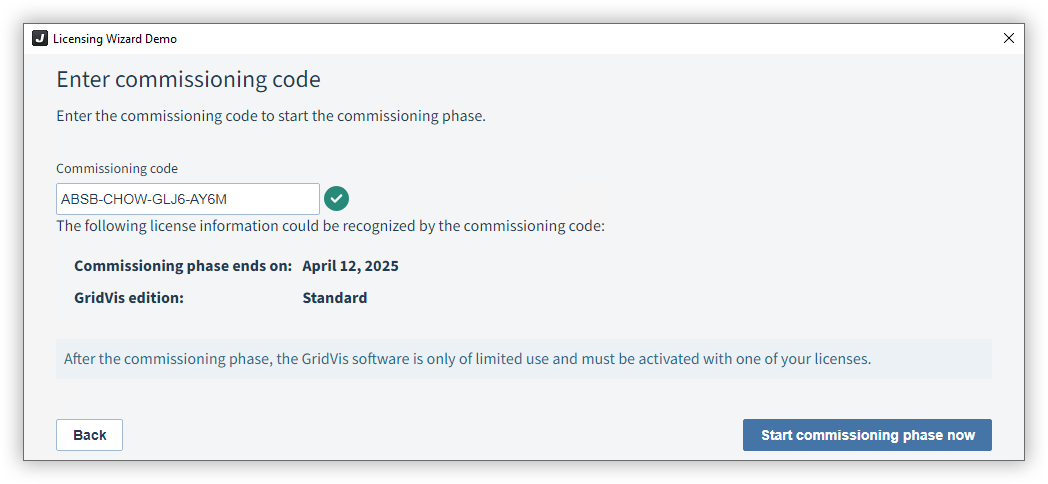
Open the GridVis Desktop with the project that you want to put into operation. Without an Internet connection, the wizard for commissioning the project opens.
Click on Submit commissioning code.
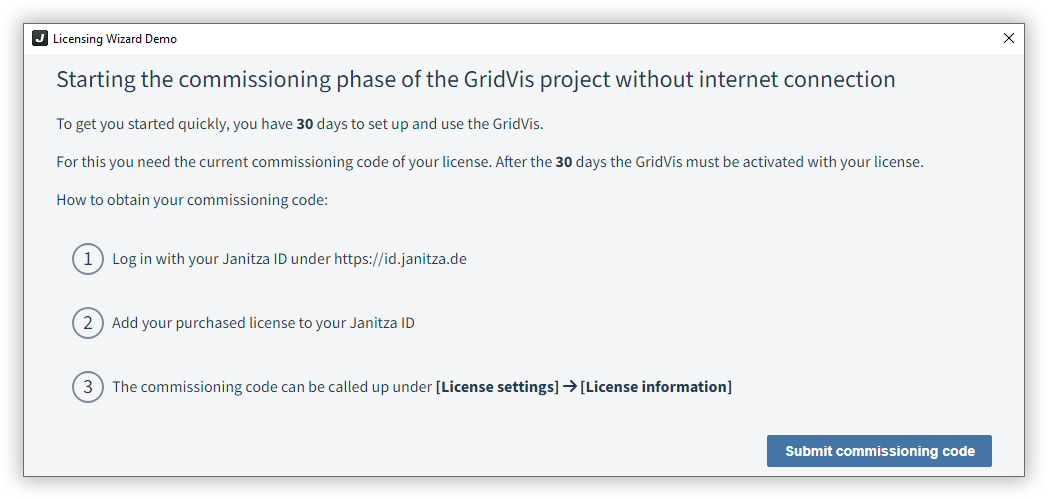
Enter the commissioning code.
You will be shown an overview of the GridVis edition and the end date of the commissioning phase.Click on Start commissioning phase now.
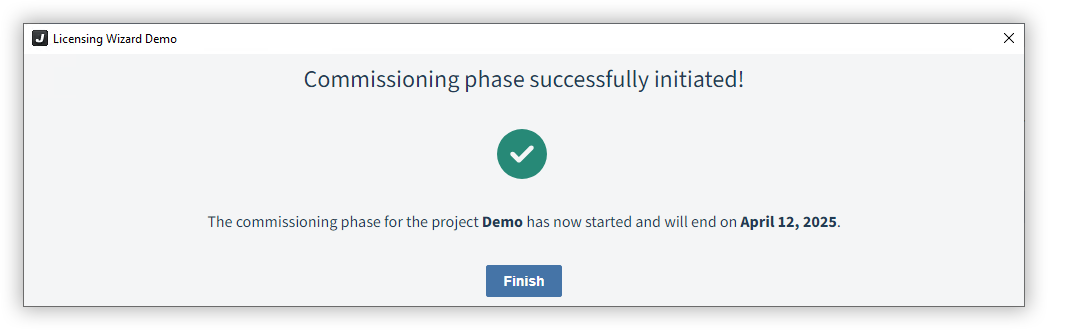
In the following window you then confirm the start of the commissioning phase.
Afterwards, you can immediately start setting up the project (measurement devices, users, data imports ...).
Note
The commissioning phase is limited to 30 days. You must license your project within this time period. Otherwise, after the end of the commissioning phase, the GridVis can only be used to a limited extent.