License project offline
|
|

Creating the request file
Open the GridVis Desktop with the project you want to license.
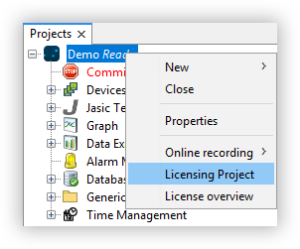
Right-click on the project.
Select the Licensing project item in the context menu.
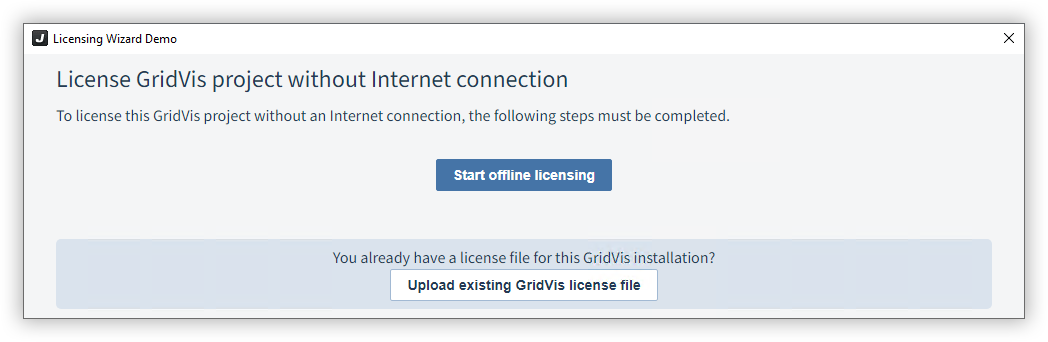
Without an Internet connection, the offline licensing wizard opens. Click on Start offline licensing.
If you have already created a license file, you can simply upload the file at this point.
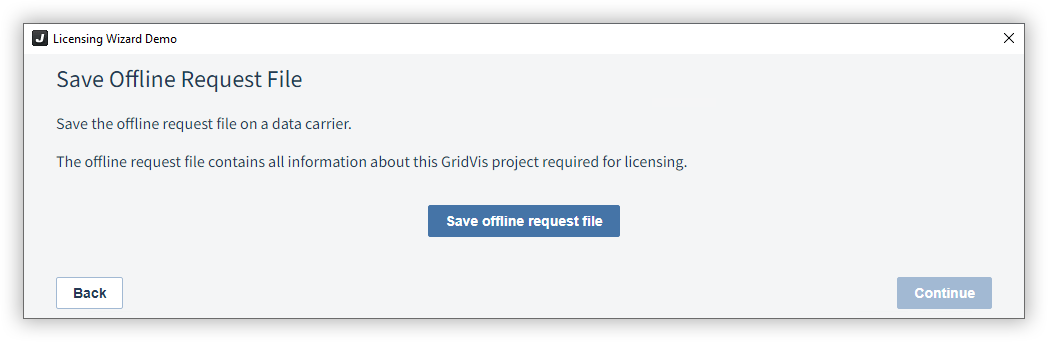
Click on Save offline request file.
Save the request file locally or on an external data carrier (e.g. USB stick).
Linking the request file with Janitza ID
Go to a device that is connected to the Internet.
Open id.janitza.de and log in with the access data for your Janitza ID.
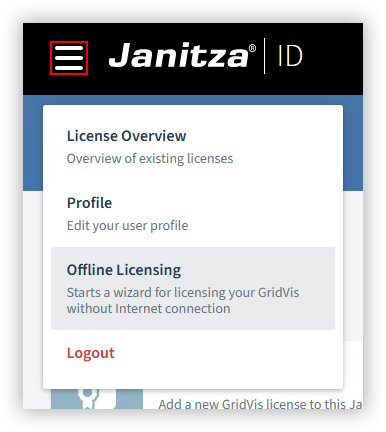
Select the Offline Licensing item in the menu.
Alternatively, you can also start the wizard directly in the Actions menu of a license tile in the Account overview . In this case, the request file is linked directly to this license.
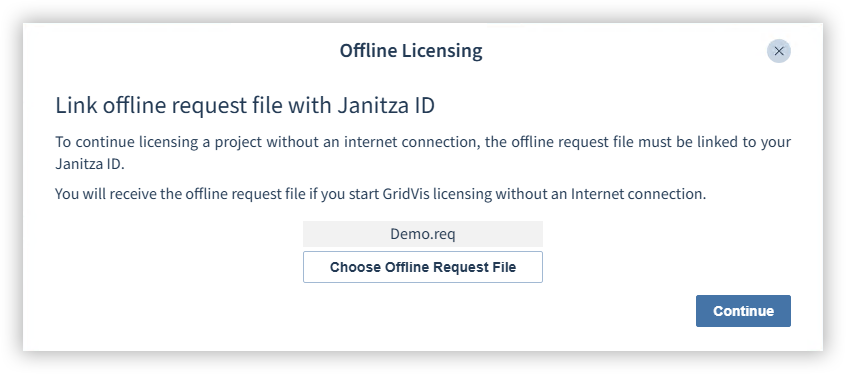
Select the request file you created in the GridVis Desktop.
Confirm your selection with Continue.
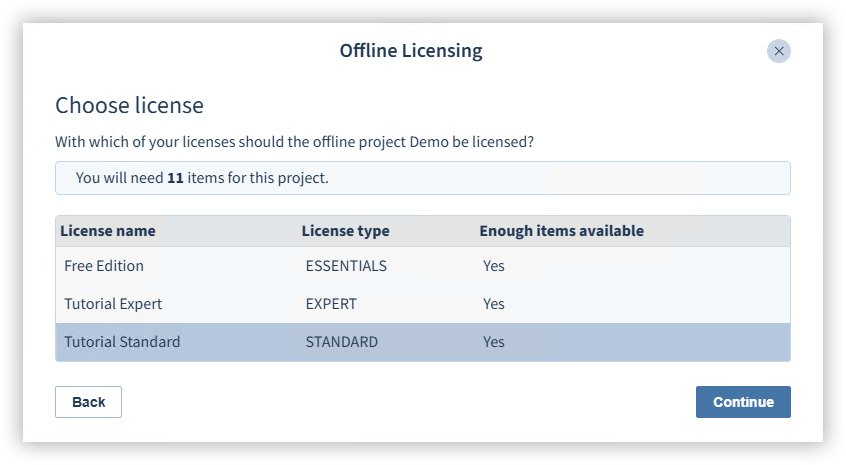
You can see the licenses in your Janitza ID.
Select the license with which you would like to license the project.
Confirm your selection with Continue.
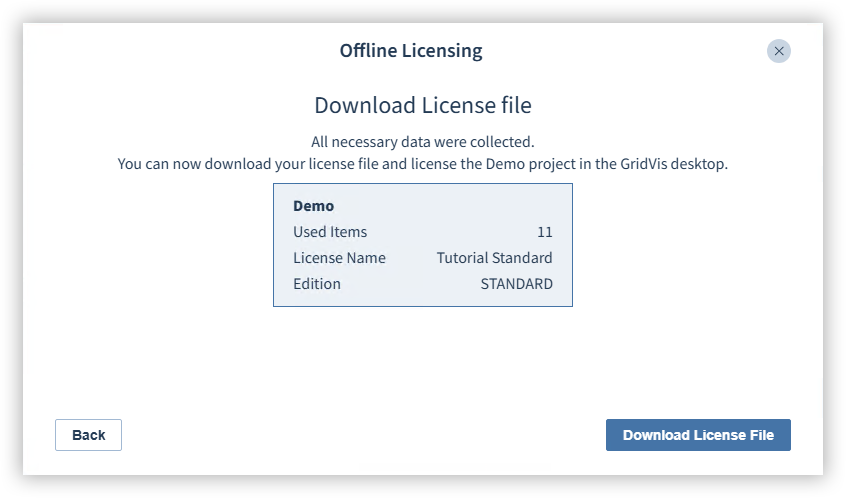
Generating license file
Click on Download License File.
Save the license file locally or on an external data carrier (e.g. USB stick).
Uploading the license file
Go to the GridVis Desktop.
Start the offline licensing wizard.
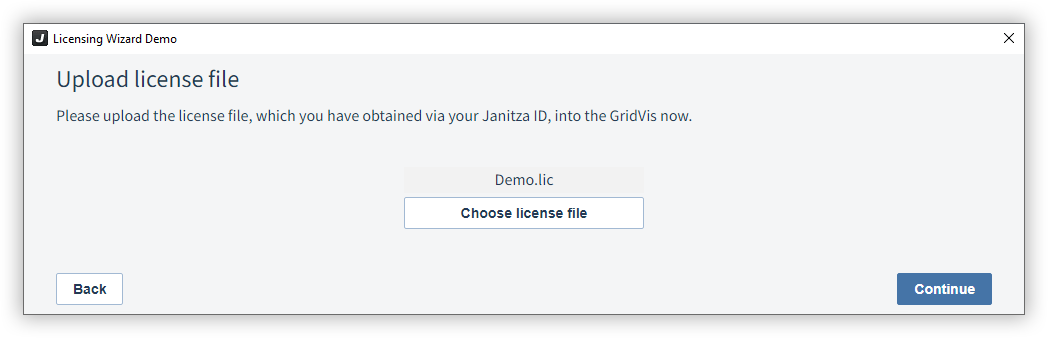
Click on Upload existing GridVis license file.
Select the license file you created in your Janitza ID.
Confirm your selection with Continue.
Finish licensing
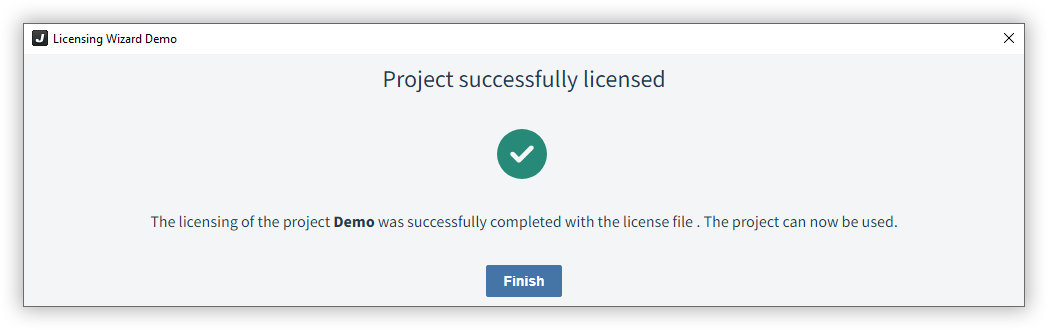
The wizard licenses your project. Complete the action with the Finish button.
The new project is now displayed in your license under Activated projects (see Manage licenses ).
Note
If there are changes to your license or you exceed the number of licensed items in your project, you must perform offline licensing again.