Import a security realm configuration
To import a security realm configuration, which is useful if you want to use your GridVis on other computers, proceed as follows:
Please make sure that your GridVis is disconnected from the previous user directory.
You can import the security realm configuration in 2 ways:
In the window User Administration Overview in the user directory actions, click on the button Import security realm configuration or
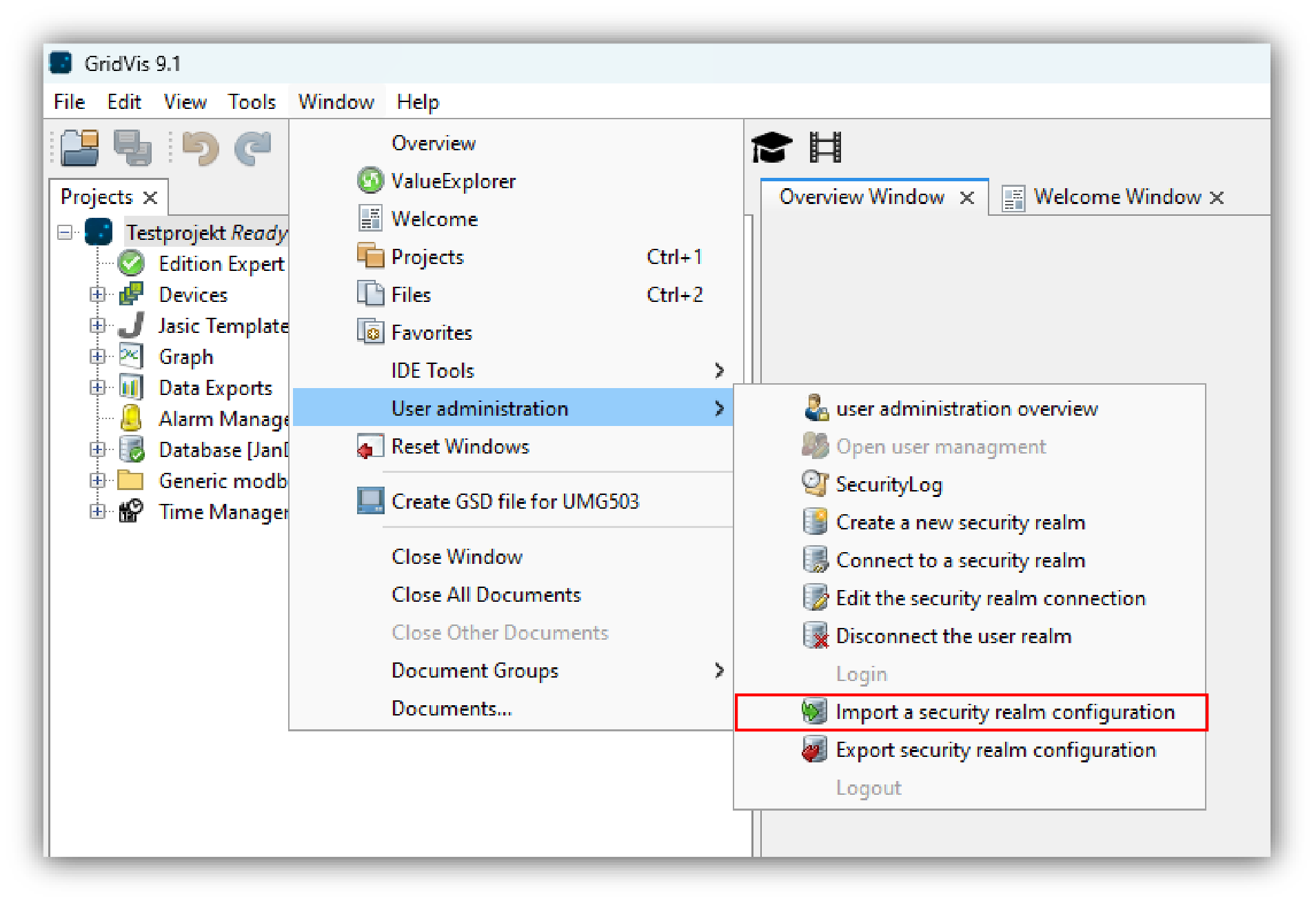
Click on the button Import security realm configuration in the sub-menu User Administration of the menu list entry Window (see illustration on the right).
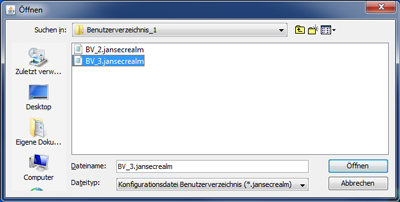
Select the file directory that the user administration configuration file is in.
Select the configuration file to be imported (file type .jansecrealm).
Click on the button Open.
Your user directory is configured, and the status in the User Administration Overview switches to Ready.
Log in as a user or GridVis Administrator to configure your GridVis projects further.
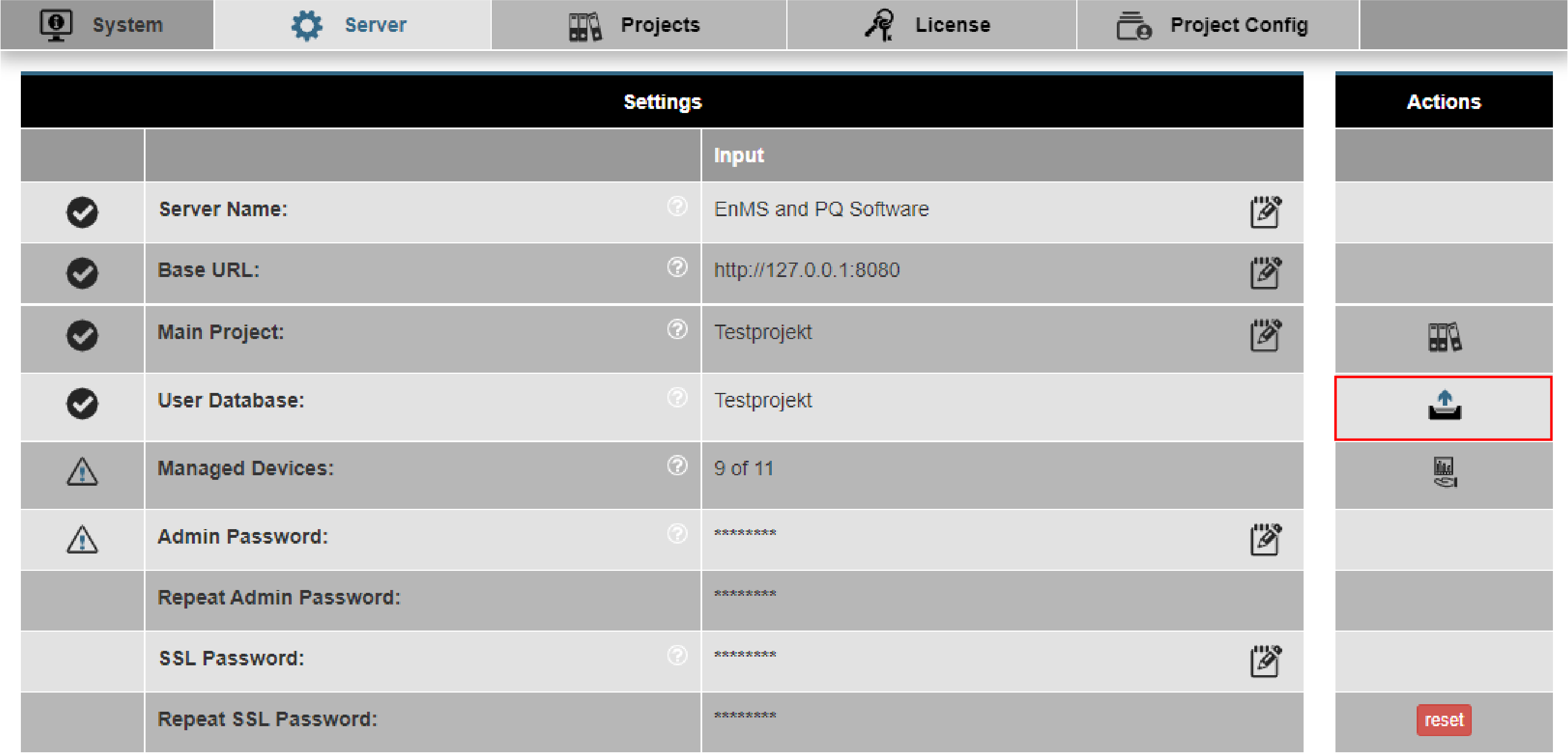
The user directory configuration file can also be imported via the GridVis web:
Click on the button Navigation in the upper left in the user interface navigation bar.
Click on the sub-menu entry System of the menu entry Settings.
In the row User Database, click in the right column on the icon for importing the User Database Configuration (this will complete the assignment of the user database)