Logging In (to the User Directory)
Prerequisites for logging in as a user or a GridVis administrator to a user directory (user database):
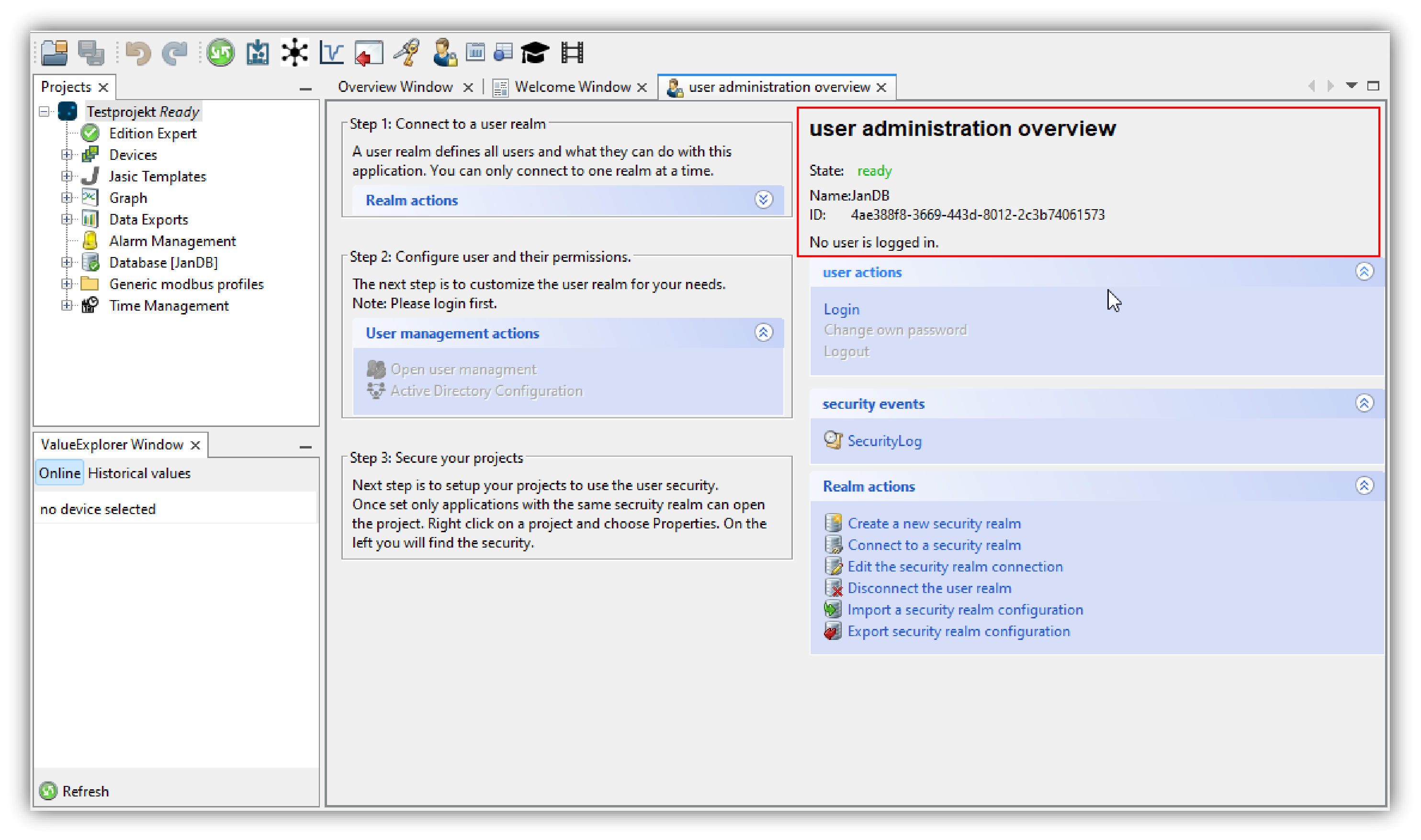
Your GridVis software is connected with a security realm (Status Ready in the window User Administration Overview).
Your GridVis Administrator has registered you in the security realm as a user and assigned you certain rights (you will receive login details such as User Name and Password from the GridVis Administrator).
You yourself are a GridVis Administrator and log in with your login details (user name admin and password) to the user directory (cf. Create a new security realm ).
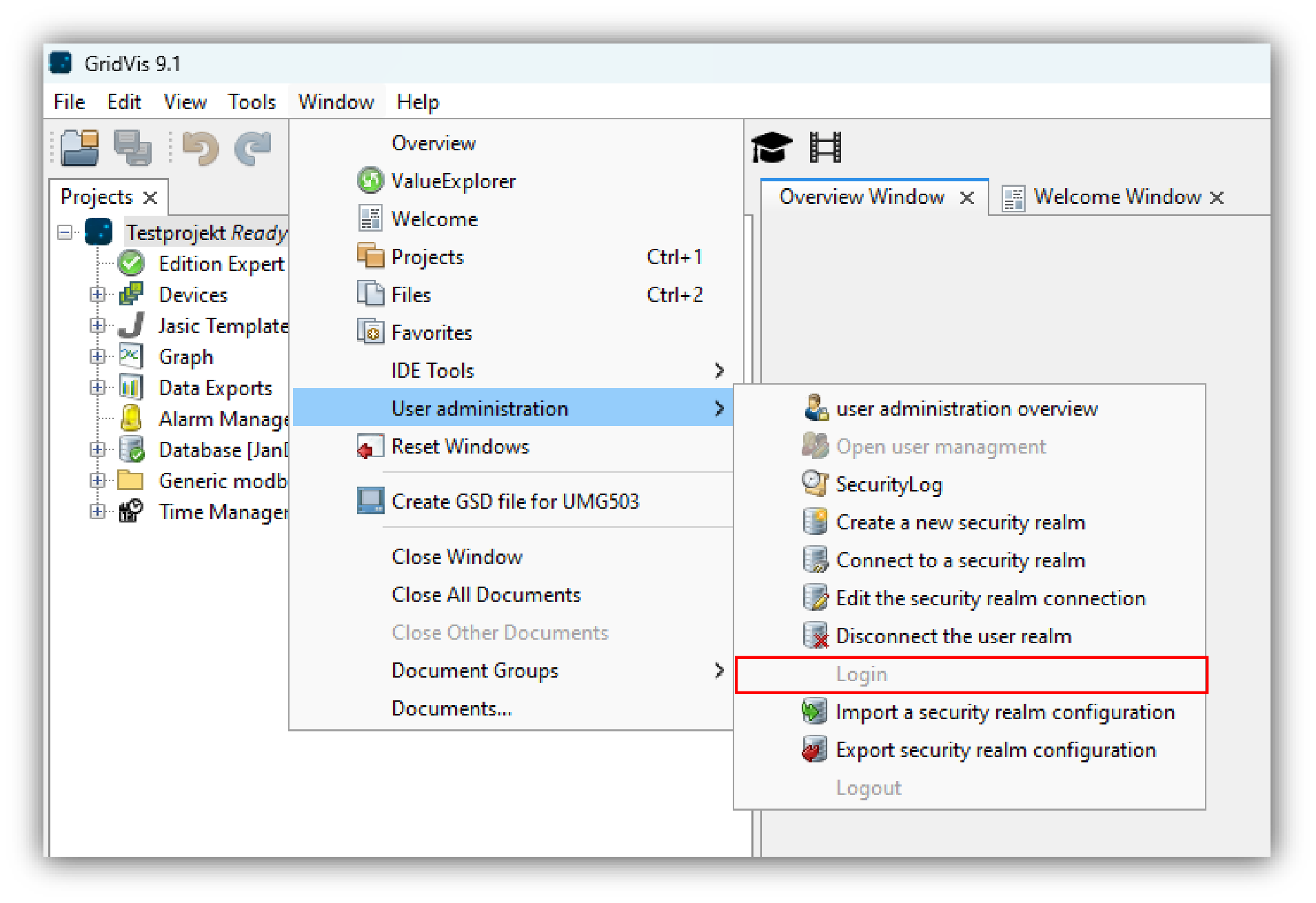
You can enter the window Log in to the User Directory in 2 ways:
In the window User Administration Overview under the user actions, click on the button Login or
click on the button Login in the sub-menu User Administration of the menu bar entry Window (see illustration to the right).
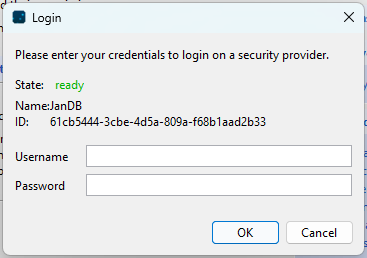
The dialog box Login (the same procedure as in MySQL/MSSQL and JanDB).
Log in with your username and password to your user directory (User Administration).
Note
Only one user at a time can log in to the user administration of your GridVis!
After successfully logging in you will be able to use various functions, depending on your role / your rights. An overview of the roles and rights can be found in Roles and Rights .
Note
If your login details are entered incorrectly into the user directory, an error message will appear.
Check your login details and pay attention to lowercase and uppercase letters. If there are multiple user directories (database for user administration), check that you are using the correct user directory (name and ID number of the associated user directory).
Note
If a project exists that is protected with a user directory (user administration), the dialog box "Log in to the User Directory" will appear as follows:
Right-click on the project.
A context menu will appear.
Click on the entry "Log in to the User Directory".
The dialog box "Log in to the User Directory" will appear.
Log in with your login details (user name and password) to your user directory (User Administration).
After a successful login, your project will appear unblocked (

) in the projects window.
Further information can be found in User Administration - Protect Project .
Confirmation of a successful login can be found in the window User Administration Overview (see example on the right).