Disconnect User Directory
If a GridVis software users change his current user directory (user database) and wants to create a connection to a new user directory, the user first has to disconnect the current user directory.
You can open the query window Disconnect User Directory in the GridVis software in 2 ways:
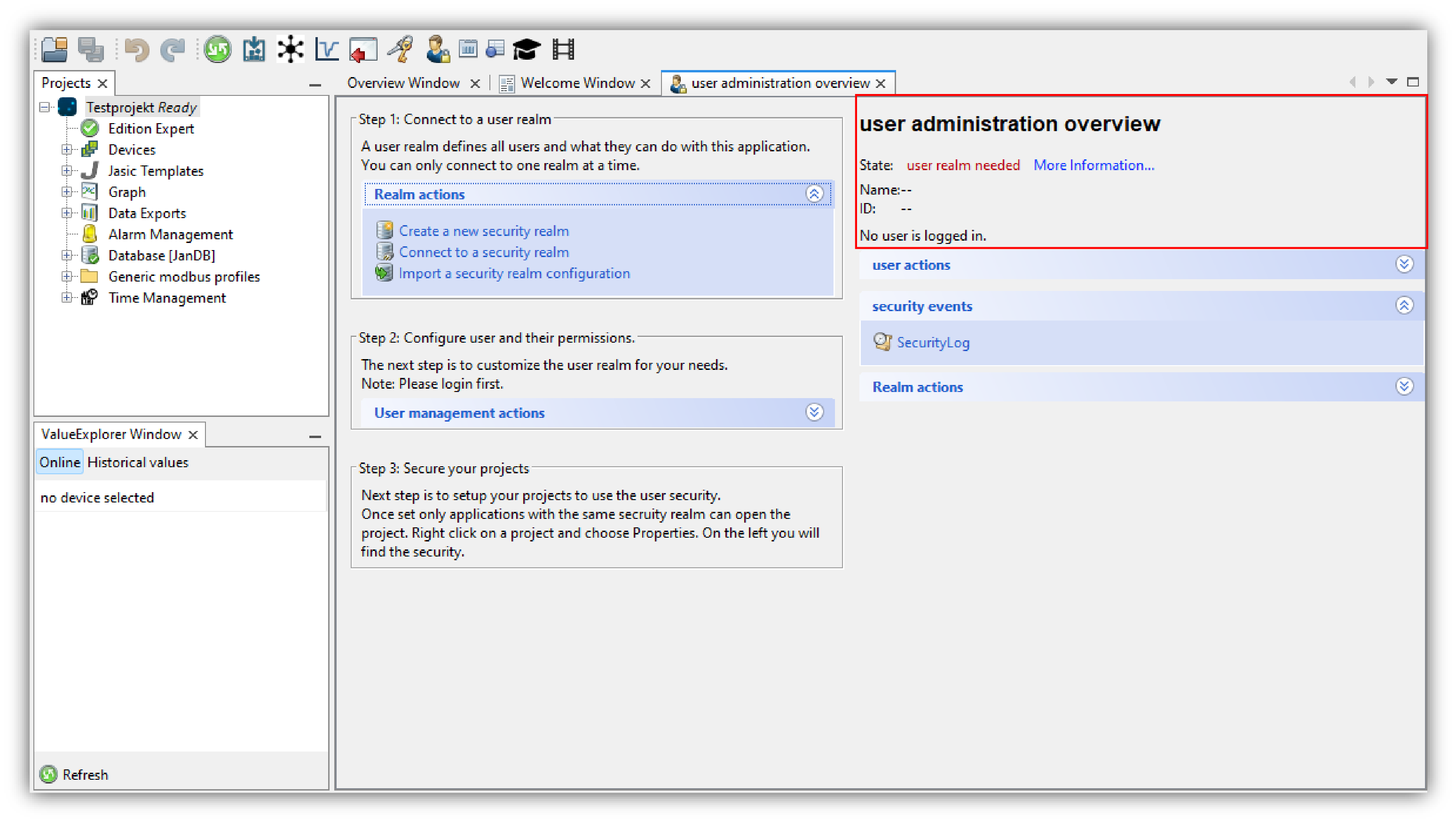
In the window User Management Overview in the category User Directory Actions, click on the button Disconnect User Directory or
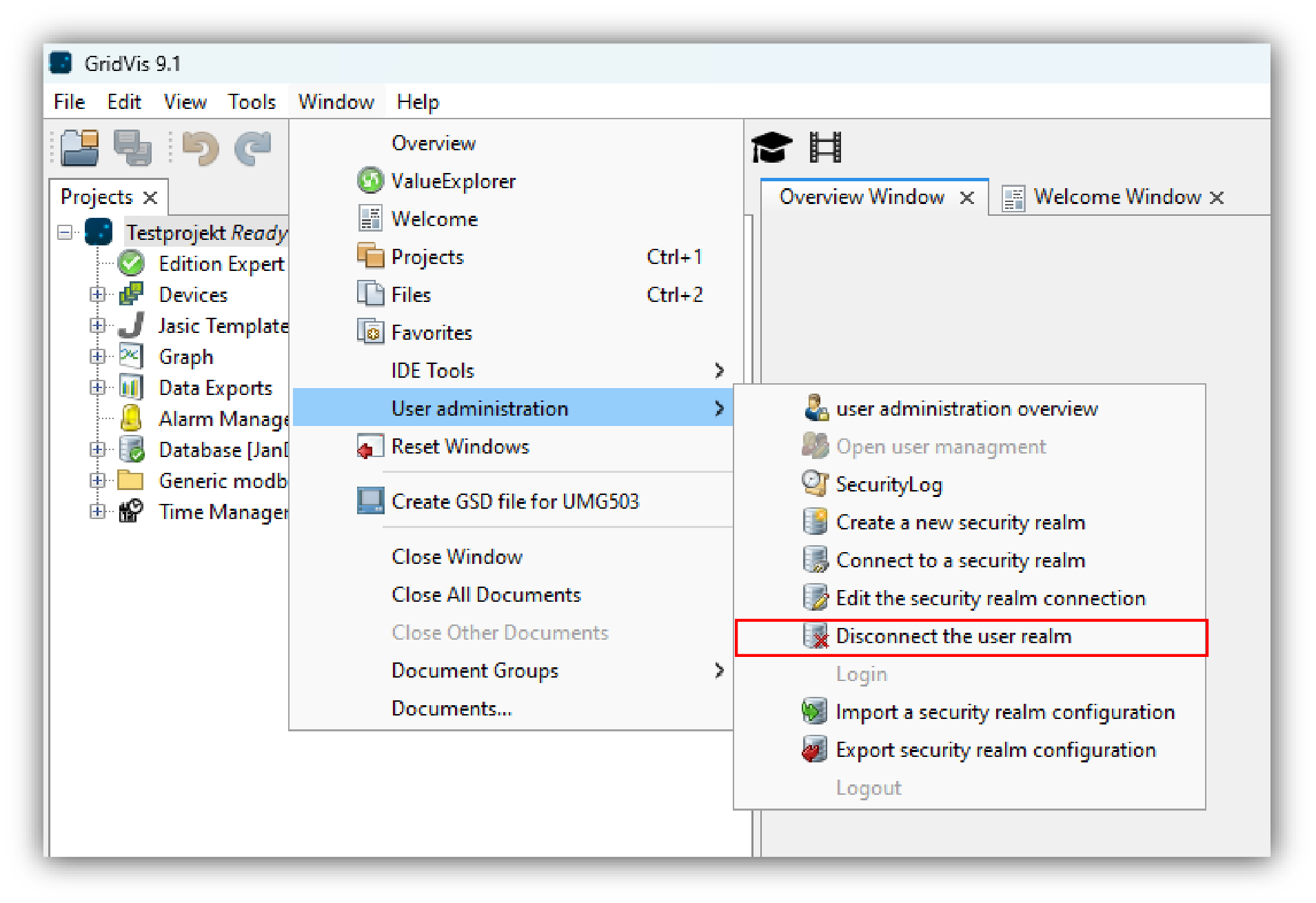
click on the button Disconnect User Directory in the submenu User Management of the menu bar entry Window (see figure on the right).
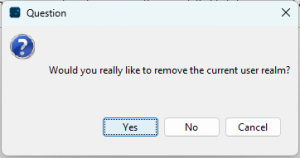
The query window Question will open.
Click on the button Yes to disconnect your user directory.
The window User Management Overview will open with the status No User Directory.
Your GridVis software is now ready for logging in to a new user directory (user database). To connect your GridVis software with a new user directory, proceed as described in Connect to a security realm.