Edit the security realm connection
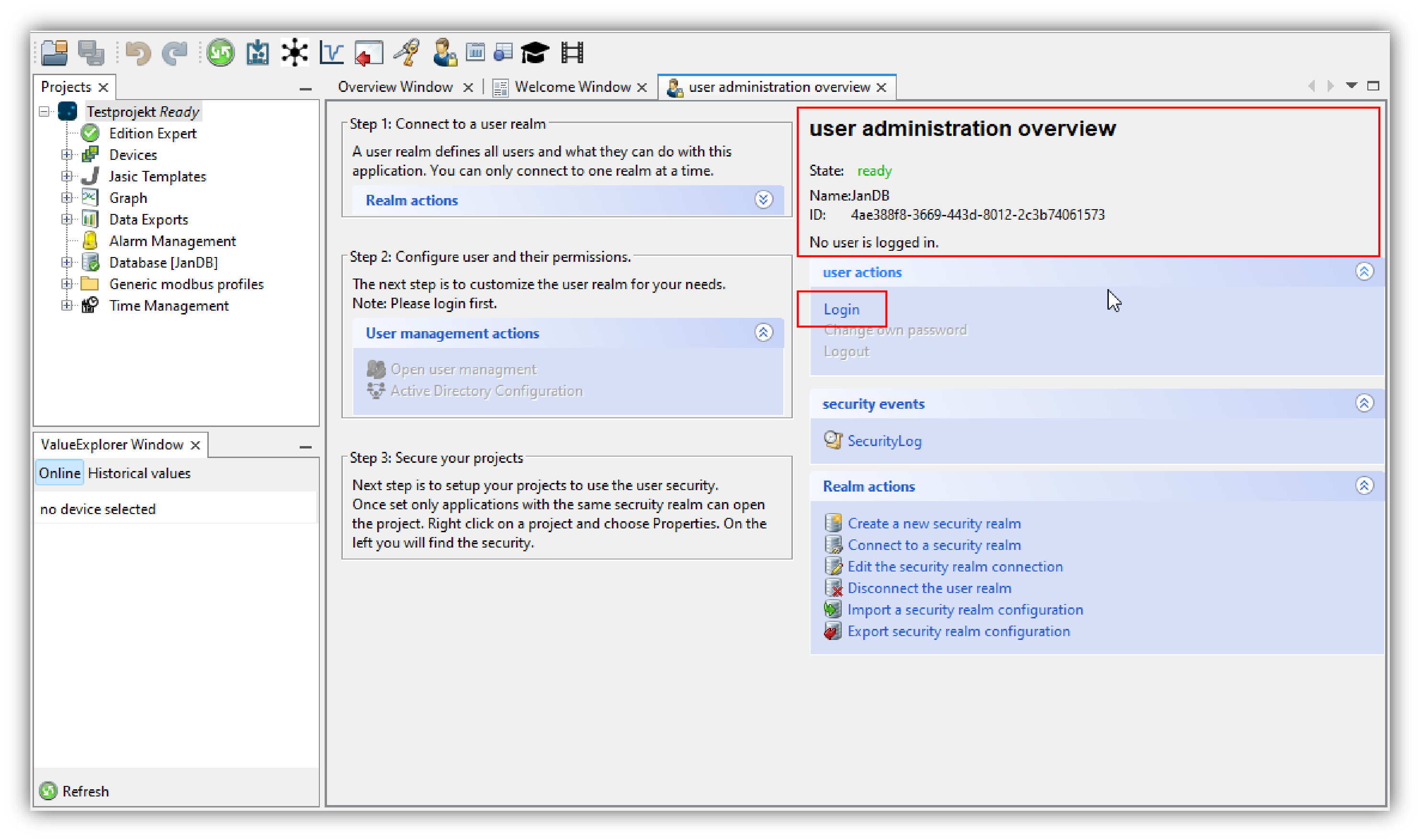
The configuration data of your user directory may change, e.g. if your network administrator for the MySQL server data (MSSQL server data) is replaced, moves, etc. You can change your configuration data in the GridVis software with the function Edit the security realm connection.
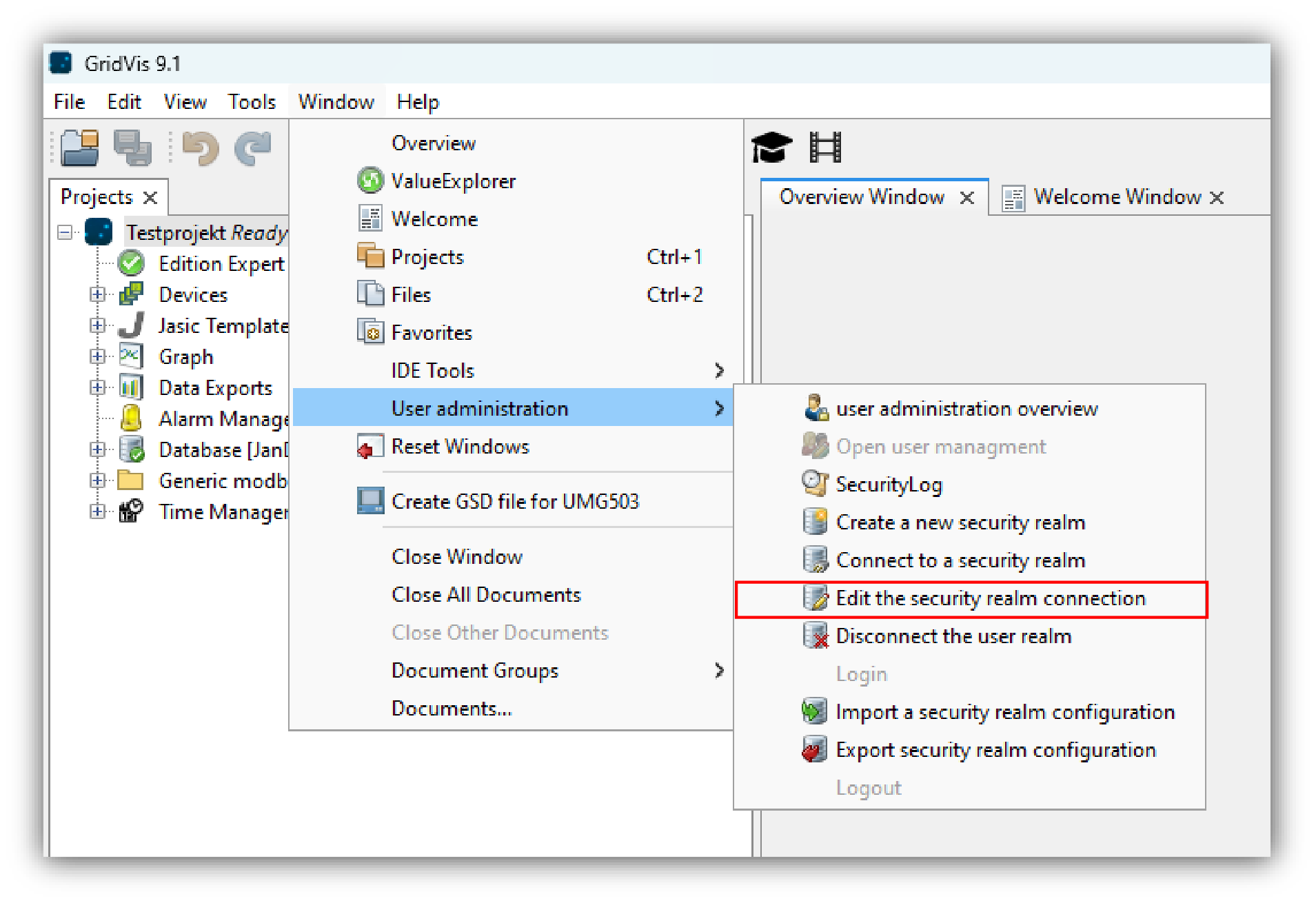
The window Create a new security realm can be opened in 2 ways:
In the User administration overview window in the category Realm actions, click on the button Edit the security realm connection or
click on the button Edit the security realm connection in the submenu User administration in the menu bar entry Window (see figure in the upper right).
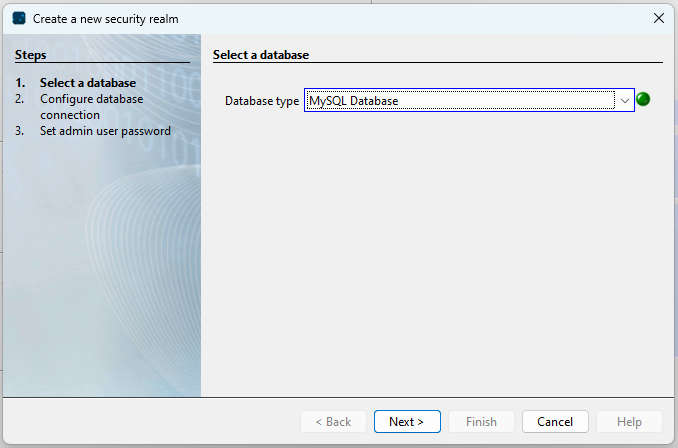
In step 1 Select Database of the Edit the security realm connection window, choose your database type in the drop down menu.
Click on the Next button.
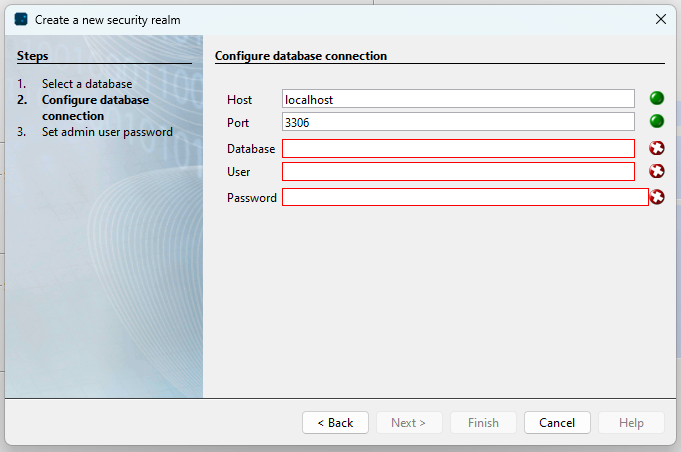
In step 2, Configure Database Connection will appear in the Edit the security realm connection window
Enter the connection data for Database, User and Password in the entry fields.
Note
To create a MySQL database (MSSQL database), you may need to ask your network administrator for the new MySQL server connection data.
To complete the configuration, click on the Finish button.
In the User administration overview window, the status will change to Ready and the name and ID of your database will appear. Your GridVis software is ready for logging in to your user directory (user management), cf. Logging In (to the User Directory) .