Connect to a security realm
To connect with a user directory (database for user management), it is required that a new user directory has already been created for the GridVis software (cf. Create a new security realm ).
An existing user directory can be integrated into every GridVis edition except for the Essentials edition by using the button Connect to a security realm. Then it is not necessary to create a new user directory with users and their roles.
Note
The GridVis software supports only one user directory (database for user management) at a time! Please disconnect existing user directories and user directories that are connected with other GridVis programs ahead of time (cf. Disconnect User Directory ).
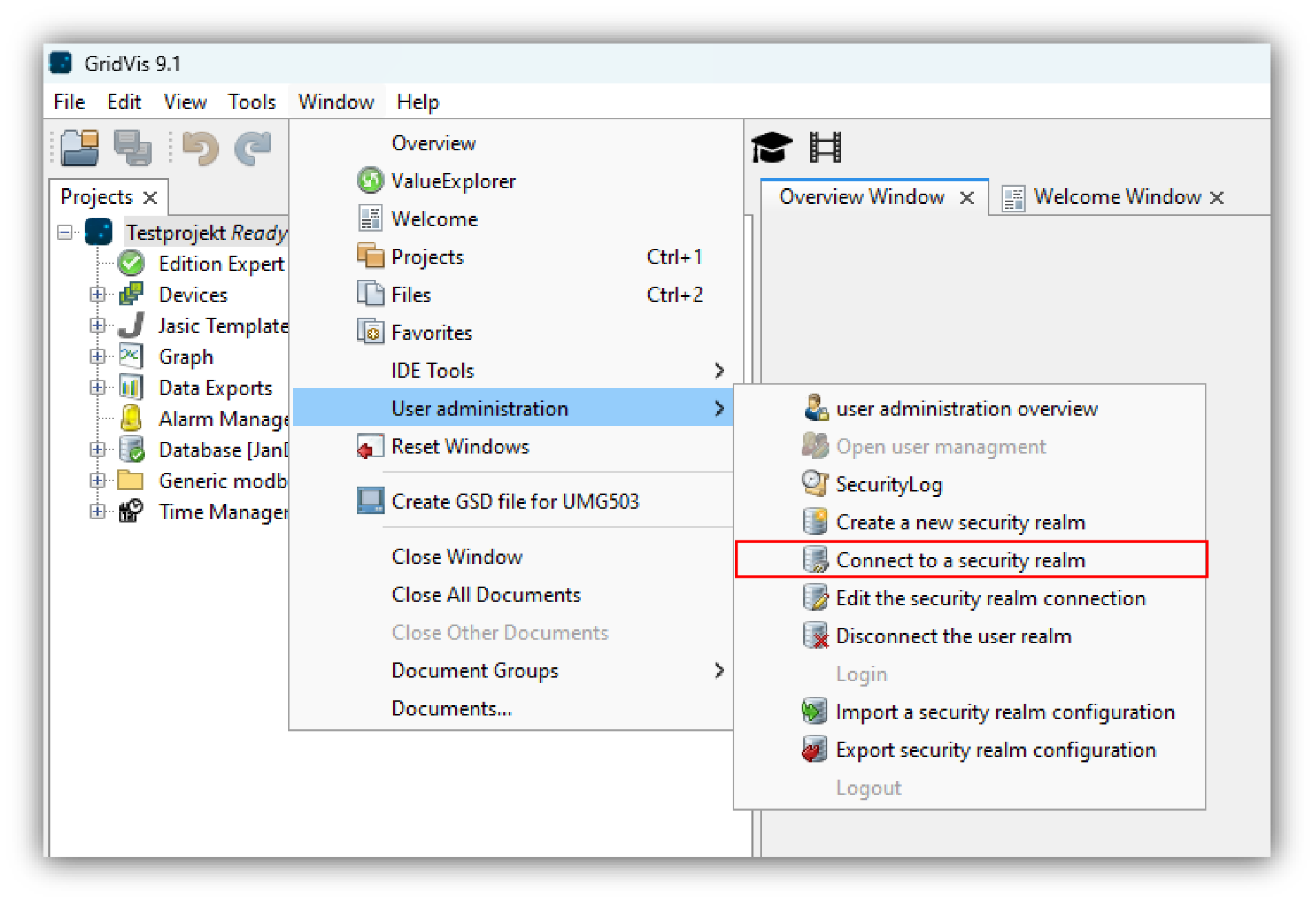
The Connect to a security realm window can be opened in 2 ways:
In the user administration overview window, click on the Connect to a security realm button or
click on Connect to a security realm button in the submenu User administration of the menu bar entry Window (see figure in the upper right).
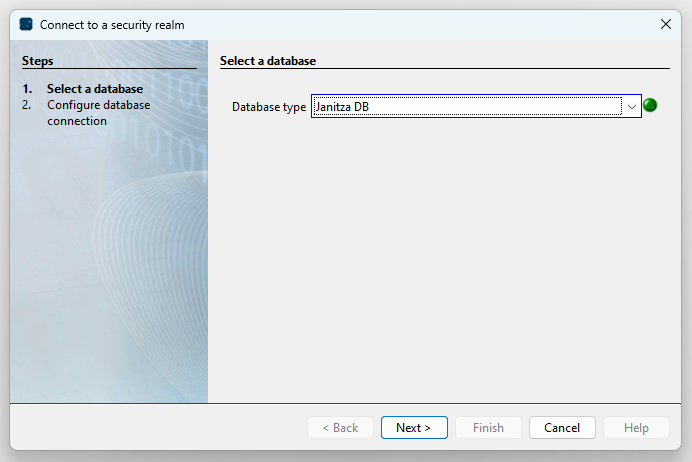
In the window Connect to a security realm in step 1 Select Database, choose your database type (JanDB, MySQL or MSSQL) and click on the Continue button.
Note
To connect with a MySQL database (MSSQL database ), follow the steps in
Create a new security realm
and ask your network administrator about the connection data for the MySQL server.
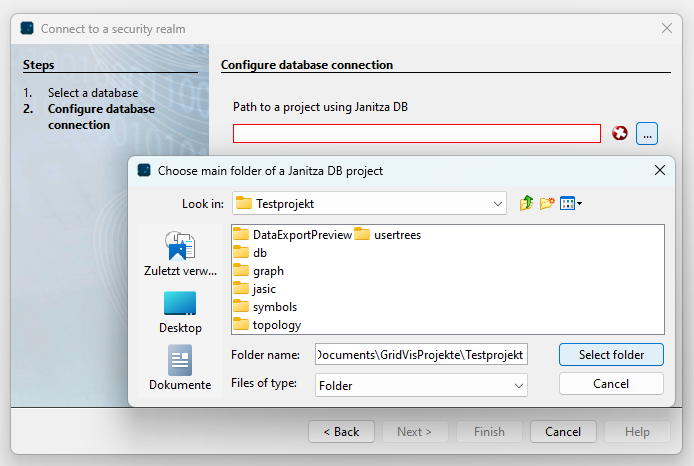
By clicking on the "..." button in step 2 Configure Database Connection the window Choose main folder of a Janitza DB project (in our case JanDB) will open.
Choose the folder directory of your database and click on the Select Folder button.
The folder directory of your database will appear in the in the entry field of the Connect to a security realm window.
Click the Done button.
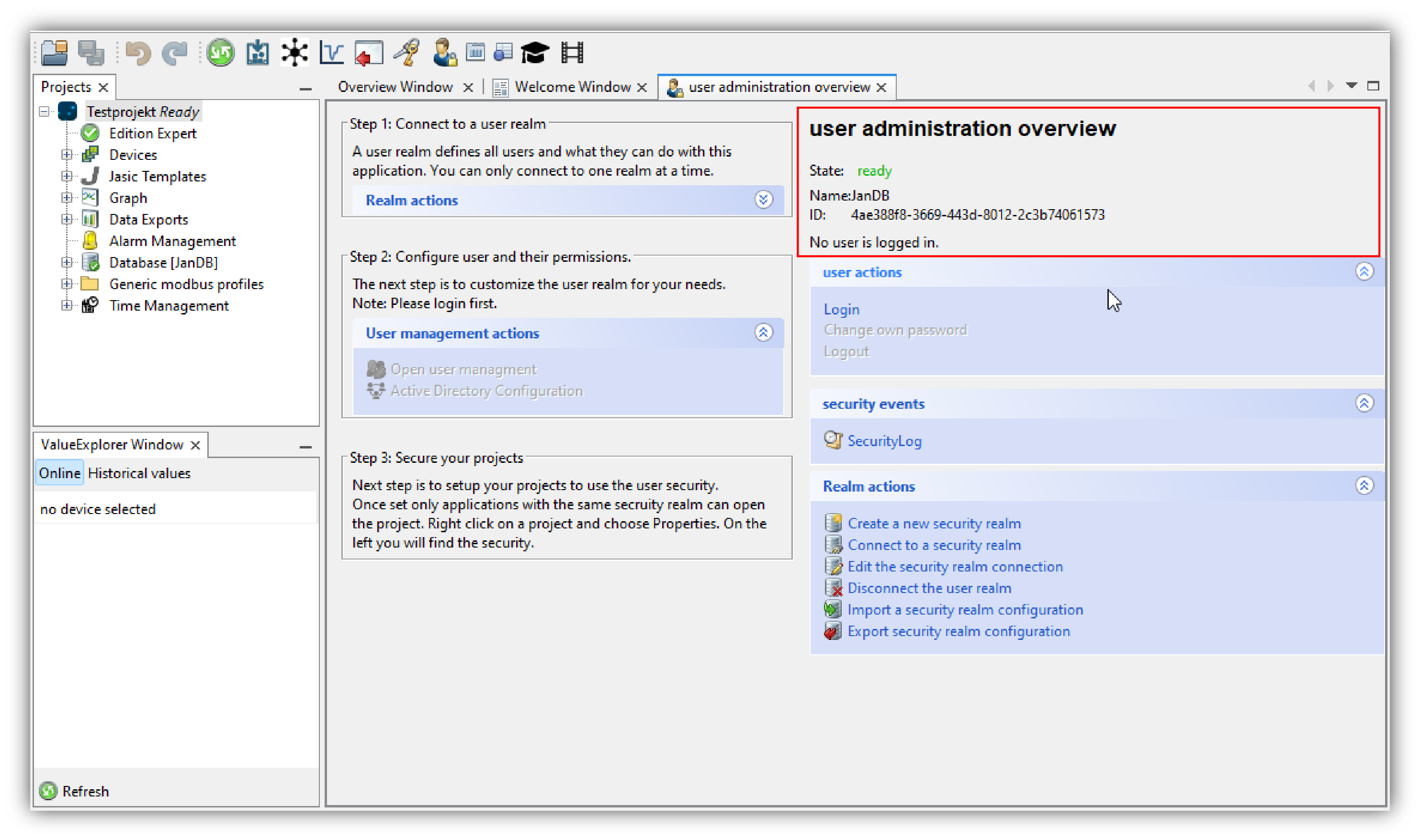
In the user administration overview window, the status will switch to Ready and the name and ID of your database will appear. Your GridVis software is ready for logging in to your user directory (user management), cf. Log In (to User Directory) .