Install Apps
Assistant App Management - Install apps
Open the assistant App Management in the GridVis software and select your device(s), as described in Device Selection .
Click on the button Continue.
The step Select Action appears.
Click on the button Install.
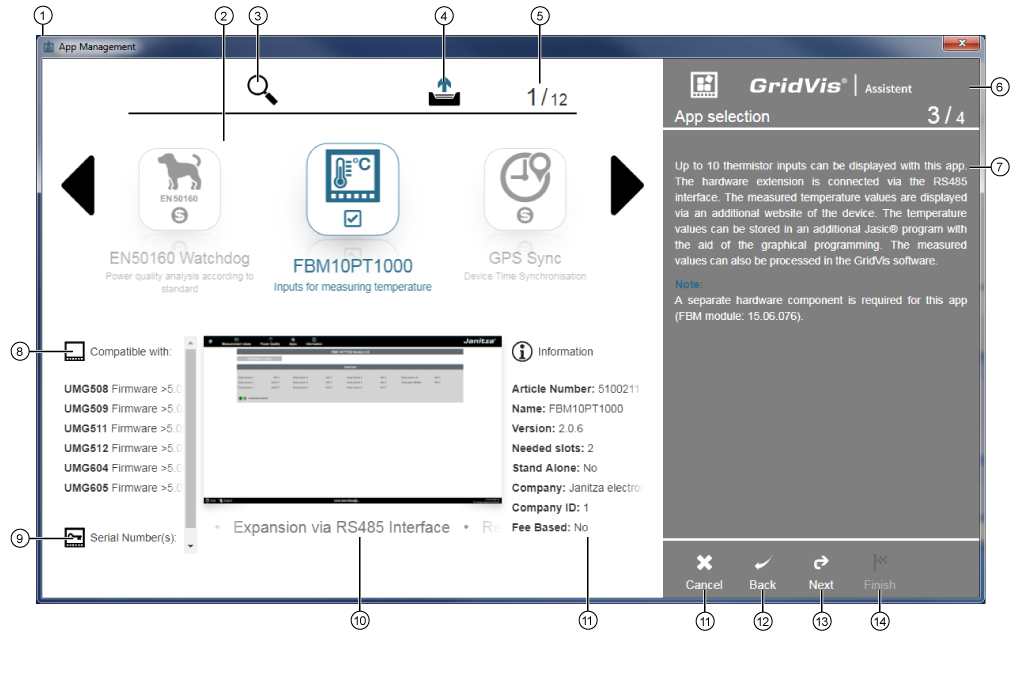
The App Selection appears for the installation of apps
|
Pos. |
Description |
|
1 |
Guides the user through the app configuration on app-compatible devices. Provides help in the selection of your app. |
|
2 |
Presentation field for the apps available for installation. Apps with deactivated checkbox Apps with activated checkbox Apps with the symbol Arrow |
|
3 |
Opens an entry field. Enter the name of the app you are searching for. |
|
4 |
Upload of client-specific or fee-only apps (app file) via a dialog box. After the upload
Note Fee-only apps can be purchased through Janitza electronics GmbH. |
|
5 |
Shows the number of selected apps in relation to the number of existing apps in the spin box. |
|
6 |
Shows the action step (screen grab above: App Selection) with the number and the total number of the action steps. |
|
7 |
Shows descriptions for the corresponding app, or the respective action step. |
|
8 |
List of devices that are compatible with the selected app. |
|
9 |
List of serial numbers of devices that are compatible with the selected app. |
|
10 |
Screen preview with short descriptions of the selected app. |
|
11 |
Information about the app, such as
|
|
12 |
Aborts the installation process and closes the assistant App Management. |
|
13 |
Takes the user in one action step back. If the function is active, the icon white will appear. |
|
14 |
If the entries are correct, the icon white appears and takes the user to the next action step in the assistant. |
|
15 |
If the entries are correct, the icon white appears and closes the assistant. |
 : Installation of the app allowed.
 : Apps selected for installation.
 (app that has a charge): Buy and upload app (cf. Pos.4).
 for spin box navigation.
6 After you have selected your apps, click on the button Continue (Pos. 14).
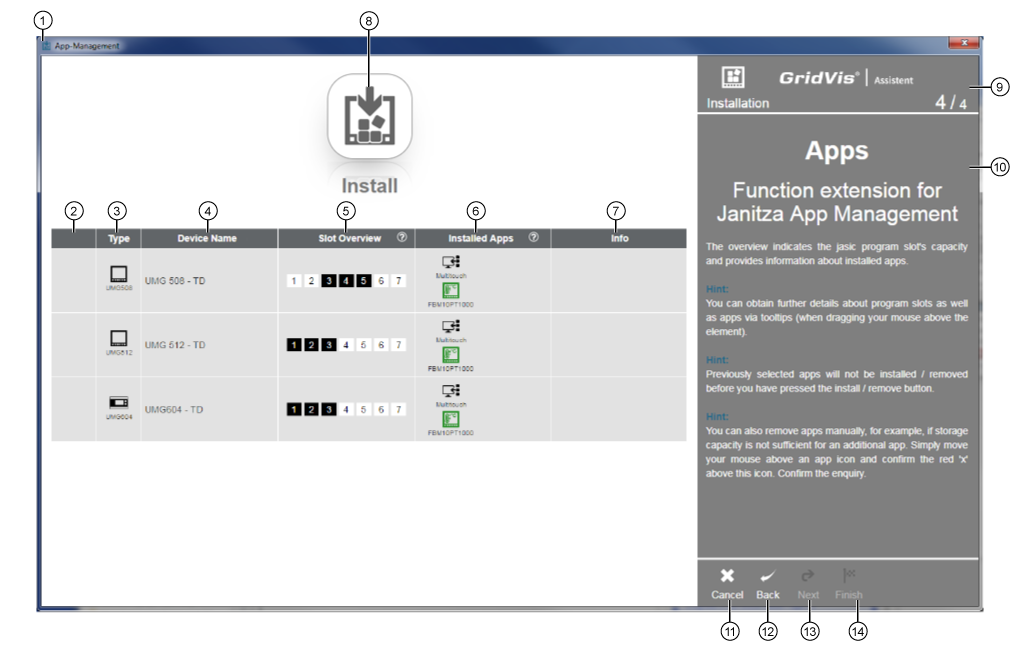
7 The step Install will appear.

|
Pos. |
Description |
|
1 |
Guides the user through the app configuration on app-compatible devices. Provides help in the selection of your app. |
|
Overview "Devices and Apps" |
|
|
2 |
After activating the button Install (Pos. 8) the installation status appears in the column:
|
|
3 |
Front board installation device with type designation. Hat rail device with type designation. |
|
4 |
Name of the measuring device. Hold the mouse cursor over the "Measuring Device Name," to see the IP address, firmware and MAC address of the device. |
|
5 |
Display of slot capacity (Jasic program spots):
Hold the mouse cursor over the slots to show the Occupancy and Status of the slot in a tool tip. " |
|
6 |
Black app icons - Apps already installed on the device:
Green app icons - Apps yet to be installed (cf. Pos. 8).
Red app icons - Apps with errors (cf. Pos 7):
Blue app icons - Apps to be updated " |
|
7 |
Hold the mouse cursor over an entry to show information about the app installation, e.g.:
|
|
|
|
|
8 |
Appears only for valid apps and if there are enough vacant slots. To increase the slot capacity, you may need to remove other apps (cf. Pos. 6). Installs apps (green app icons) with a security query (Install Apps - Yes/no). After successful installation, an overview of your selected devices and apps will appear. |
|
9 |
Shows the action step (screen grab above: Installation) with the number and the total number of the action steps. |
|
10 |
Descriptions for the corresponding app or action step. |
|
11 |
Aborts the installation process and closes the assistant App Management. |
|
12 |
Takes the user in one action step back. If the function is active, the icon white will appear. |
|
13 |
If the entries are correct, the icon white appears and takes the user to the next action step in the assistant. |
|
14 |
If the entries are correct, the icon white appears and closes the assistant. |
 ... App is installed.
 ... App installation completed.
 ... App installation is not valid or there are not enough free slots (cf. "Information" Pos. 7).
 "... Hold the mouse cursor over the button to show the help guide for the slot status.