Remove Apps
Assistant App Management - Remove Apps
Open the assistant App Management in the GridVis software and select your device(s), as described in Device Selection .
Click on the button Continue.
The step Select Action appears.
Click on the button Remove.
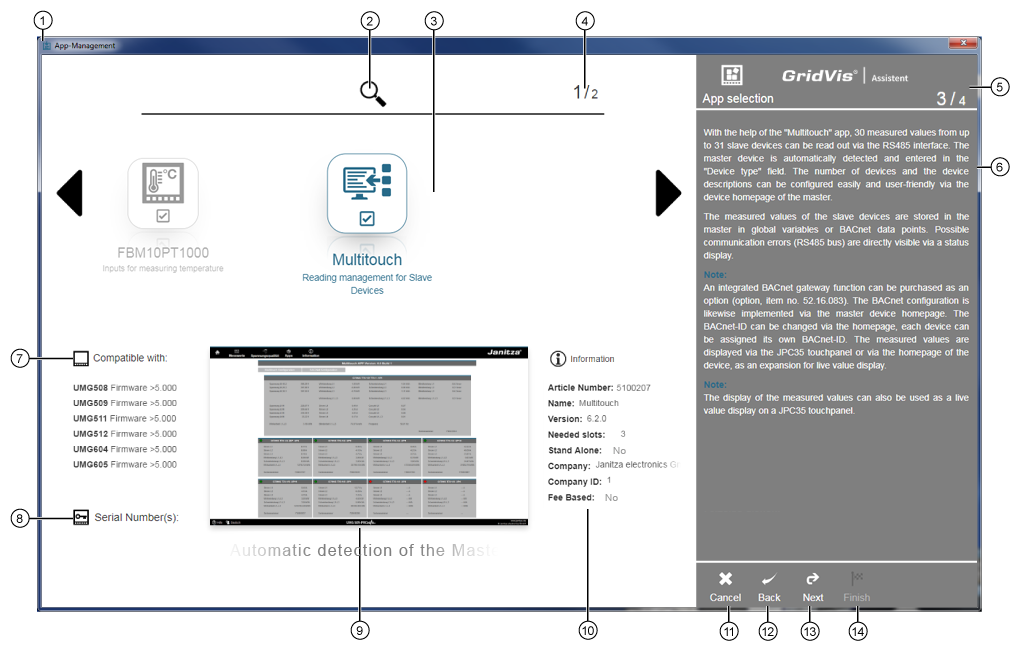
The App Selection appears for the removal of apps:
|
Pos. |
Description |
|
1 |
Guides the user through the app configuration on app-compatible devices. Provides help in the selection of your app. |
|
2 |
Opens an entry field. Enter the name of the app you are searching for. |
|
3 |
The presentation field shows the installed apps on the selected devices. Apps with deactivated checkbox Apps with activated checkbox Arrow |
|
4 |
Shows the number of selected apps in relation to the number of existing apps in the spin box. |
|
5 |
Shows the action step (screen grab above: App Selection) with the number and the total number of the action steps. |
|
6 |
Shows descriptions for the corresponding app, or the respective action step. |
|
7 |
List of devices that are compatible with the selected app. |
|
8 |
List of serial numbers of devices that are compatible with the selected app. |
|
9 |
Screen preview and brief text for the selected app. |
|
10 |
Information about the app, such as
|
|
11 |
Aborts the process and closes the assistant App Management. |
|
12 |
Takes the user in one action step back. If the function is active, the icon white will appear. |
|
13 |
If the entries are correct, the icon white appears and takes the user to the next action step in the assistant. |
|
14 |
If the entries are correct, the icon white appears and closes the assistant. |
 are not removed.
 are removed.
 for spin box navigation.
6 After you have selected your apps, click on the button Continue (Pos. 13).
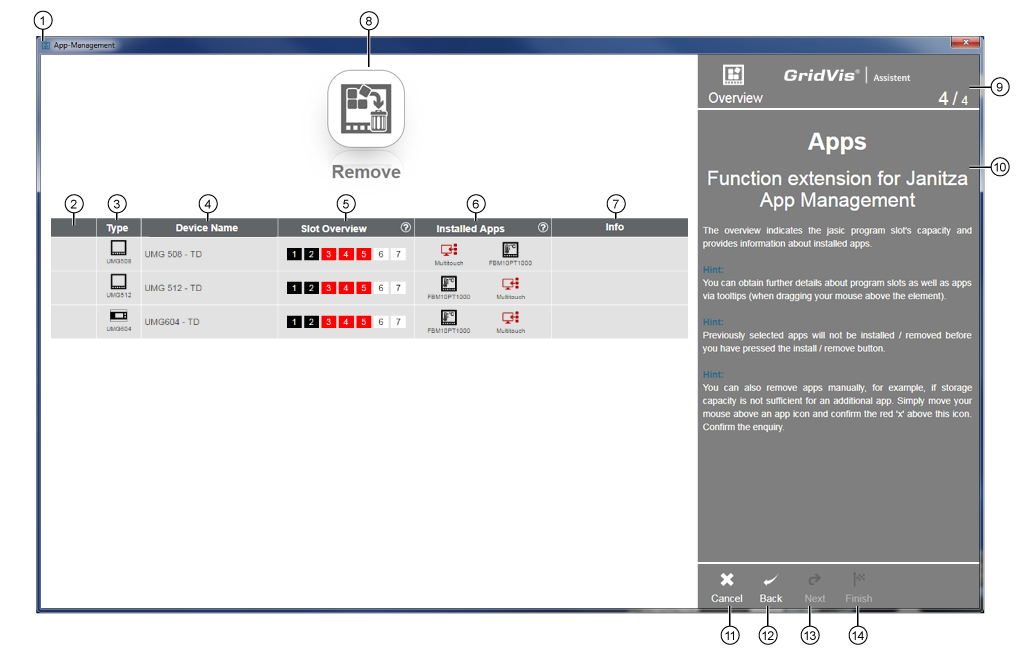
7 The step Remove will appear.
|
Pos. |
Description |
|
1 |
Guides the user through the app configuration on app-compatible devices. Provides help in the selection of your app. |
|
Overview "Devices and Apps" |
|
|
2 |
After activating the button Remove (Pos. 8) the installation status appears in the column:
|
|
3 |
Front board installation device with type designation. Hat rail device with type designation. |
|
4 |
Name of the measuring device. Hold the mouse cursor over the Measuring Device Name, to see the IP address, firmware and MAC address of the device. |
|
5 |
Display of slot capacity (Jasic program spots):
Hold the mouse cursor over the slots to show the Occupancy and Status of the slot in a tool tip. " |
|
6 |
Black app icons - Apps installed on the device.
Green app icons - Apps to be installed Red app icons - Apps to be removed (cf. Pos. 8).
Blue app icons - Apps to be updated " |
|
7 |
Hold the mouse cursor over an entry to show information about the app |
|
|
|
|
8 |
Removes apps (red app icons) with a security query (Remove Apps - Yes/no). After successful deinstallation, an overview of your selected devices and apps will appear. |
|
9 |
Shows the action step with the number and the total number of the action steps. |
|
10 |
Shows descriptions for the corresponding app, or the respective action step. |
|
11 |
Aborts the process and closes the assistant App Management. |
|
12 |
Takes the user in one action step back. If the function is active, the icon white will appear. |
|
13 |
If the entries are correct, the icon white appears and takes the user to the next action step in the assistant. |
|
14 |
If the entries are correct, the icon white appears and closes the assistant. |
 ... App is deinstalled.
 ... App deinstallation completed.
 "... Hold the mouse cursor over the button to show the help guide for the slot status.