Overview - Devices and Apps
Assistant App Management - Overview - Devices and Apps
Open the assistant App Management in the GridVis and select your device(s), as described in Device Selection .
Click on the button Continue.
The step Select Action appears.
Click on the button Overview.
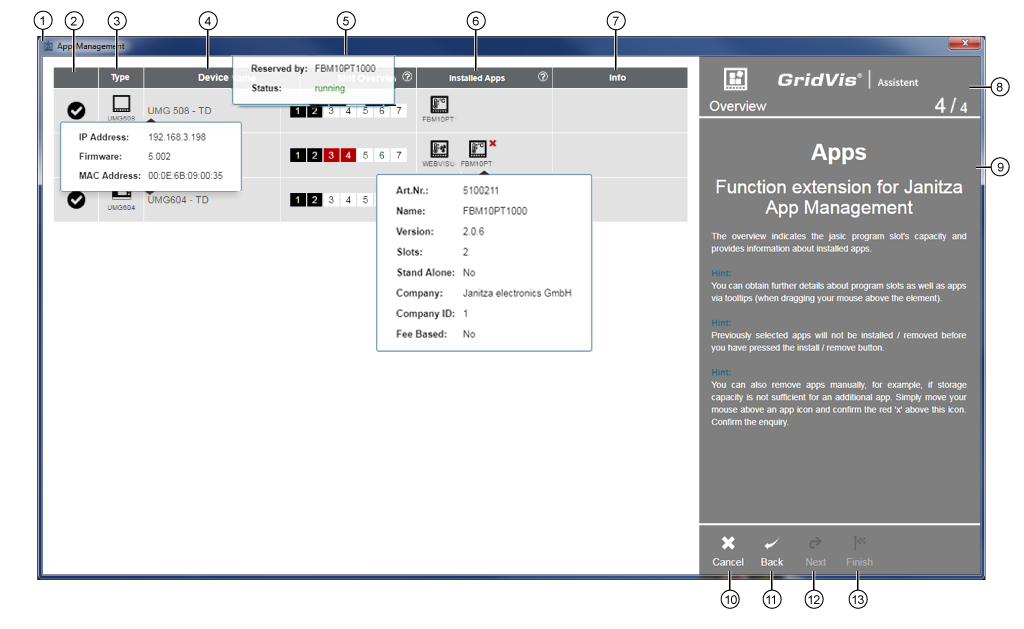
An overview of the devices and apps will appear.
|
Pos. |
Description |
|
1 |
Guides the user through the app configuration on app-compatible devices. Provides help in the selection of your app. |
|
2 |
Display of valid apps on their respective devices. |
|
3 |
Front board installation device with type designation. Hat rail device with type designation. |
|
4 |
Name of the measuring device. Hold the mouse cursor over the Measuring Device Name, to see the IP address, firmware and MAC address of the device. |
|
5 |
Display of slot capacity (Jasic program spots):
Hold the mouse cursor over the black slots to show the occupancy and status of the slot. " |
|
6 |
Black app icons - Apps installed on the device.
" |
|
7 |
Information about the app or the device. |
|
8 |
Shows the action step with the number and the total number of the action steps. |
|
9 |
Descriptions for the corresponding app or action step. |
|
10 |
Aborts the installation process and closes the assistant App Management. |
|
11 |
Takes the user in one action step back. If the function is active, the icon white will appear. |
|
12 |
If the entries are correct, the icon white appears and takes the user to the next action step in the assistant. |
|
13 |
If the entries are correct, the icon white appears and closes the assistant. |
 "... Hold the mouse cursor over the button to show the help guide for the slot status.