Secure TCP/IP connection
The following measuring devices have a secure TCP/IP connection:
UMG 508
UMG 509-PRO
UMG 511
UMG 512-PRO
UMG 604-PRO
UMG 605-PRO
Communication with the measuring devices of the UMG series is usually via Ethernet. The measuring devices provide different protocols with the respective connection ports for this purpose. Software applications such as the GridVis communicate with the measuring devices via the FTP, Modbus or HTTP protocol.
Network security in the company network plays an increasingly important role here.
This guide is intended to support you in securely integrating the measuring devices into the network, thus effectively protecting the measuring devices from unauthorized access.
This guide refers to firmware > 4.057, as the following HTML changes have been made:
Improvement of the challenge calculation
After three incorret logins, the IP (of the client) is blocked for 15 minutes
GridVis settings revised
HTML password: can be set, 8 digits
HTML configuration completely lockable
If the measuring device is used in the GridVis, several connection protocols are available. A standard protocol is the FTP protocol – i.e. the GridVis reads files from the measuring device via FTP port 21 with the respective data ports 1024 to 1027. In the TCP/IP setting, the connection is made unsecured via FTP. A secured connection can be established using the TCP secured connection type.
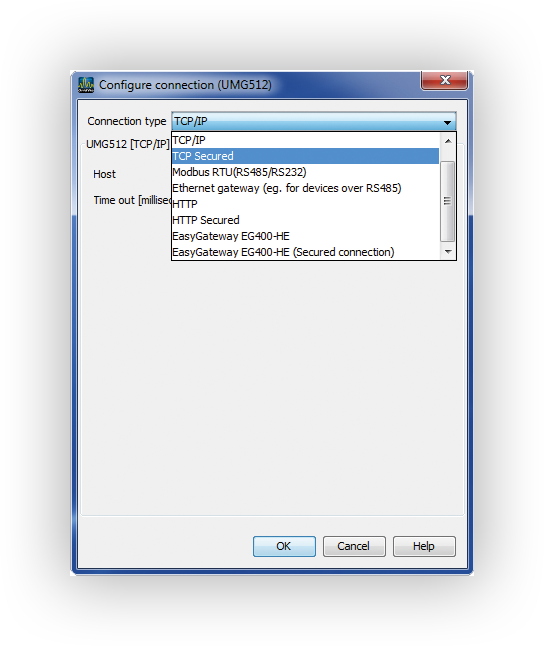
Change password
A user and password are required for the secure connection. By default, the user is admin and the password is Janitza. For a secure connection, the password for administrator access (admin) can be changed in the configuration menu.
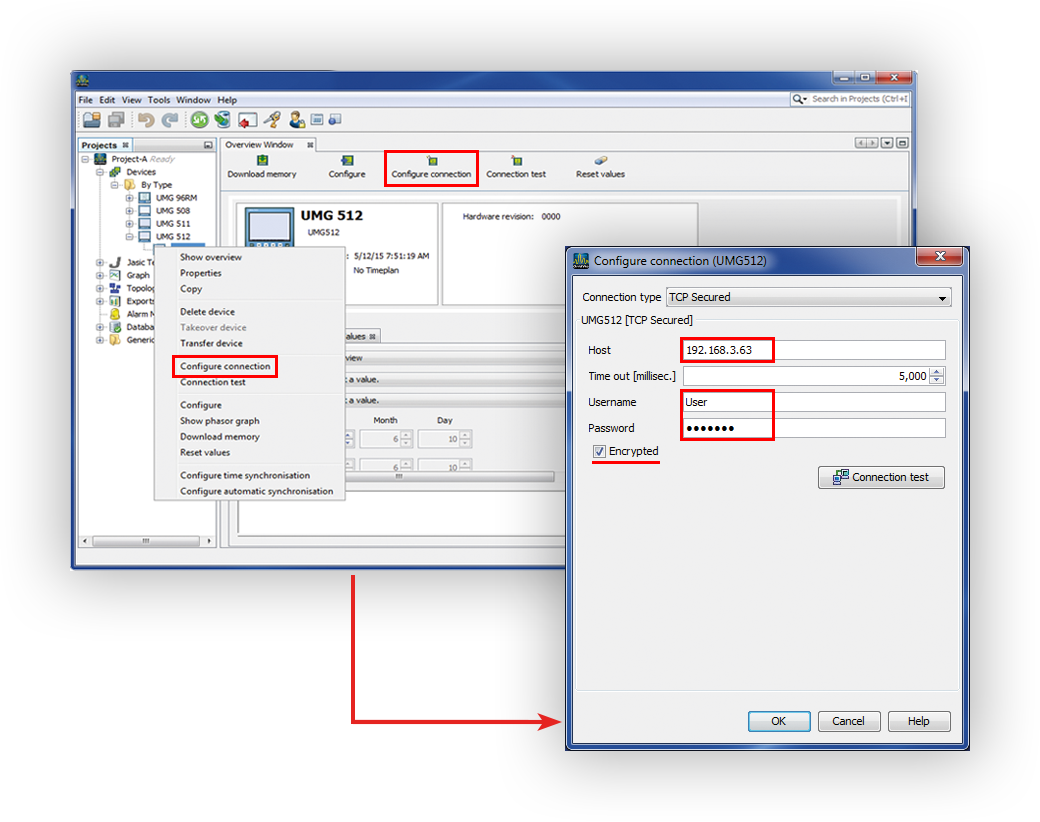
Step
Open the Configure connection dialog
Example 1: To do this, use the mouse button to highlight the corresponding device in the projects window and select Configure connection in the context menu of the right mouse button
Example 2: Double-click on the corresponding device to open the overview window and select the Configure connection buttonSelect the connection type TCP secured
Set the host address of the device
Fill in the username and password.
Factory settings:
Username: admin
Password: JanitzaSet the Encrypted menu item.
An AES26-bit encryption of the data is then activated.
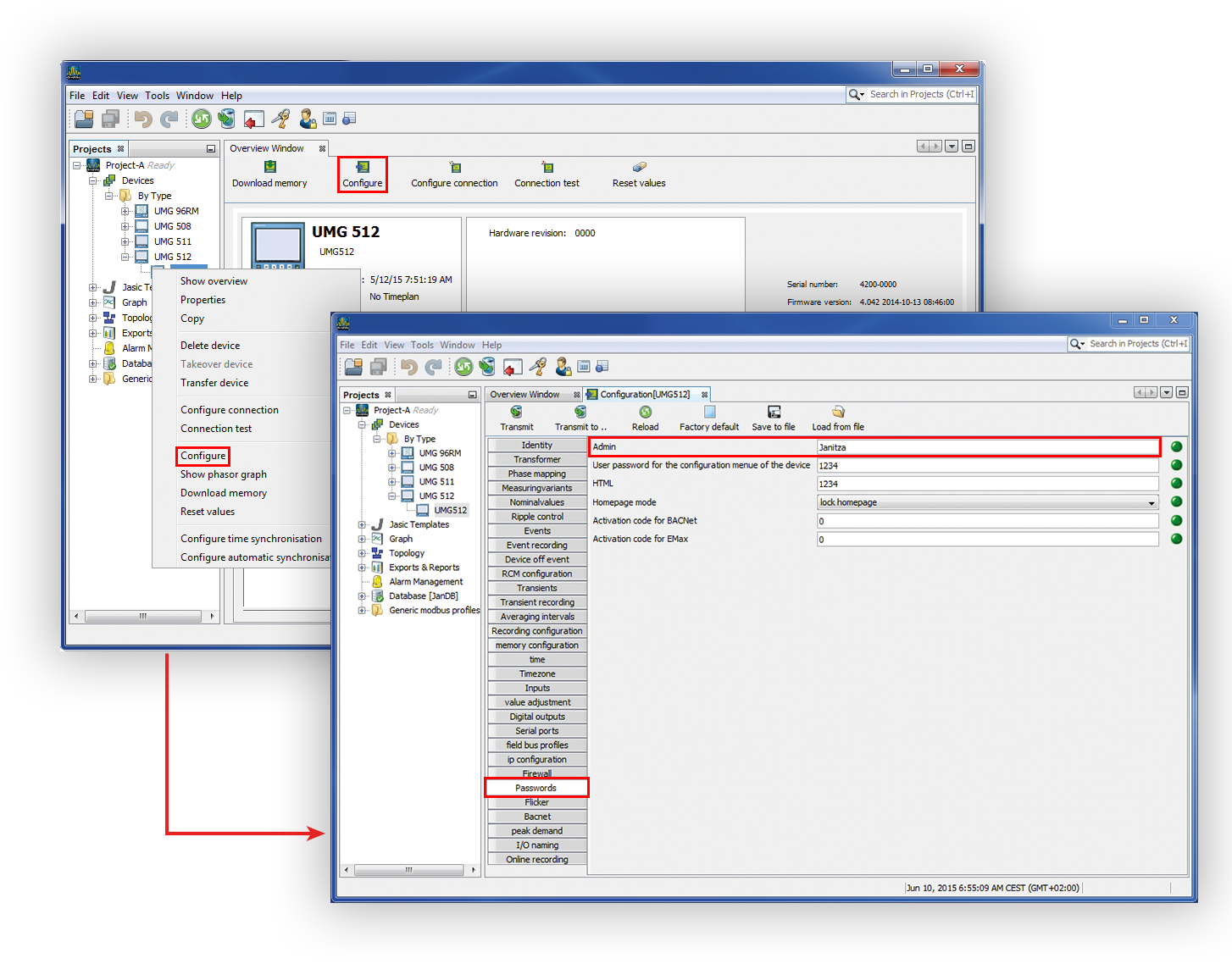
2. Step
Open the configuration window
Example 1: To do this, use the mouse button to highlight the corresponding device in the projects window and select Configure in the context menu of the right mouse button
Example 2: Double-click on the corresponding device to open the overview window and select Configure buttonSelect the Passwords button in the configuration window.
Change the administrator password, if desired.Save the changes with the transfer of the data to the device (Transfer button)
Note
Do not forget the password under any circumstances. There is no master password. If the password is forgotten, the device must be sent to the factory!
Note
The admin password may be a maximum of 30 digits long and can be consist of numbers, letters and special characters (ASCII code 32 to 126, except for the characters listed below). Also, the password field must not be left blank:
" (Code 34)
\ (Code 92)
^ (Code 94)
` (Code 96)
| (Code 124)
Space (Code 32) is allowed only within the password. It is not allowed as the first and last character.
When you have updated to a GridVis version > 9.0.20 and use one of the special characters described above, you will be prompted to change the password according to these rules when you open the device configurator.
Note
The description Change password with its password rules also applies to the connection type HTTP secured.