Jasic example: global variables
Record global variables and assign them to a virtual device
The following descriptions introduce you to the fundamentals of graphical programming (Jasic).
A detailed description of this can be found under
Graphical Programming - Jasic
.
To assign recordings of global variables to a virtual device, you will need a Jasic-capable device (UMG 604 / UMG 605 / UMG 508 / UMG 509 / UMG 511 / UMG 512). Then proceed as follows:
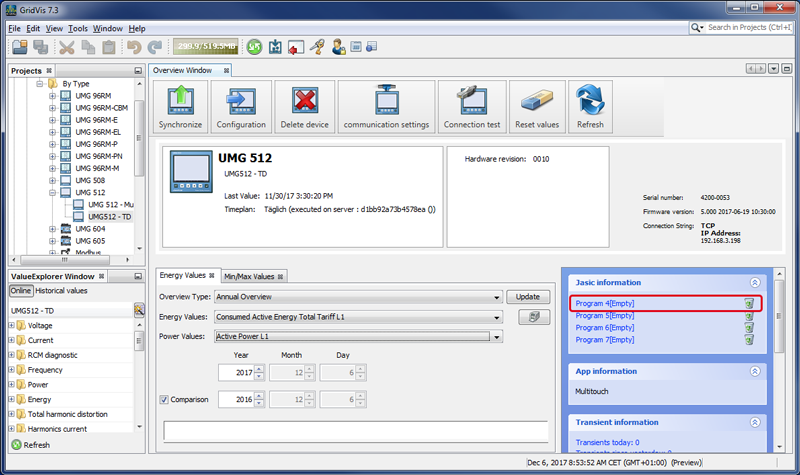
Open the Overview Window by double-clicking on your Jasic-capable device (in this example UMG 512) in the window Projects.
Select by single-clicking in the category Jasic Information a free program position.
The Editor View then opens in the Jasic programming interface.
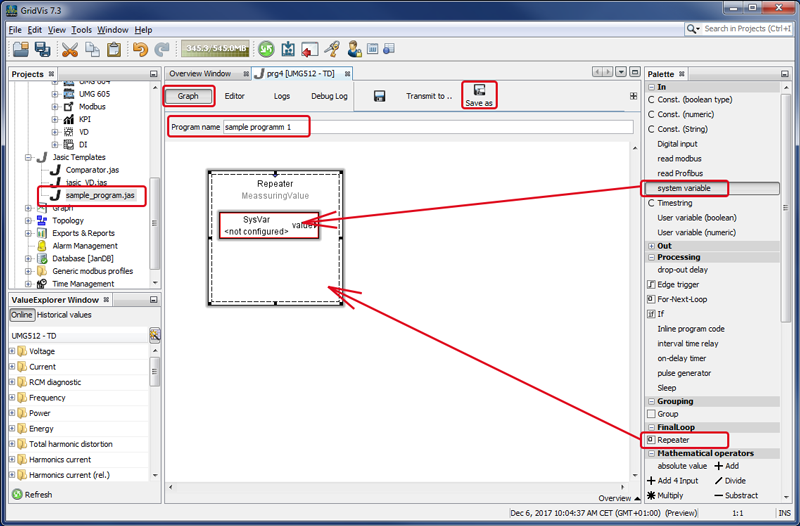
Switch by clicking on the button Graph to the Graph View and open the window Palette (Menu bar Window > Tools > Palette).
Jasic building block Repeater
Move using drag-and-drop the Jasic building block Repeater to the graphical programming interface.
In the entry field assign a Program Name (Note: The entry field Program Name becomes active only after a Jasic building block has been moved to the programming interface!)
Save your Jasic file by clicking on the button Save As in your file directory. The button Save writes over previously stored Jasic files.
The saved Jasic file appears in the window Projects under the Jasic templates.
Jasic-building block System Variable (SysVar)
Use drag-and-drop to position the Jasic building block System Variable (SysVar) inside the Jasic building block Repeater.
Double-click on System Variable to configure through a dialog box the value (e.g. Voltage L1).
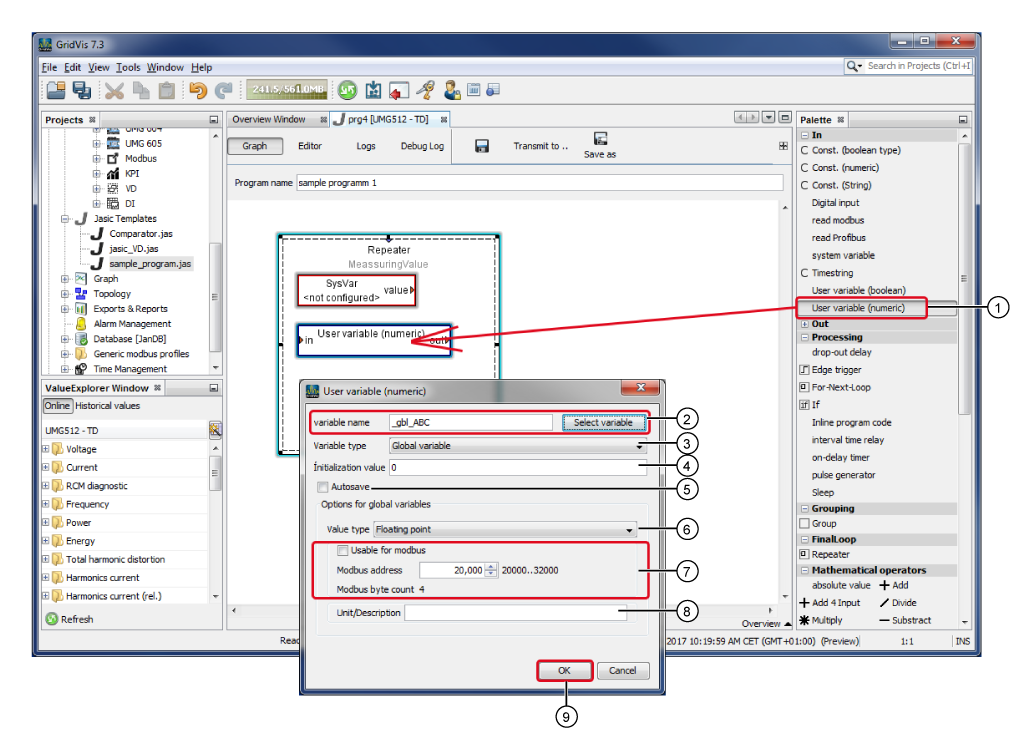
Jasic building block User-Variable (numerical)
|
Pos. |
Description |
|
1 |
via drag-and-drop inside the Jasic building block Repeater. Double-clicking on the Jasic building block opens the dialog box User Variable (numerical). |
|
2 |
Assign your global variable name. Put the characters "_gbl_" in front of your name so that the system can identify the global variable. The system does not distinguish between lowercase and uppercase letters in variable names (e.g. "_gbl_ABC" becomes "_gbl_abc") and it saves the global variable as "_abc" in the folder Global Values under Online Values in the Value Tree Window. Using the button Select Variable you can select existing variables from a list. |
|
3 |
Select the variable type Global Variable. Unlike the Local Variables, the Global Variable will be made available beyond the boundaries of the Jasic program. |
|
4 |
Optional Default for Global Variables with an initial value. |
|
5 |
When the checkbox is activated, the system saves the value of the Global Variables. |
|
|
Active for the variable type Global Variable. |
|
6 |
Data format for the value type:
|
|
7 |
When the checkbox is activated, the variable value is assigned to a Modbus Adress. |
|
|
Entry of the Modbus Adress that the variable value is assigned to. Modbus address selection between 20,000 and 32,000. |
|
|
Depends on the data format set in the selection list. Value Type. |
|
8 |
Optional entry of the units or name. |
|
9 |
For confirmation of configurations for the Global Variables. |
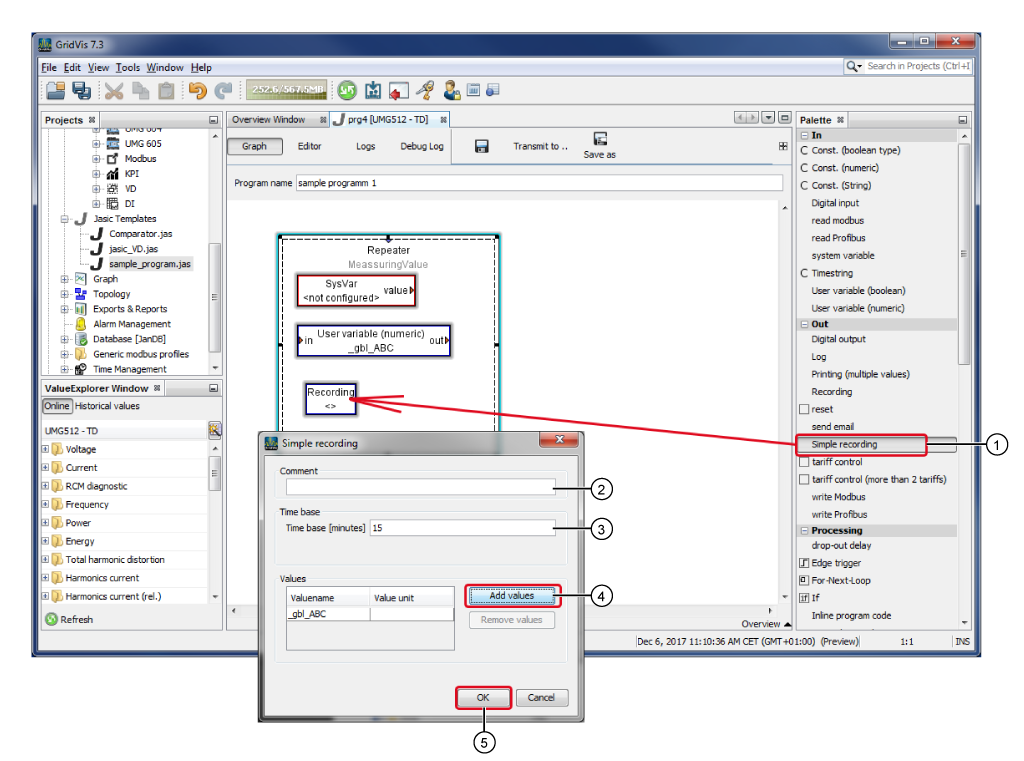
Jasic building block "Single Recording"
|
Pos. |
Description |
|
1 |
via drag-and-drop inside the Jasic building block Repeater. Double-clicking on the Jasic building block opens the dialog box Single Recording. |
|
2 |
The entered comment appears in the Jasic building block. Recording in the Jasic programming interface. |
|
3 |
Interval of time in which the global variable is recorded. |
|
4 |
Enter the name of the measurement value in the dialog box (the name of your saved global variable"_gbl_ABC"-see example). Your entry appears in the dialog box Single Recording in the category Values. |
|
5 |
For confirmation of configurations for the Single Recording. |
Connect Jasic building blocks and save as a Jasic program
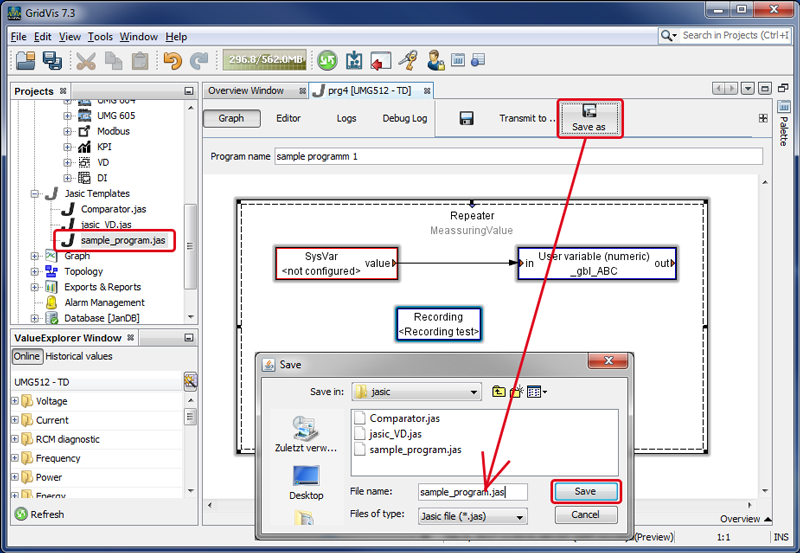
Connect the Jasic building blocks of the two variables - System Variable with User Variable (numerical) by clicking on the colored triangle of the Jasic building block (System Variable) and while holding the button of the mouse down pulling the connection arrow to the colored triangle of the second Jasic building block (User Variable (numerical)). Cf. Graphical Programming - Jasic.
Save your Jasic program by clicking on the button Save As as a Jasic template in your project.
Transfer the Jasic program to your device
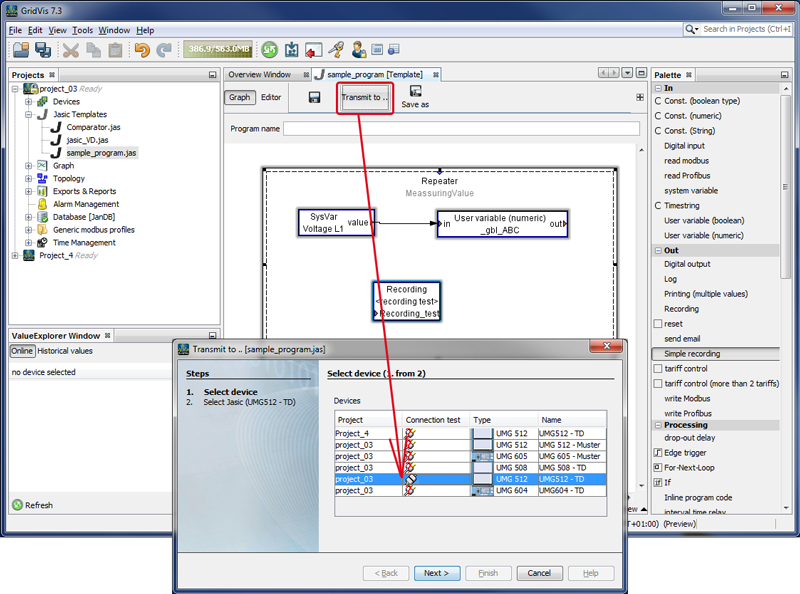
Then click on the button Transfer Tobto transfer the Jasic program to your device.
Select in the first step the assistant Transfer To your device and click on the button Continue.
Select in the second step a free Jasic programming position and click on the button Done.
Your Jasic program (Musterprogramm1) will appear in the overview window of your device under Jasic Information.
Display recordings of the global variables in a graph
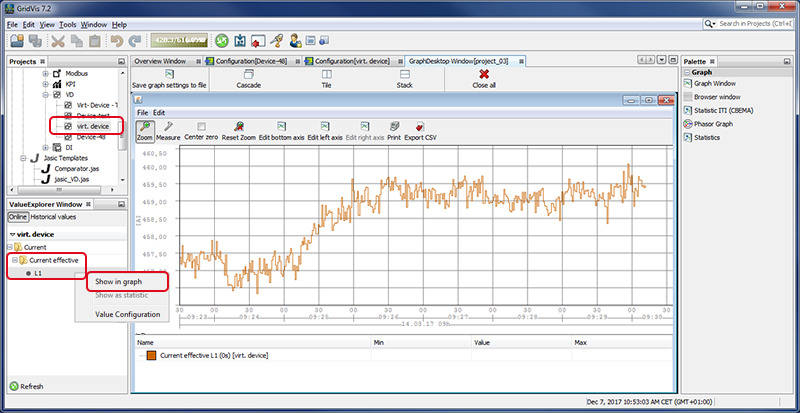
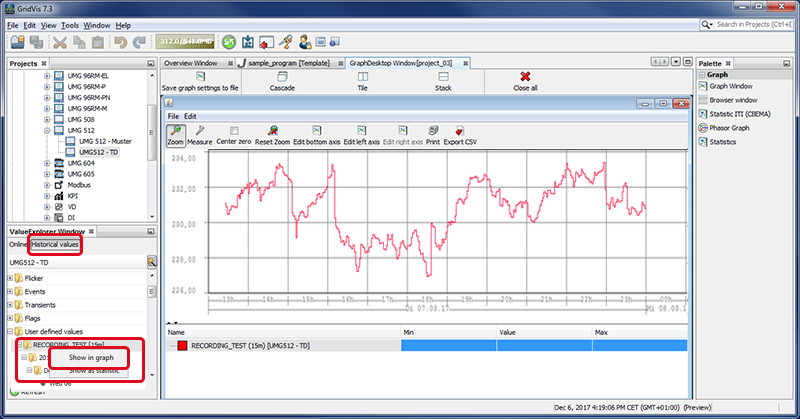
In the Value Tree Window click on the button Historical Values.
In the directory Global Values select the period of recording by right-clicking.
In the context menu choose the entry Display in Graph.
The window of the graph of the global variables will open on the screen.
Create Virtual Device(for GridVis Standard and higher)
Create and configure a virtual device as described in Create Virtual Device and Virtual Device - Configuration .
In the configuration window of your virtual device, select the menu entry Calculated Values.
Using drag-and-drop, put the Jasic-building block Value Source on the graphical interface.
Assign a name in the entry field Program Name.
Configure the Value Source by double-clicking on the Jasic building block.
Select the Jasic-capable device, and as the value type the Global Variable and click on the button OK (see screen grab on the right).
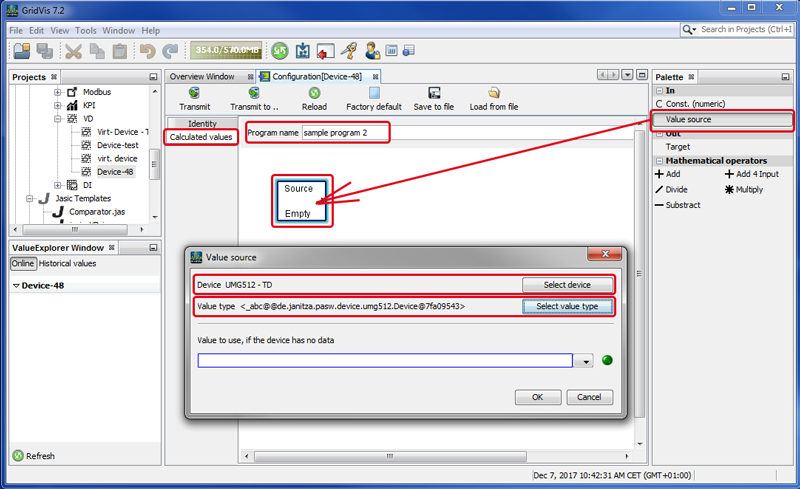
Example of a Jasic program for outputting to the virtual device
Using drag-and-drop, put e.g. for Multiplication by 2 the Jasic-building block Constants (numerical) on the graphical interface.
Configure the "Constants (numerical)" by double-clicking on the Jasic building block.
Select the value of the constant (in this example 2), enter a Comment and click on the button OK.
Using drag-and-drop, put the mathematical operation Multiply on the graphical interface.
Using drag-and-drop, put the Jasic-building block Target on the graphical interface.
Configure the output "Target" by double-clicking on the Jasic building block.
Select the Value Type (e.g. Effective Current L1) and click on the button OK.
Connect the Jasic building blocks. Cf. Graphical Programming - Jasic.
To transfer your configuration settings to the virtual device, click on the button Transfer.
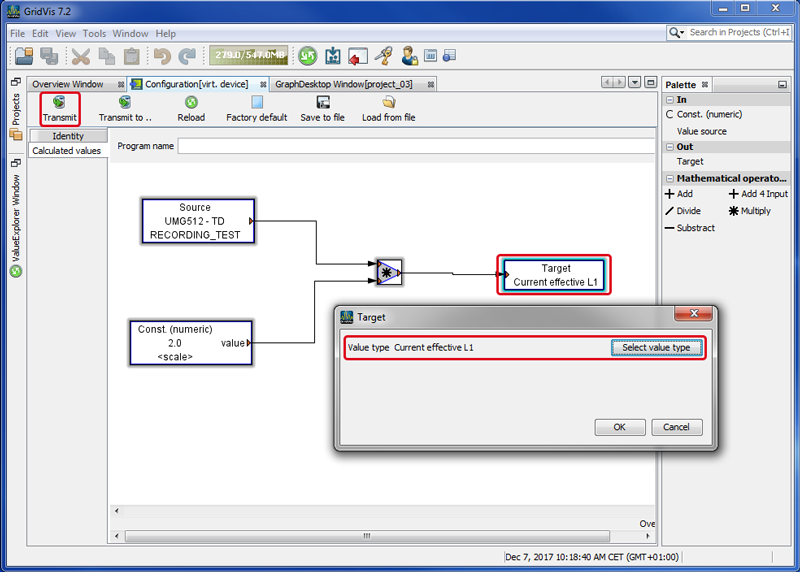
Access to the virtual device
The value type of the newly created virtual device appears in the value tree window.
Use the buttons Online Values and Historical values (depending on the duration of the recording) to access the corresponding value type, e.g. evaluations of the graph view are performed here.