Window Alarms (Alarm Overview)


The window Alarms, also called Alarm Overview,

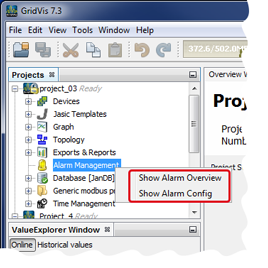
  • can be opened by double-clicking on the directory Alarm Management in the Projects window or by right-clicking on the directory Alarm Management in the Projects window and then in the context menu that opens on the entry Show Alarm Overview.

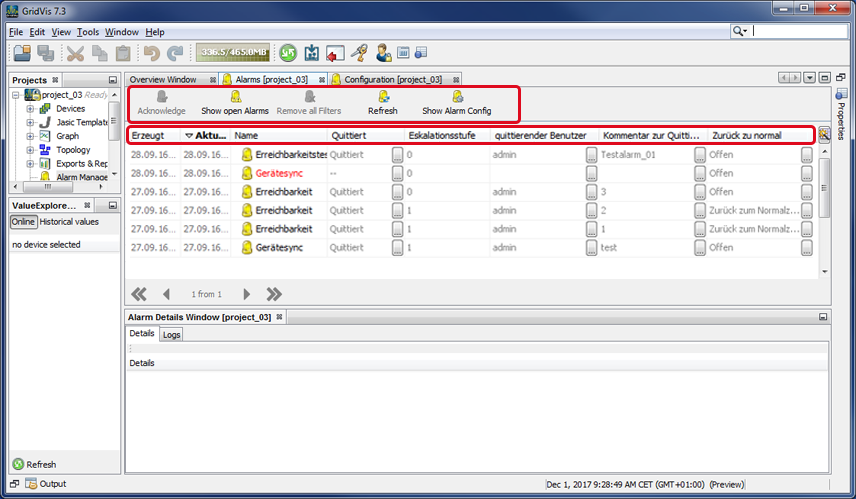
  • shows a table with an overview of all alarm notifications with their corresponding properties. You can configure alarm plans and alarm sources in the window (Alarm) Configuration .

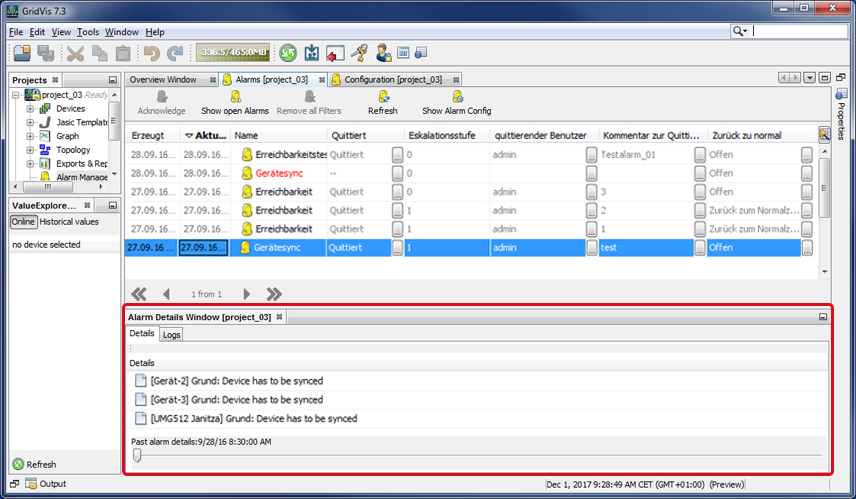
You can find details on your alarms (click on alarm notification in the window Alarms) in the window Alarm Details.
images/download/attachments/251037068/AM_Uebersicht_01_EN-version-1-modificationdate-1518774716000-api-v2.png


images/download/attachments/251037068/AM_Uebersicht_02_EN-version-1-modificationdate-1518774878000-api-v2.png


Management of the alarms -
Symbol

Description of the buttons

1

images/download/attachments/251037068/quittieren-version-1-modificationdate-1518776299000-api-v2.png

Acknowledges an alarm notification (with a description of the alarm notification)

Acknowledges the corresponding escalation level for an escalation plan (interrupts the escalation).

2

images/download/attachments/251037068/offenerAlarm-version-1-modificationdate-1518776166000-api-v2.png

Single-click on the button:

  • Shows you Open Alarms (unacknowledged alarms ready to be responded to).

3

images/download/attachments/251037068/loeschen_EN-version-1-modificationdate-1518775488000-api-v2.png

Single-click on the button:

  • Removes all set filters to view the alarms.

  • Shows all alarm notifications in the Alarms window.

4

images/download/attachments/251037068/refreshed-version-1-modificationdate-1518775489000-api-v2.png

Single-click on the button:

  • Checks the project database (on the server) for new alarm notifications and updates the overview.

5

images/download/attachments/251037068/Alarmplan_editieren_EN-version-1-modificationdate-1518775488000-api-v2.png

Single-click on the button:

  • Opens the window Configuration for the alarms.


Alarm Properties -
Symbol or category entry

Button properties/description
(The buttons / category entries can be dragged into the position you want by holding down the mouse button.)

6

images/download/attachments/251037068/Erzeugt-version-1-modificationdate-1517402559000-api-v2.png

Time and date the alarm was created.
Single-click on the button to sort the alarm according to the time and date it was created in ascending or descending order.

7

images/download/attachments/251037068/Aktualisiert-version-1-modificationdate-1517402559000-api-v2.png

Time and date the alarm was updated. Updates such as, e.g.:

  • New description.

  • Change in escalation level.

  • Alarm acknowledgment.

Single-click on the button to sort the alarm according to the time and date it was updated in ascending or descending order.

8

images/download/attachments/251037068/Name-version-1-modificationdate-1517402559000-api-v2.png

Alarm name.
Single-click on the button to sort the alarm names in ascending or descending alphabetical order.

9

images/download/attachments/251037068/Quittiert-version-1-modificationdate-1517402559000-api-v2.png

Alarm notifications acknowledged/confirmed by the user.
Single-click on the button to sort the alarms in ascending or descending order according to whether they are acknowledged or open.

10

images/download/attachments/251037068/Eskalationsstufe-version-1-modificationdate-1517402559000-api-v2.png

The active escalation level at the time of the alarm.
Single-click on the button to sort the alarms in ascending or descending order according to the urgency of the escalation level.

11

images/download/attachments/251037068/quittierenderBenutzer-version-1-modificationdate-1517402559000-api-v2.png

The system shows the acknowledging user (e.g. the admin) in this column.
Single-click on the button to sort the acknowledging users in ascending or descending alphabetical order.

12

images/download/attachments/251037068/KOmmentarzurQuitt-version-1-modificationdate-1517402559000-api-v2.png

Comment on the acknowledgment entered by the acknowledging user.
Single-click on the button to sort the comments in ascending or descending alphabetical order.

13

images/download/attachments/251037068/Zurueckzunormal-version-1-modificationdate-1517402559000-api-v2.png

Shows the content/status of the alarm notification, whereby Back to Normal describes the normal/initial status.
Single-click on the button to sort the alarms in ascending or descending order according to the content/status of the alarms.


  • In the window Alarm Details, details on your selected alarm will appear.

  • In the tab History, past details, with e.g. the corresponding escalation levels, will appear.

images/download/attachments/251037068/AM_Uebersicht_03_EN-version-1-modificationdate-1518774902000-api-v2.png



