Recovering Deleted Devices
Devices that are deleted via the GridVis device tree remain in the database and are marked as deleted. You have the option of restoring devices marked as deleted using a database action.
Proceed as follows to restore deleted devices:
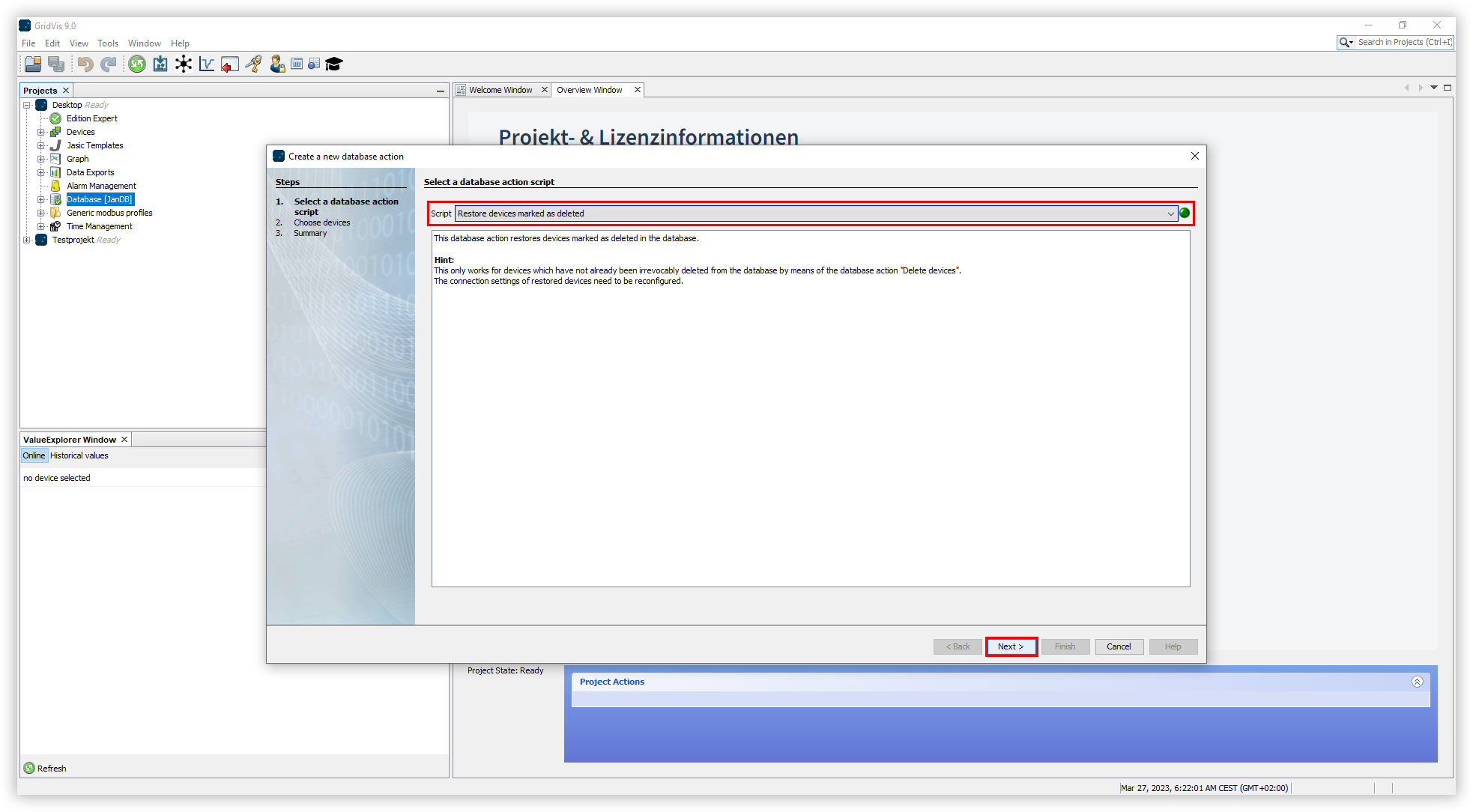
In the project tree, double-click the Database entry. This is located in the left menu bar of the GridVis application.
The Create New Database Action window opens. Select the Restore Devices Marked as Removed script and click the Next button.
Select the devices you want to restore and click the Next button.
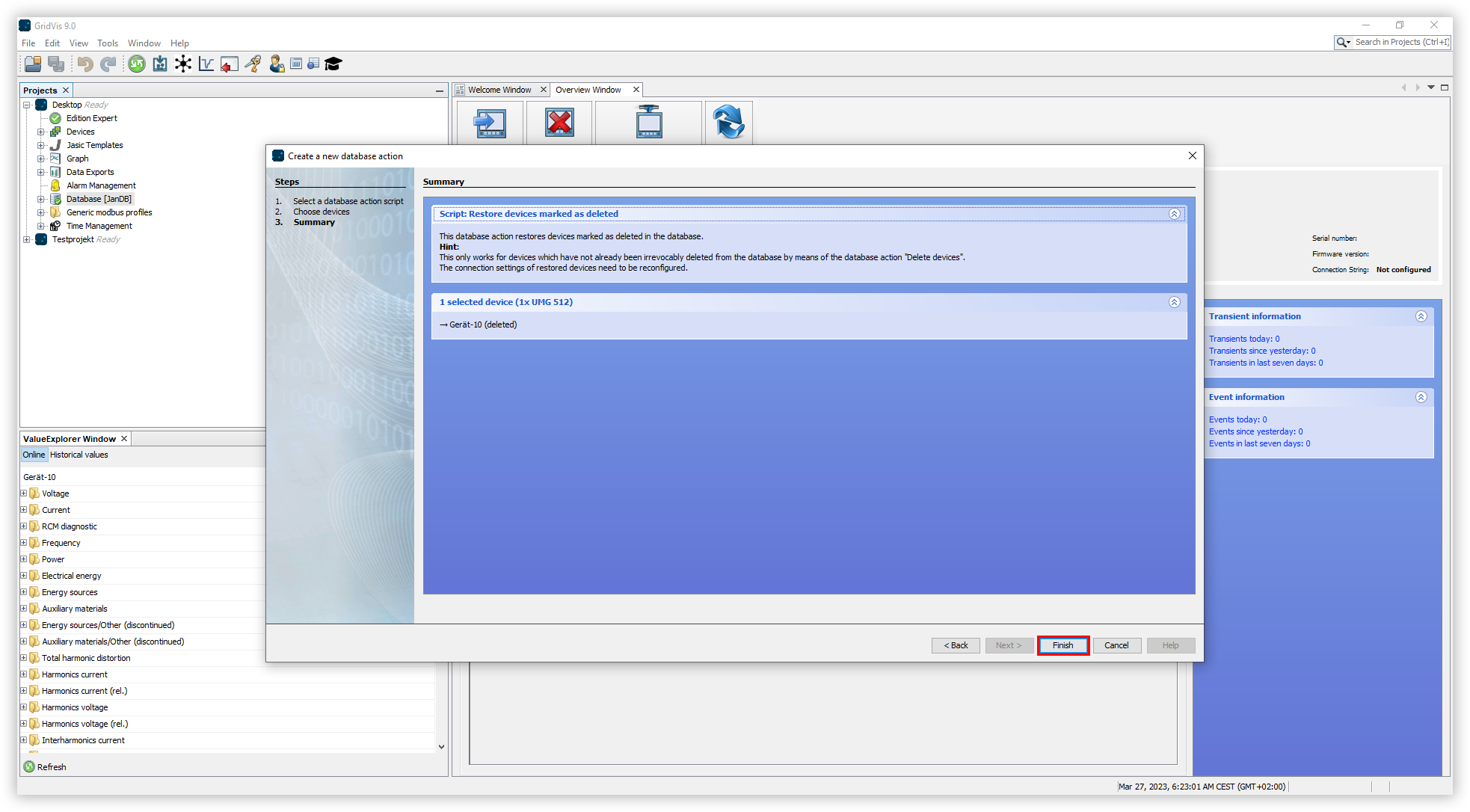
The summary of the script will open. Check your settings against the summary. Then click the Done button.
The Execute Database Action Directly or Save window opens. Here you have two options to choose from:
Select Run Directly Without Saving to run the script without saving it.
Select Save Script As to save the action as a script. This will allow you to restore devices faster in the future using the selected settings.
Please note that the connection settings of the restored devices may need to be reconfigured.
Note
If you save the script, it must then be executed manually. To run the script, open the Database entry in the project tree. Then right-click on your script and select the menu item Execute Database Action. The progress of the execution is displayed at the bottom of the GridVis screen.