User Assignment
General Description
Dashboards and templates can be assigned to users via the user management and the user editor. This restricts access to the dashboards for these users. By default, each user sees all dashboards.
Depending on the role of a user, dashboards and templates can be viewed, created, edited, deleted or managed.
The user admin manages the roles of all user (cf.
User management
).
Assign Dashboards and Templates to Users
Note
To assign dashboards and templates to users, you require the respective rights. The following settings and screenshots were created with the rights of the admin.
You can find further information about the rights and roles and user settings under
User management
.
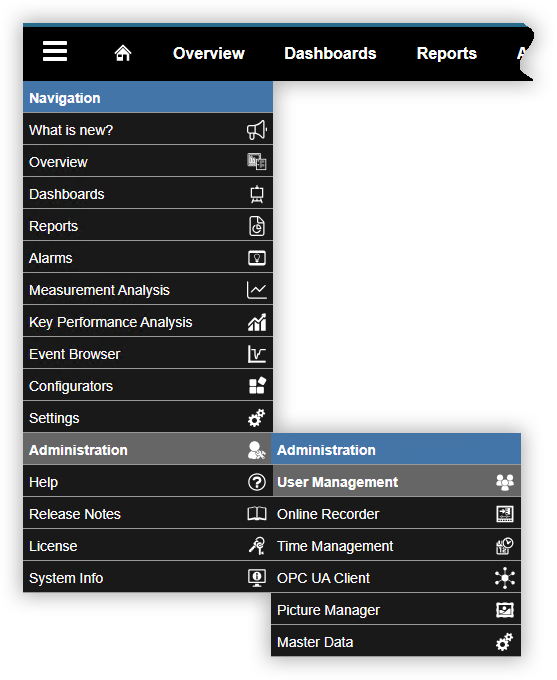
In the navigation bar, click on the button Navigation
 .
.Open the function User Management in the drop-down menu under Administration.
The window User Editor opens.
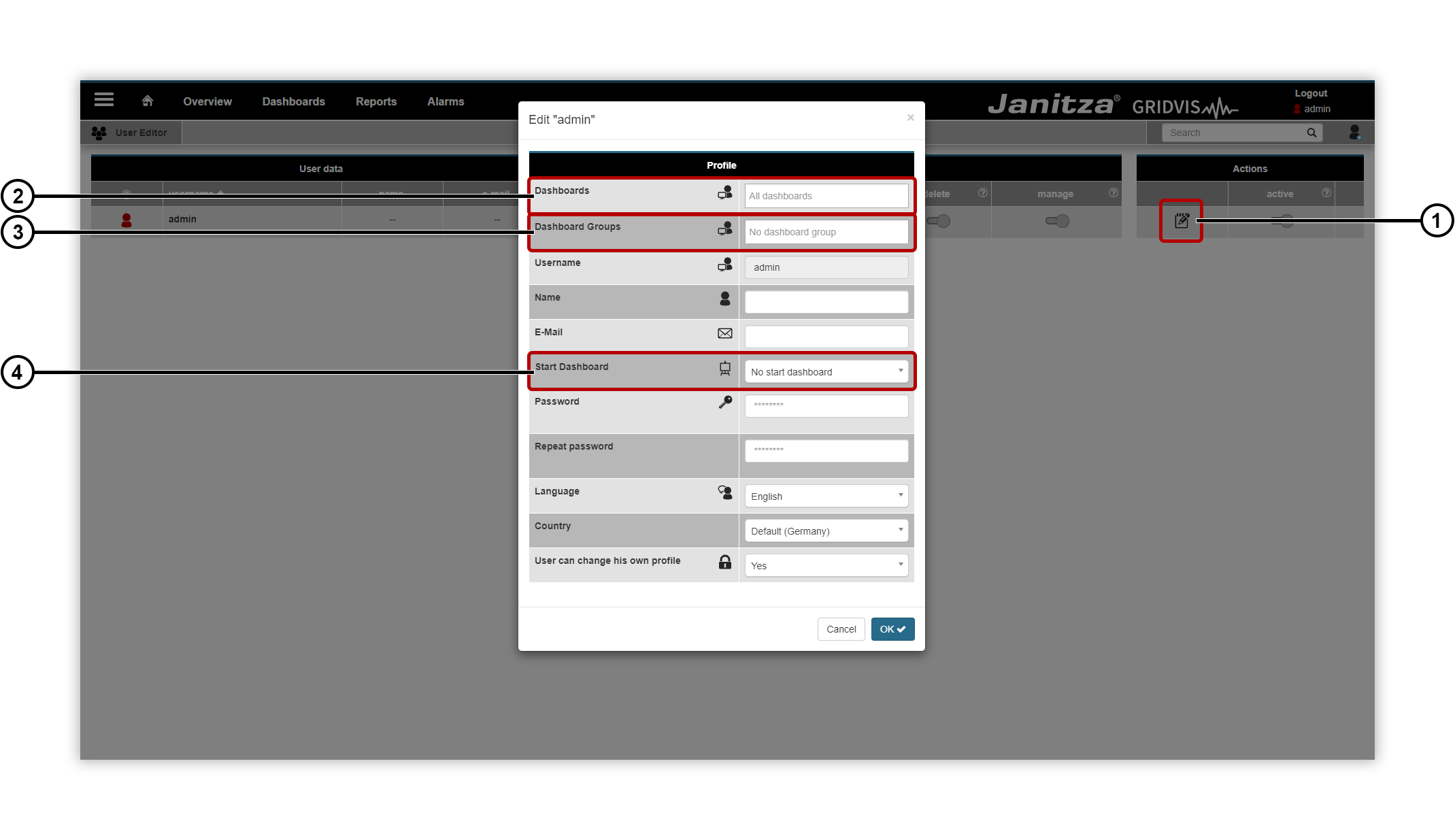
To assign dashboards and templates to users, click in the User Editor in the Actions area on the corresponding Edit entry.
The assistant Edit User appears.
|
Position |
Description |
|
1 |
Opens the assistant for configuring the user data of the selected user. |
|
2 |
Defines which dashboards the user has access to. The scope of access is determined by the respective role ( cf. User management ). |
|
3 |
Defines which dashboard groups the user has access to. The scope of access is determined by the respective roles (cf. User management ). |
|
4 |
Defines which dashboard is displayed when logging in or clicking on the Home |
 button in the navigation bar.