Operation and navigation


Page navigation

Device overview
Measurement group mode


Table of contents


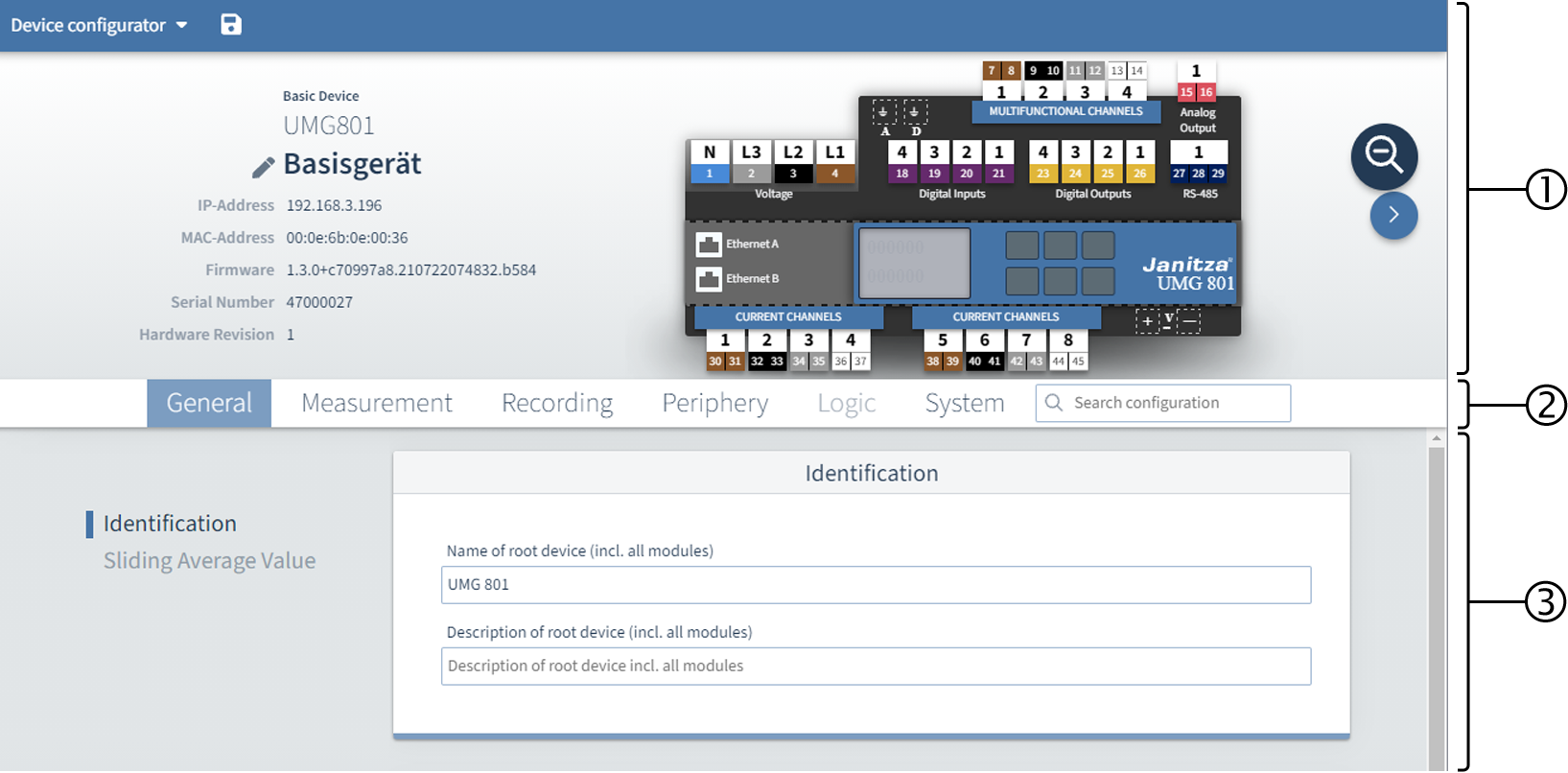
Device configurator main page

Position

Description

1

Overview

  • Overview of the measurement device and the modules or of the entire system

  • Basic information about the measurement device and the modules

  • Direct selection of the configuration of the connections

2

Menu bar

  • Tabs for selecting a main category

  • Search field for free text search of any configuration content or also content of filled free text fields

3

Configuration area

  • Configuration of parameters on configuration cards

images/download/attachments/251038518/Device_configurator_main_page-version-1-modificationdate-1636631771000-api-v2.png


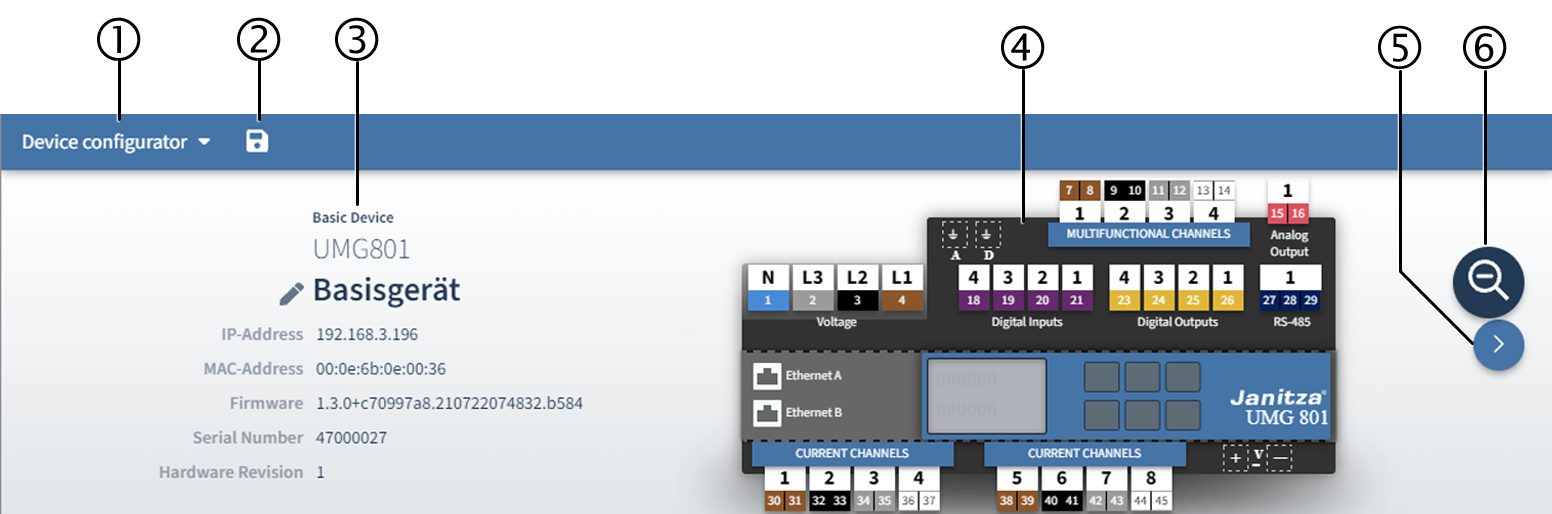
Device overview (interactive user interface)

Position

Description

1

Device configurator menu

  • Drop-down menu with device configurator actions

2

Transferring a configuration

  • Transfer configuration to device.
    Changes are only transferred to the device after the button has been clicked.

3

Basic information

  • Basic information about the measurement device or module
    (device type, connection data, firmware, serial number, hardware revision)

4

Measurement device or module

  • Overview of the measurement device or module with all configurable connections

5

Switch the view

  • Switch between the view of the measurement device and of the modules

6

Switch the system view

  • The system view is used to switch the configurator between the basic device and optionally connected modules.

images/download/attachments/251038518/Device_overview_%28interactive_user_interface%29-version-1-modificationdate-1636631801000-api-v2.png


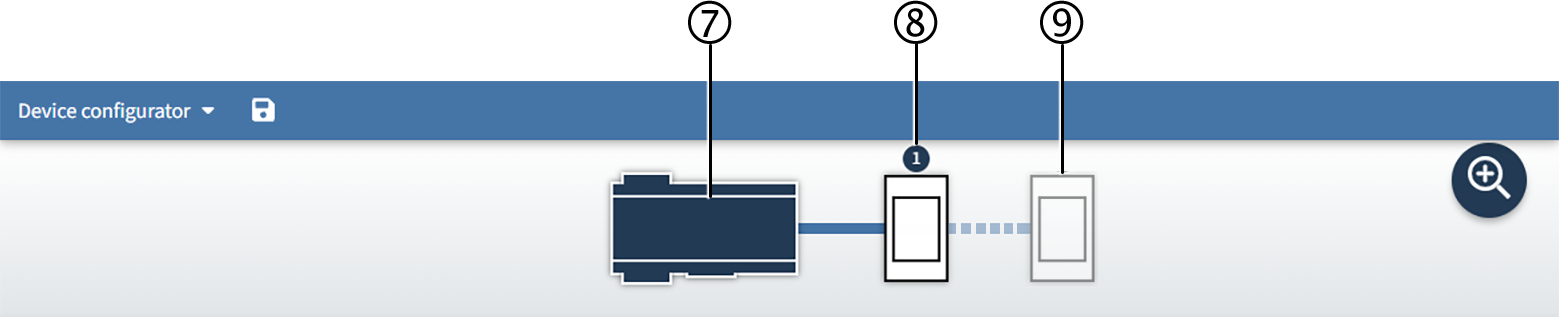
Switch the system view

The system view shows the basic device and connected modules as buttons.
The following illustration shows an example of a basic device with a connected module. Without a module, button (8) is not present.

The selected component of the system is highlighted in color. The configuration area displays the settings of the selected component.

Position

Description

7

Basic device

  • Selection button (double click to select)

8

Module 1 (if present and connected)

  • Selection button (double click to select)

9

Other modules (optional)

images/download/attachments/251038518/Switch_the_system_view-version-1-modificationdate-1636631820000-api-v2.png


Menu bar with tabs


images/download/attachments/251038518/Menu_bar_with_tabs-version-1-modificationdate-1636631842000-api-v2-effects-drop-shadow.png

The configurable parameters are grouped thematically into main categories.

  • Select a tab in the menu bar.
    The parameters of the selected main category are now displayed in the configuration area.

For more information about the tabs, see:


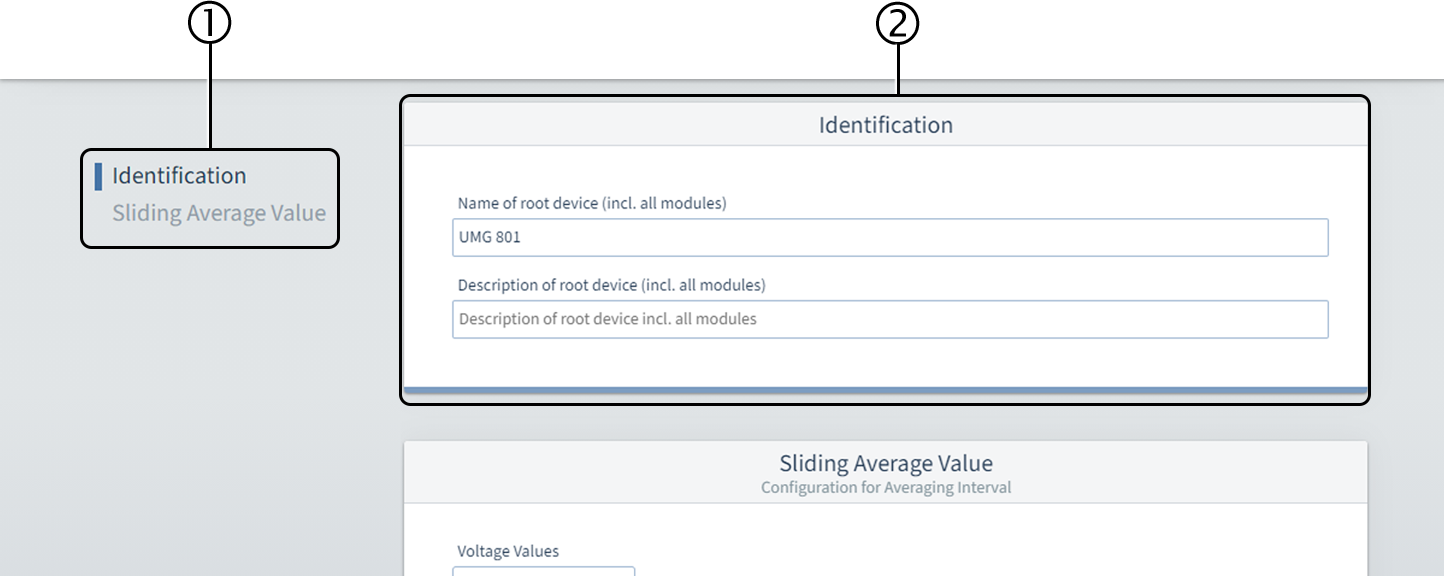
Configuration area

Use the configuration area to set all parameters of the device and the modules.

Position

Description

1

Navigation in the configuration cards

  • The navigation provides a quick overview of which configuration card you are currently in. The entries can be used to directly switch between the configuration cards.

2

Configuration card

  • Use the configuration card to set the parameters.

images/download/attachments/251038518/Configuration_area-version-1-modificationdate-1636631948000-api-v2.png


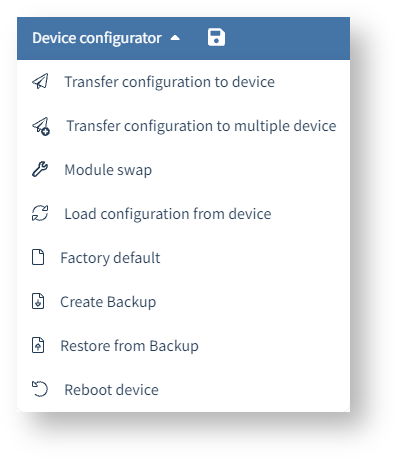
Device configurator menu

In the drop-down menu of the device configurator, select an action.

Icon

Action

images/download/thumbnails/251038518/Icon_uebertragen-version-1-modificationdate-1617024899000-api-v2.png

Transfer configuration to device

  • Transfer the configuration changes to the device.

The configuration can also be transferred to the device using the button images/download/thumbnails/251038518/Icon_Diskette-version-1-modificationdate-1615542681000-api-v2.png .

Changes will not take effect until they have been transferred to the device.

images/download/thumbnails/251038518/Icon_uebertragen_mehrere-version-1-modificationdate-1617024899000-api-v2.png

Transfer configuration to multiple devices

  • Transfer the configuration of one device to multiple devices.

The configurator guides you through the action in several steps:

  1. Select the device.

  2. Select the configuration parts.

  3. Select the target devices.

  4. Transfer the configuration.

images/download/thumbnails/251038518/Icon_Modulwechsel-version-1-modificationdate-1617024899000-api-v2.png

Module swap

  • Transfer the configuration data from a possibly defective module to a new module.

The configurator guides you through the action in several steps.

Observe the information on exchanging modules in the user manual for the device!

images/download/thumbnails/251038518/Icon_Konfig_laden-version-1-modificationdate-1617024898000-api-v2.png

Load configuration from device

  • Load the current configuration from the device to the configurator.

images/download/thumbnails/251038518/Menue_des_Geraetekonfigurator_leere_Seite-version-1-modificationdate-1634555125000-api-v2.png

Factory default

  • Resetting the device configuration to the factory settings

images/download/thumbnails/251038518/Icon_Backup_erstellen-version-1-modificationdate-1617024899000-api-v2.png

Create Backup

  • Creates a backup of the current configuration.
    The configurator creates a text file (.txt) containing all settings.

images/download/thumbnails/251038518/Icon_Backup_wiederherstellen-version-1-modificationdate-1617024899000-api-v2.png

Restore from Backup

  • Load a configuration saved using the backup function.

images/download/thumbnails/251038518/Menue_des_Geraetekonfigurator_neu_starten-version-1-modificationdate-1634555453000-api-v2.png

Reboot device

images/download/attachments/251038518/Device_configurator_menu-version-1-modificationdate-1636631969000-api-v2-effects-drop-shadow.png


Invalid configuration

Invalid configurations may occur under the following circumstances:

  • Certain parameters require a coordinated configuration.

  • Entered values are outside the allowed value range of a parameter.

  • Missing entries

Icon

Meaning

images/download/thumbnails/251038518/Icon_Ausrufezeichen_neg-version-1-modificationdate-1617021260000-api-v2.png images/download/attachments/251038518/Icon_Ausrufezeichen_pos-version-1-modificationdate-1617021260000-api-v2.png

Colored exclamation marks, frames and tooltips mark areas with an invalid configuration.

  • Check your entries at the marked points.