User administration - Protect Project
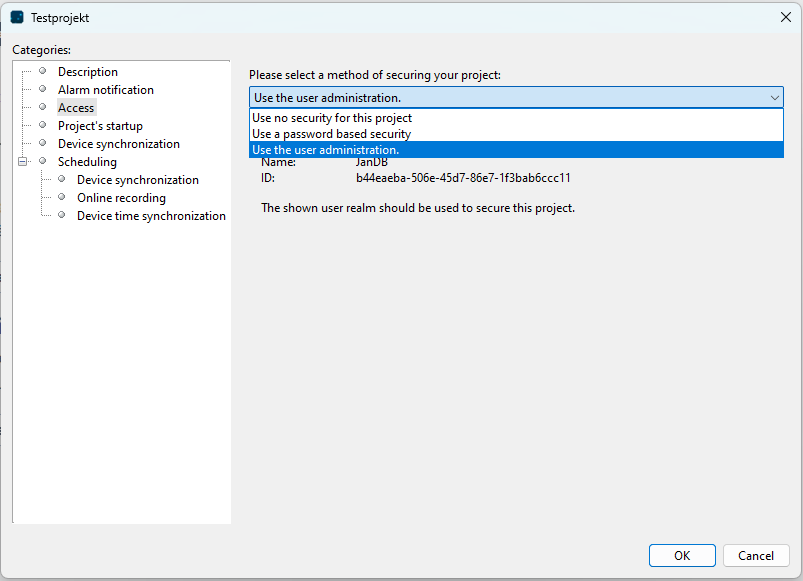
If a user directory is connected with the GridVis software, a logged-in GridVis administrator (or user with administrator rights) can protect a project. Configure the Access Protection for your project as follows:
Right-click on the project you would like to protect.
A context menu will open.
Click on the entry Properties.
The Properties window of your project will open.
In the window Properties in the field Categories, click on the entry Access.
An options menu with 3 possible settings will open:
1. Use no security for thi project - Standard setting
2. Use a Password based security
3. Use the user administrationClick to select the entry Use the user administration.
Confirm your selection by clicking on the button OK.
Your project is now protected with user management and the project icon appears in the Projects Window with a padlock (
 ).
).
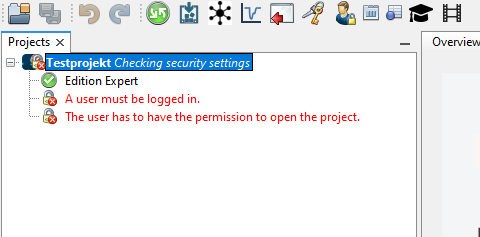
If a user does not have sufficient rights or is not logged in, the window Projects below the project name will display further explanation (see fig. on the right):
The user must be logged in
The user has to have the permission to open the project
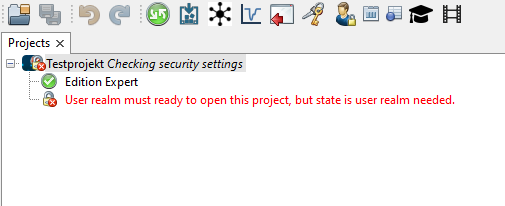
If there is a connection to another user directory (database for user management) inside of GridVis for the protected project, an additional explanation will appear in the Projects window below the project name (see fig. on the right):
User realm must ready to open this project, but state is user realm needed
In this case, disconnect the current connection to the user directory (cf. Disconnect User Directory ) and connect the GridVis software with the correct user directory (cf. Connect to a security realm ).