Alarm Sources
New Alarm Source
Edit Alarm Source
Function Set Server
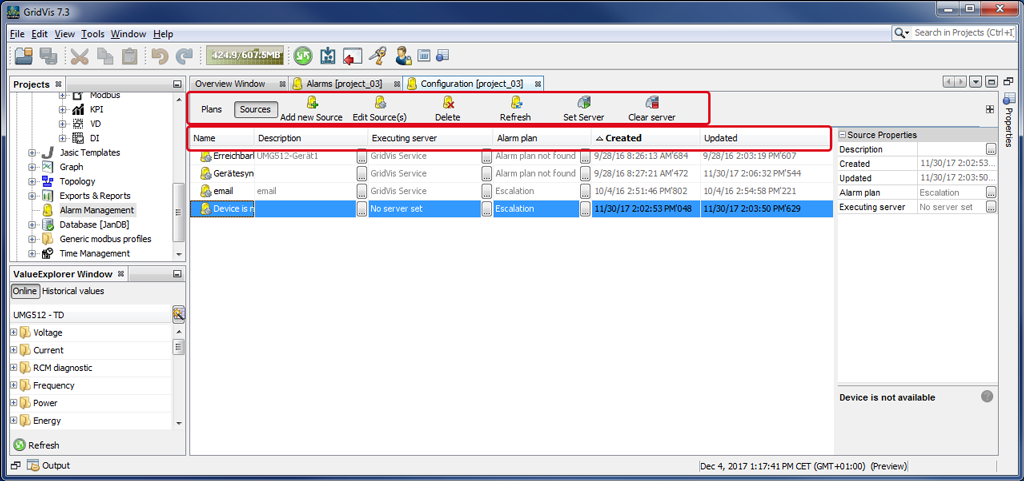
If the button Alarm Sources is pressed, the (Alarm) Configuration window will show an overview of the alarm sources.
You can use various buttons in the Configuration window to edit and manage the alarm sources.
|
Pos. |
Management of Alarm Sources - |
Description |
|
1 |
|
In this case the Alarm Plans button is inactive. |
|
2 |
|
Activate the button Alarm Sources to view all of the buttons and categories relevant for creating, managing and editing the Alarm Sources. |
|
3 |
|
Single-clicking on the button:
|
|
4 |
|
Single-clicking on the button:
|
|
5 |
|
Single-clicking on the button:
|
|
6 |
|
Single-clicking on the button:
|
|
7 |
|
In the alarm source configuration ( New Alarm Source button), you can configure a server for your alarm source. The button Set Server is a shortcut to configure a new server for your alarm source. Please first confirm the button Disconnect Server. Single-clicking on the button:
|
|
8 |
|
Single-clicking on the button:
|
|
|
Alarm Source Properties - |
Properties/Description of the buttons |
|
9 |
|
Alarm source name. |
|
10 |
|
Description of the alarm source. |
|
11 |
|
Single-clicking on the button alphabetically sorts the entries in ascending or descending order. |
|
12 |
|
Shows the alarm plan for the alarm source. |
|
13 |
|
Time and date that the alarm source was created. |
|
14 |
|
Time and date that the alarm source was updated. |


