Function Dashboards (Dashboard Editor)


General Description

  • You can create, configure and edit the dashboards (websites) in the function Dashboards (Dashboard Overview).

  • Dashboards are websites for the visualization of energy and measurement data.

  • Dashboard layouts can be individually designed.

Note

Before starting to create a dashboard, consider its use. If your dashboard should be reused for several devices of your project, create it using the function Templates. Templates are for the reuse of saved dashboards.


How do I open the function Dashboards in the GridVis Web?

  • In the menu bar, click on the button Dashboards.

  • In the menu bar, click on the button Navigation and in the drop-down menu, click on the menu entry Dashboards.

The Dashboard Manager opens.

  • Click on the View menu.

  • Click on the Go to prior graphical user interface button.

  • To get to the dashboard overview, click on the button Dashboards in the subnavigation.


Overview Window of the Function Dashboards
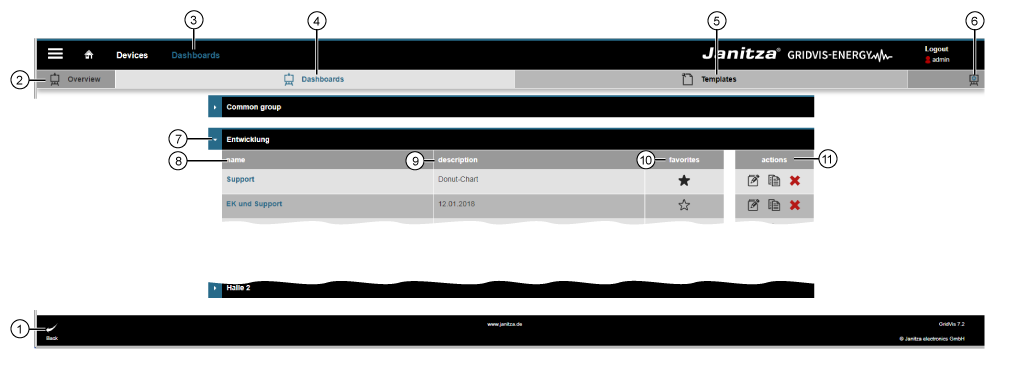
images/download/attachments/251037569/Funktion_Dash_01_EN-version-1-modificationdate-1519814700000-api-v2.png

Menu Navigation -> Dashboards > Dashboards button in the subnavigation

Position

Description

1

  • Leads to the previous window.

2

  • You are in the Dashboards window.

3

  • Fast selection menu Dashboards.

  • Opens the window Overview with the registers Dashboards and Templates.

4

  • Opens the overview Dashboards.

5

6

  • Opens the assistant Edit Dashboard to create a new dashboard.

7

  • Designation for a dashboard group.

  • Clicking on the arrow opens the dashboard group and shows the dashboards in contains.

  • One dashboard contains the columns Name, Description, Favorites and Actions.

8

  • Name of the dashboard.

  • Configuration of the name is done in the assistant Edit Dashboard .

9

  • Configuration of the description is done in the assistant Edit Dashboard .

10

  • Single-click on the star to mark the respective dashboard as a Favorite.

  • Favorites appear as buttons in the submenu of the dashboard editor.

11

  • images/download/thumbnails/251037569/edit_sw-version-1-modificationdate-1517404065000-api-v2.png Opens the assistant Edit Dashboard.

  • images/download/thumbnails/251037569/copy_sw-version-1-modificationdate-1517404064000-api-v2.png Opens a copy of the marked dashboard in the assistant Edit Dashboard .

  • images/download/thumbnails/251037569/cancel_delete-version-1-modificationdate-1517404064000-api-v2.png Deletes the marked Dashboard with a yes/no query.


Assistant Edit Dashboard

  • Click on the button Edit (in the column Actions of the overview window) or the button Add Dashboard an assistant appears to configure the dashboard.
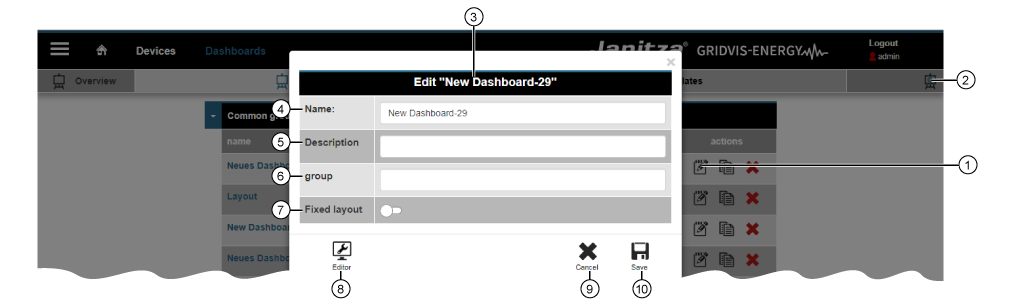
images/download/attachments/251037569/Funktion_Dash_02_EN-version-1-modificationdate-1519816652000-api-v2.png

Position

Description

1

  • Opens the assistant Edit (New) Dashboard.

2

  • Opens the assistant Edit (New) Dashboard.

3

  • The assistant for Edit New Dashboard and Edit are uniformly configured.

4

  • The entry appears in the overview window Dashboards in the group column Name.

5

  • The entry appears in the overview window Dashboards in the group column Description.

6

  • The entry appears in the overview window Dashboards as a grouping row.

7

Slider off:

  • The system uses a standard monitor format to display the dashboard.

Slider on: Select the monitor format for the following media:

  • 720 x 576 | DVB PAL, DVD-Video PAL

  • 1280 x720 | HDTV 720p

  • 1900 x 800 | UHXGA, Chrome user-defined (recommended)

  • 1900 x 920 | Full HD, Chrome user-defined (recommended)

  • 1900 x 930 | UHXGA, Full screen optimized (F11) (recommended)

  • 1900 x 1050 | Full HD, Full screen optimized (F11) (recommended)

  • 1920 x 1080 | FullHD 1080p (recommended)

  • 1920 x 1200 | UHXGA (recommended)

  • 2048 x 1152 | HD-MAC / QWXGA

  • 2048 x 1536 | 2K

  • 3840 x 2160 | UHDV-1

  • 4096 x 3072 | 4K

  • 7680 x 4320 | UHDV-2

  • 7680 x 4800 | UHXGA

8

  • Opens the dashboard editor for designing the dashboard.

Note

  • Before you click on the button Editor in the assistant Edit New Dashboard to confirm, first save your dashboard entries for Name, Description and Group.

  • To edit your saved dashboard, click on the button Edit Dashboard in the Actions area of the overview window.

9

  • Closes the assistant Edit Dashboard.

  • Any entries will be lost.

10

  • Saves your entries.


Dashboard editor

Opens the Dashboard Editor:

  1. Click on the button Editor in the assistant Edit Dashboard
    (The "Tool Tip" appears when you hover with the mouse over the button).

  2. Double-click on the dashboard Name in the dashboard overview window.
    - The Dashboard will appear.
    - In the Dashboard click on the button Edit Dashboard (cf. image on the right).
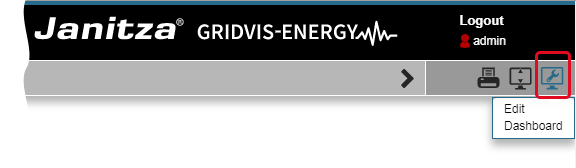
images/download/attachments/251037569/Funktion_Dash_03_EN-version-1-modificationdate-1519816931000-api-v2.png

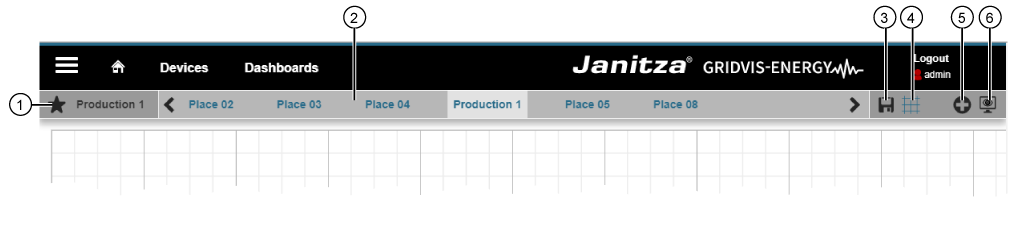
Description Dashboard Editor

images/download/attachments/251037569/Funktion_Dash_04_EN-version-1-modificationdate-1519816953000-api-v2.png

Position

Description

1

  • Shows the selected Dashboard.

  • In Favorite Dashboards the icon images/download/thumbnails/251037569/star-version-1-modificationdate-1517404065000-api-v2.png appears in front of the name.

2

  • Shows the Dashboards marked in the overview window with images/download/thumbnails/251037569/star-version-1-modificationdate-1517404065000-api-v2.png .

3

  • Saves changes on the dashboard.

  • Appears after changes on the dashboard.

  • Appears Blue when you hold the mouse cursor over it.

4

  • Activates and deactivates the grid.

  • Appears Blue when the grid is activated.

  • Use the keyboard cursor buttons to align and position the widgets.

5

6

  • Change to the View Mode of the dashboard.

  • A yes/no query appears for unsaved changes.

  • Appears Blue when you hold the mouse cursor over it.