Widgets (Visualizations)


General Description

Widgets are graphical components for functions that are positioned and configured on the dashboard. With the help of widgets you can quickly and simply create easy-to-read dashboards (websites) with images of your energy and measurement data.
The GridVis Energy provides a variety of widgets for you to create your dashboard (see Widgets Overview ). Widgets can be placed and configured simply and intuitively on your dashboard.


Add Widget
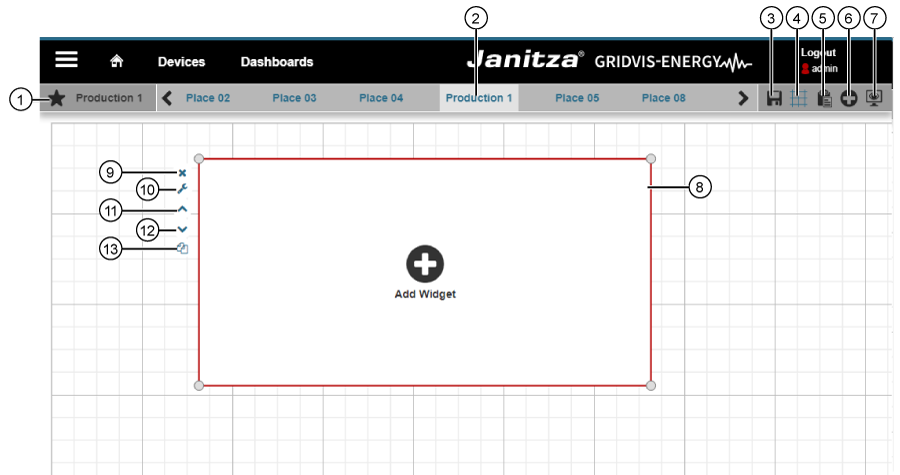
images/download/attachments/251037600/widget_01_EN-version-1-modificationdate-1519820648000-api-v2.png


Position

Description

1

  • Shows the selected Dashboard.

  • In Favorite Dashboards the icon images/download/thumbnails/251037600/star-version-1-modificationdate-1517404072000-api-v2.png appears in front of the name.

2

  • Shows the Dashboards marked in the overview window with

    images/download/thumbnails/251037600/star-version-1-modificationdate-1517404072000-api-v22.png

    .

3

  • Saves changes on the dashboard.

  • Appears after changes on the dashboard.

  • Appears Blue when you hold the mouse cursor over it.

4

  • Activates and deactivates the grid.

  • Appears Blue when the grid is activated.

5

  • Insert the Widget (Pos.13) previously copied into the cache into the current dashboard.

  • Can be applied on every dashboard in the Dashboard Overview.

  • Appears "Blue" when you hold the mouse cursor over it.

  • You can use the mouse cursor or the keyboard arrow keys to position the "Widgets" on the dashboard.

6

  • Creates a frame for Widgets on the dashboard.

  • Appears Blue when you hold the mouse cursor over it.

7

  • Change to the View Modeof the dashboard.

  • A yes/no query appears for unsaved changes.

  • Appears Blue when you hold the mouse cursor over it.

8

  • An activated Widget Frame turns red.

  • The frame can be scaled by dragging the Corner Markers to the desired size while holding the mouse button down.

9

  • Deletes the Widget Frame (with its contents).

10

  • Opens Widgets for configuration by the the assistant Edit Widgets.

11

  • Moves your Widget one level forward step by step.

12

  • Moves your Widget one level backward step by step.

13

  • Copies the marked Widget to the cache.

  • Via the cache (Pos. 5 images/download/thumbnails/251037600/clipboard_paste-version-1-modificationdate-1517404072000-api-v2.png ), copy the Widget into every dashboard in the Dashboard Overview.


Assistant Edit Widget and Widgets Overview

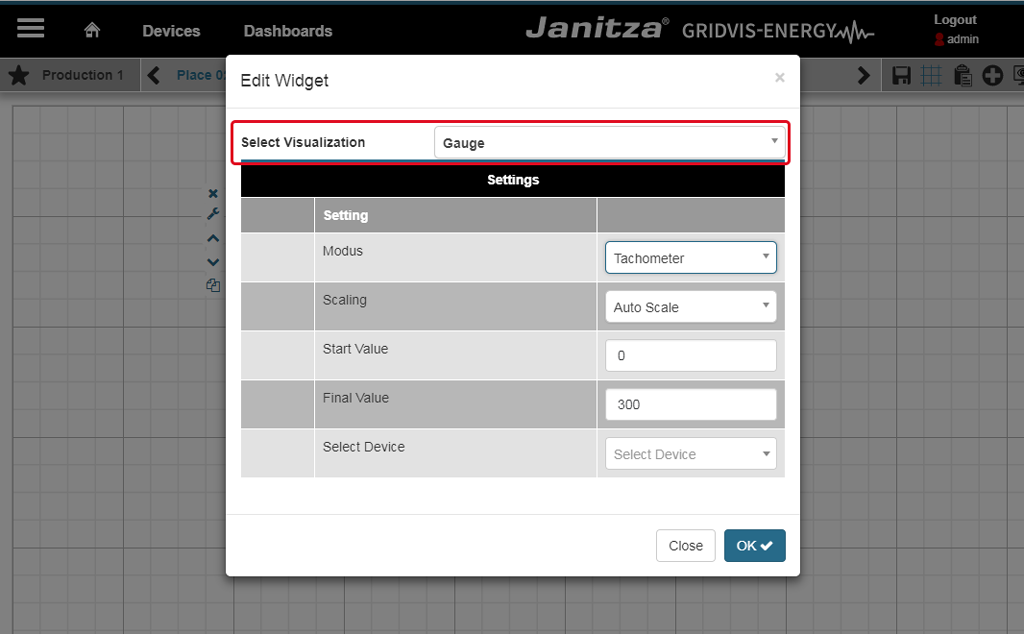
Clicking on the icon Edit Visualization ( images/download/attachments/251037600/widget_assistentoeffnen-version-1-modificationdate-1517404072000-api-v2.png ) will open the assistant Edit Widgets. In the option list Select Visualization, select your widget. The following widgets are available:

Display Instrument
Bar Chart (Multi)
Bar Chart (Single)
Image
Donut Chart
Energy Overview (Multi)
Energy Overview (Single)
Heat Map
Indicator (Live)
Key Performance Indicator (KPI)
Cost Report (Multi)
Cost Overview
Pie Chart
Line Chart (Live)
Line Chart (Historical)
Measurement Values (Live)
Min/Max Overview
Sankey Diagram
Text Editor
Weather
images/download/attachments/251037600/Widgets_02_EN-version-1-modificationdate-1519820679000-api-v2.png