Application for electricity tax refund
Valid for
|
GridVis Editions |
Software platform |
|
|
|



General description
Financial relief can be obtained by companies in the manufacturing industry and in agriculture and forestry that use taxed electricity for business purposes by applying for an electricity tax refund in accordance with § 9a and § 9b Electricity Tax Act (StromStG).
GridVis supports the application process by providing a corresponding data export and some of the required evidence as an attachment.
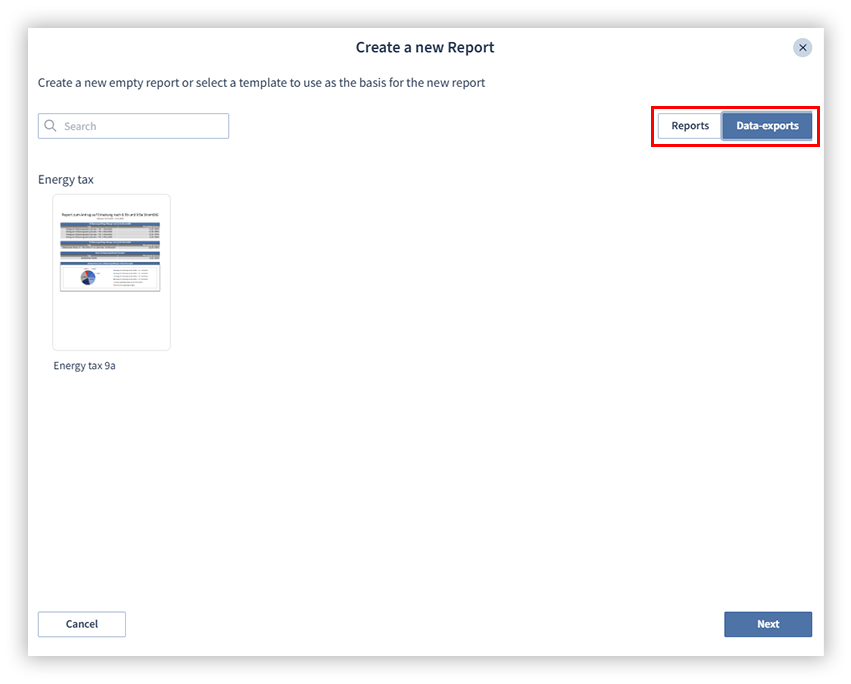
The data export Electricity tax refund § 9a and § 9b can be found under Reports → Create new report → Data exports.
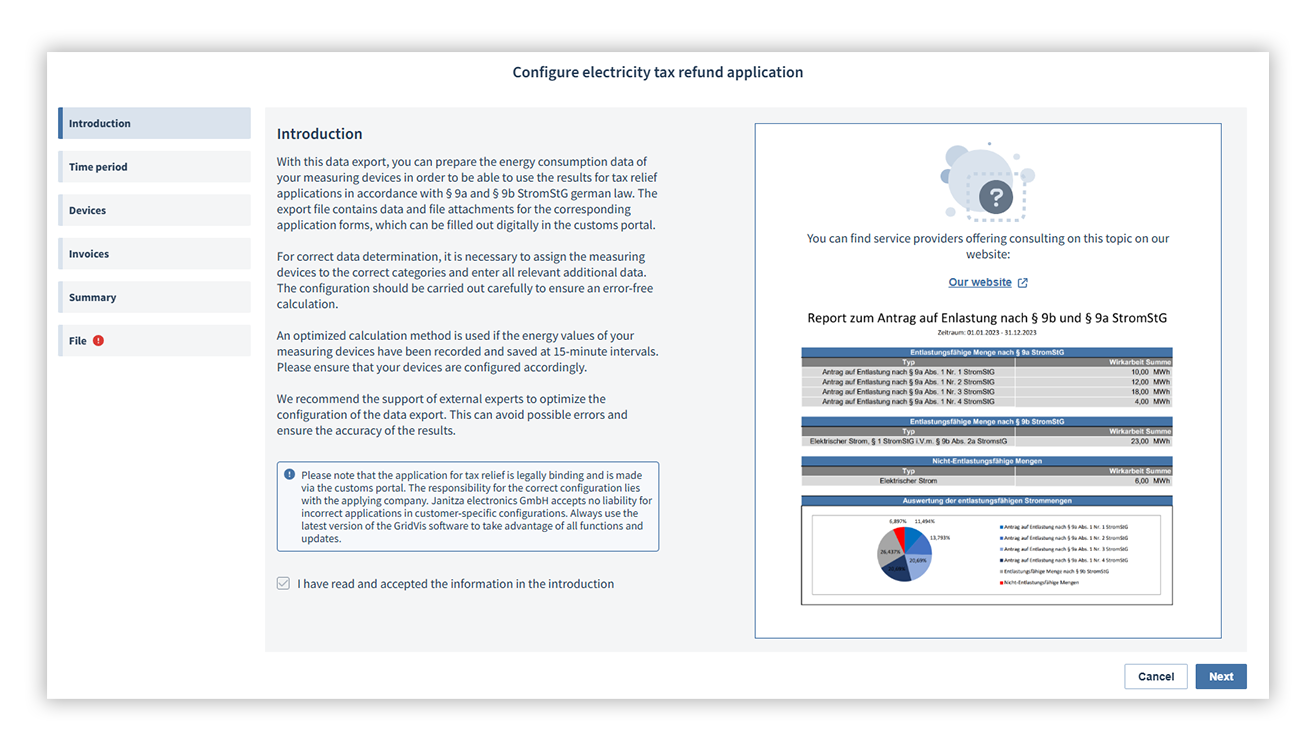
Configuring the application for an electricity tax refund
Read the note in the Introduction section and check the checkbox.
In the Period area, select the relief period and the year for the application for electricity tax relief.
Only the current and last year can be selected for export, as the application for reimbursement can only be made for this period.
In the Devices area, select the devices for the electricity tax application. To do this, assign them to the respective categories of your locations using drag & drop. If your company is spread across separate locations, you can create multiple locations.
In the Invoices area, enter the type of invoice and transfer the quantities of electricity consumed for your locations. To display invoices for the respective locations, click on the relevant location in the Locations field. You can add further invoices using the Add invoice button.
The data to be entered here can be found on the bill from your energy supplier. The data are legally binding.
The type of invoice depends on the relief period specified in the Period area.
The total consumption of the individual bills is calculated automatically and is used as the basis for the total consumption in the application for an electricity tax refund.
In the Summary area, review the time period and the assignment of your devices.
In the File area, specify the file format as well as the file and export names. Select whether the file should be overwritten when saving or whether a new file should be created with the date in the file name.
Close the configuration using the Save button.
The data export is not executed automatically when saving.
Execute the data export in the Report management area using the quick action Execute data export now. The file can then be downloaded.
The values from the created file must be manually transferred to the application in the customs portal. The items of evidence for the individual categories are provided as individual Excel sheets or PDF files and can be uploaded to the customs portal in PDF format.
Note
Configuring the data export requires precise knowledge of the measurement points and the objectives of the reimbursement procedure.
We recommend using external consulting service providers for support: https://www.janitza.com/de-de/partner-fuer-stromsteuerrueckerstattung