Reports
Pages
Application Examples
Application for electricity tax refund
Valid for
|
GridVis editions |
Software plattform |
|
|
|


Necessary rights
The different actions in the report editor require different rights. You grant these rights via the respective roles of a user in the user management .
|
Action / Role |
View |
Create |
Update |
Delete |
|
View report |
|
|
|
|
|
Delete report |
|
|
|
|
|
Create report |
|
|
|
|
|
Edit report |
|
|
|
|
|
Export report |
|
|
|
|
|
Import report |
|
|
|
|
|
Create PDF |
|
|
|
|
|
View PDF |
|
|
|
|
|
Delete PDF |
|
|
|
|

Opening the report management
Click on the Reports button in the navigation bar.
Click on the entry Reports in the Navigation menu.
Report management
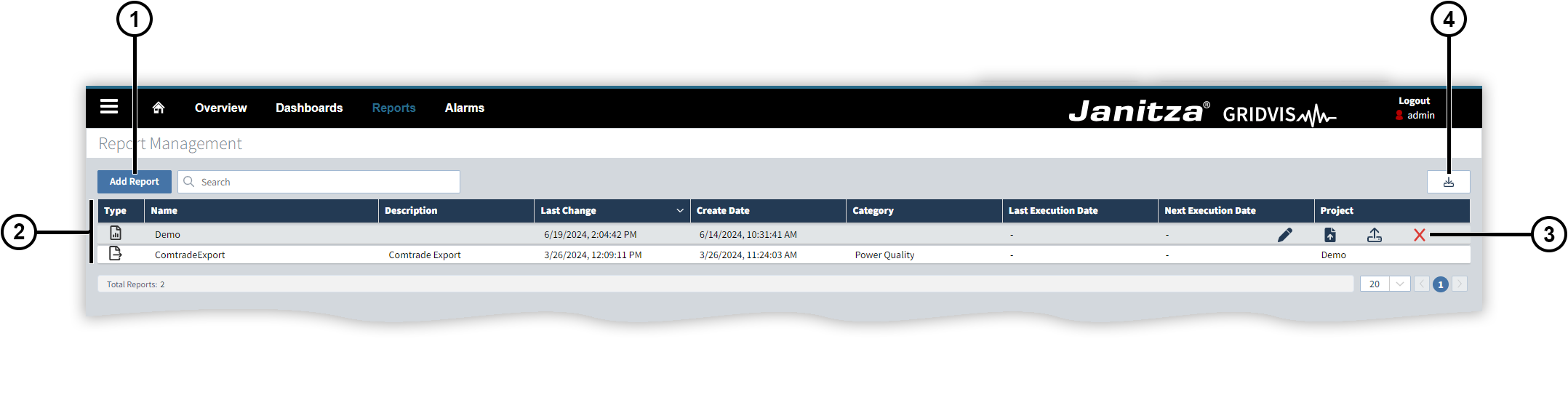
The report management displays reports and data exports from all projects that have been added to the GridVis Web.
|
Position |
Description |
|
1 |
Opens a new report in the report editor . You can start with an empty report or use a report template . |
|
2 |
Contains details of your reports or
data exports
(GridVis Desktop). Note
|
|
3 |
|
|
4 |
Imports a report in the JSON format. Note
|

 Creates the report.
  Exports the report in the JSON format.
  Deletes the report or data export including all related documents.
 Report templates
Report templates can be used as the basis for new reports. Various pre-installed templates are available in the GridVis Web.
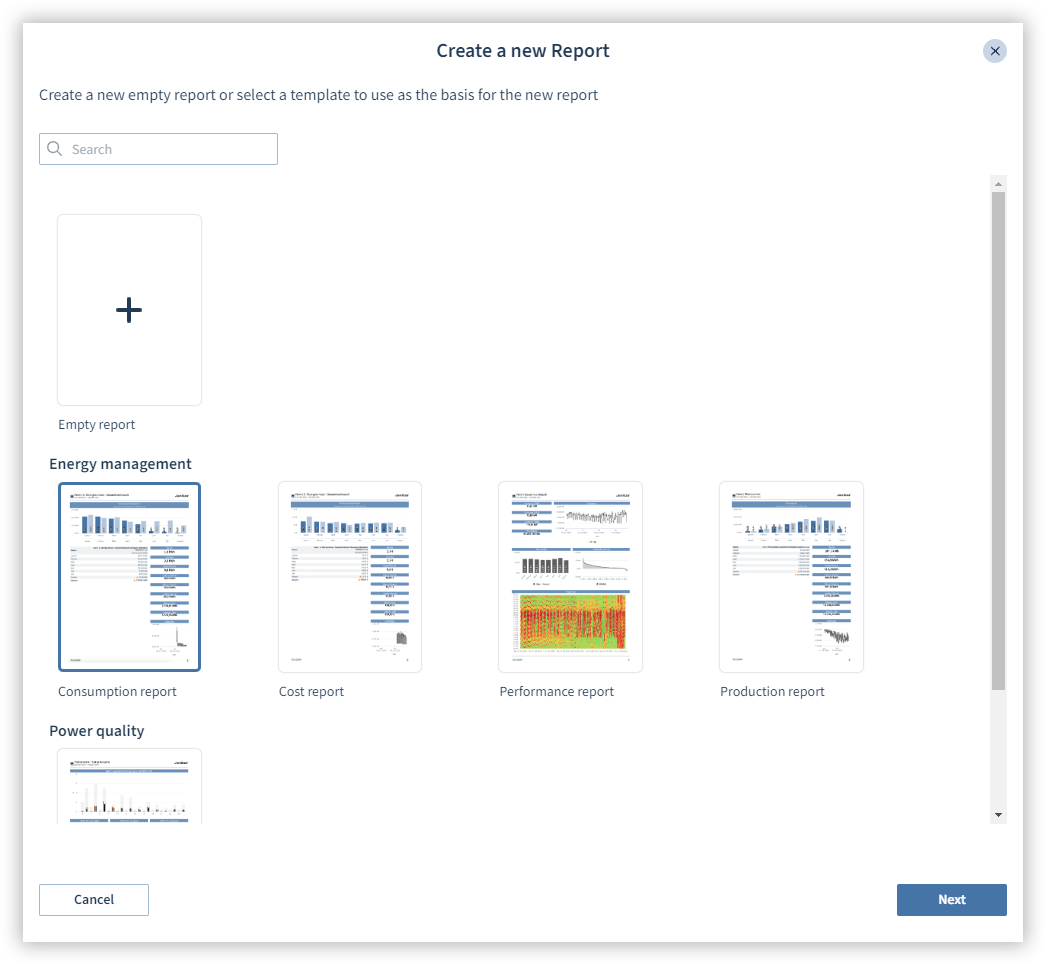
Select a template:
Click on the Add Report button.
Select a template.
Select the devices you want to use in the template.
Configure further settings.
Click on Submit. You can further adjust the report if needed.
Report editor
Start the report editor by either creating a new report or editing an existing report.
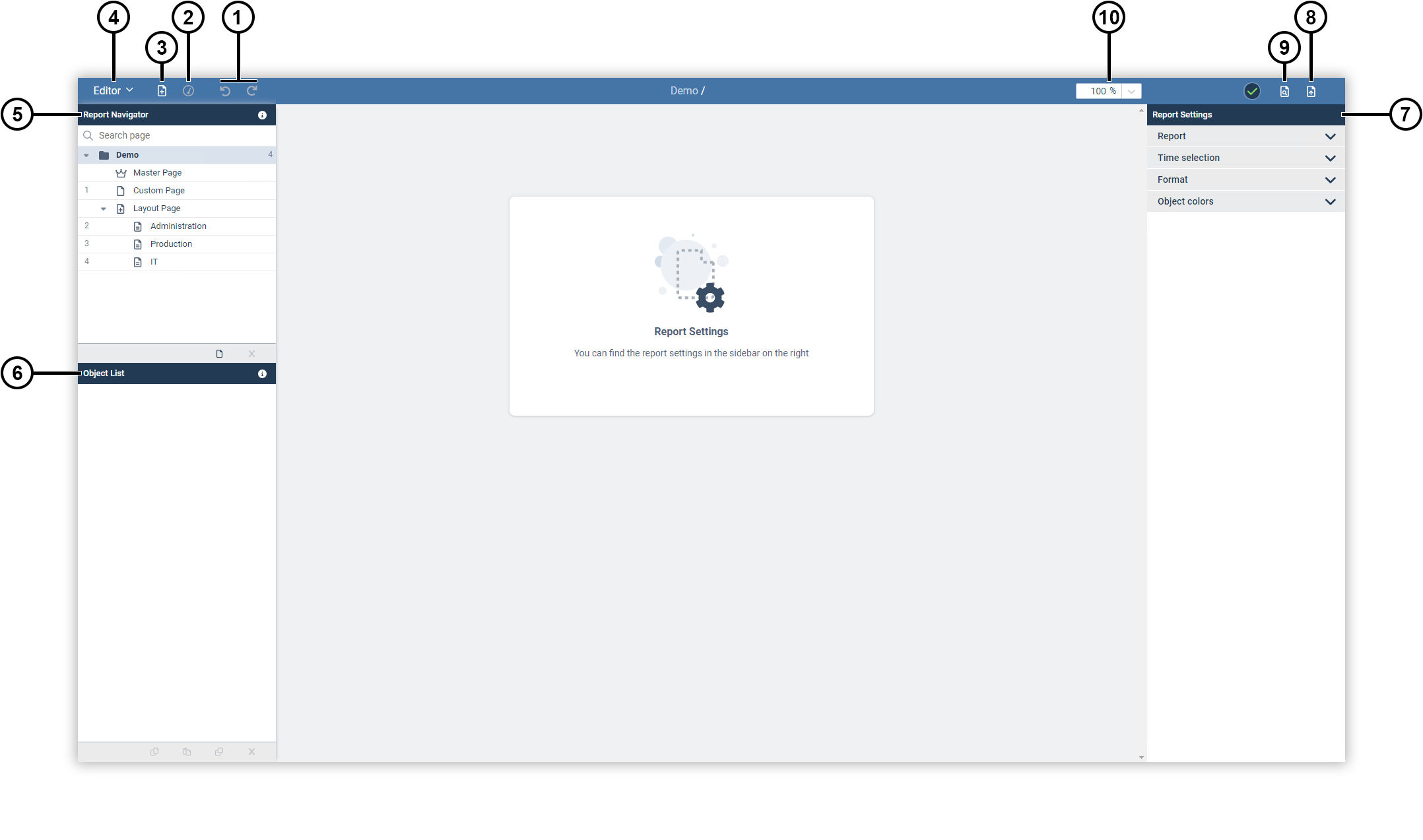
The report editor allows you to create reports with your own layout, content and design. Freely place elements with measured values, images or graphical components. These elements are called objects .
|
Position |
Description |
|
1 |
Undoes or redoes actions (keyboard shortcut Ctrl/cmd + Z or Ctrl/cmd + Y). |
|
2 |
Opens the object library, which can be used to add an object to the currently displayed page. |
|
3 |
Adds a new page or layout page to the report. |
|
4 |
Opens the menu with further options such as device exchange. |
|
5 |
Manages the pages of the report. More information can be found under report navigator . |
|
6 |
Manages the objects of the displayed page. More information can be found under object list . |
|
7 |
Changes the settings for the selected element. For more information, see the explanation of the respective element. |
|
8 |
Generates the report as a PDF and stores it in the database. |
|
9 |
Creates a preview of the report as a PDF. You can download the preview, but it will not be saved in the database. |
|
10 |
Zooms in the report editor. |
Report navigator
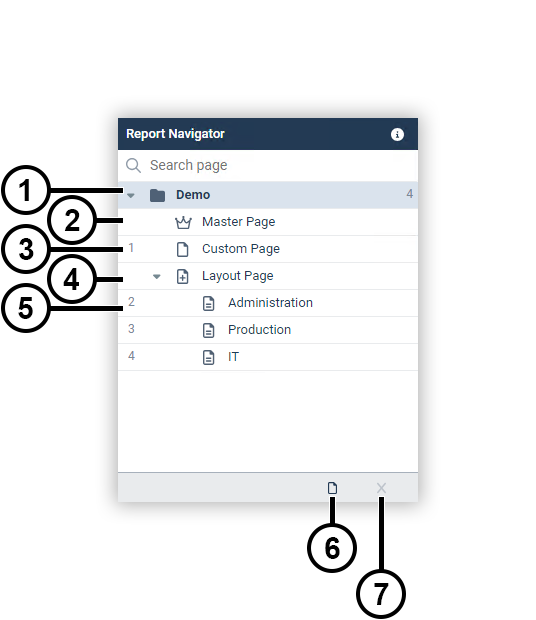
Use the report navigator to manage the pages of your report. You can change the arrangement of the pages using drag-and-drop.
|
Position |
Description |
|
1 |
Origin element of all report pages. Select this element to access the report settings in the settings menu. More information can be found under report settings . |
|
2 |
The master page of the report. Select this item to access the master page settings in the settings menu. More information can be found under master page . |
|
3 |
A report page. Select this item to access the page settings in the settings menu. More information can be found under page . |
|
4 |
A layout page. Select this item to access the layout page settings in the settings menu. More information can be found under layout page . |
|
5 |
A device page of a layout page. Select this item to display the device page. More information can be found under layout page . |
|
6 |
Adds a new blank page to the report. Note
|
|
7 |
Deletes the selected page. Note
|
Report settings
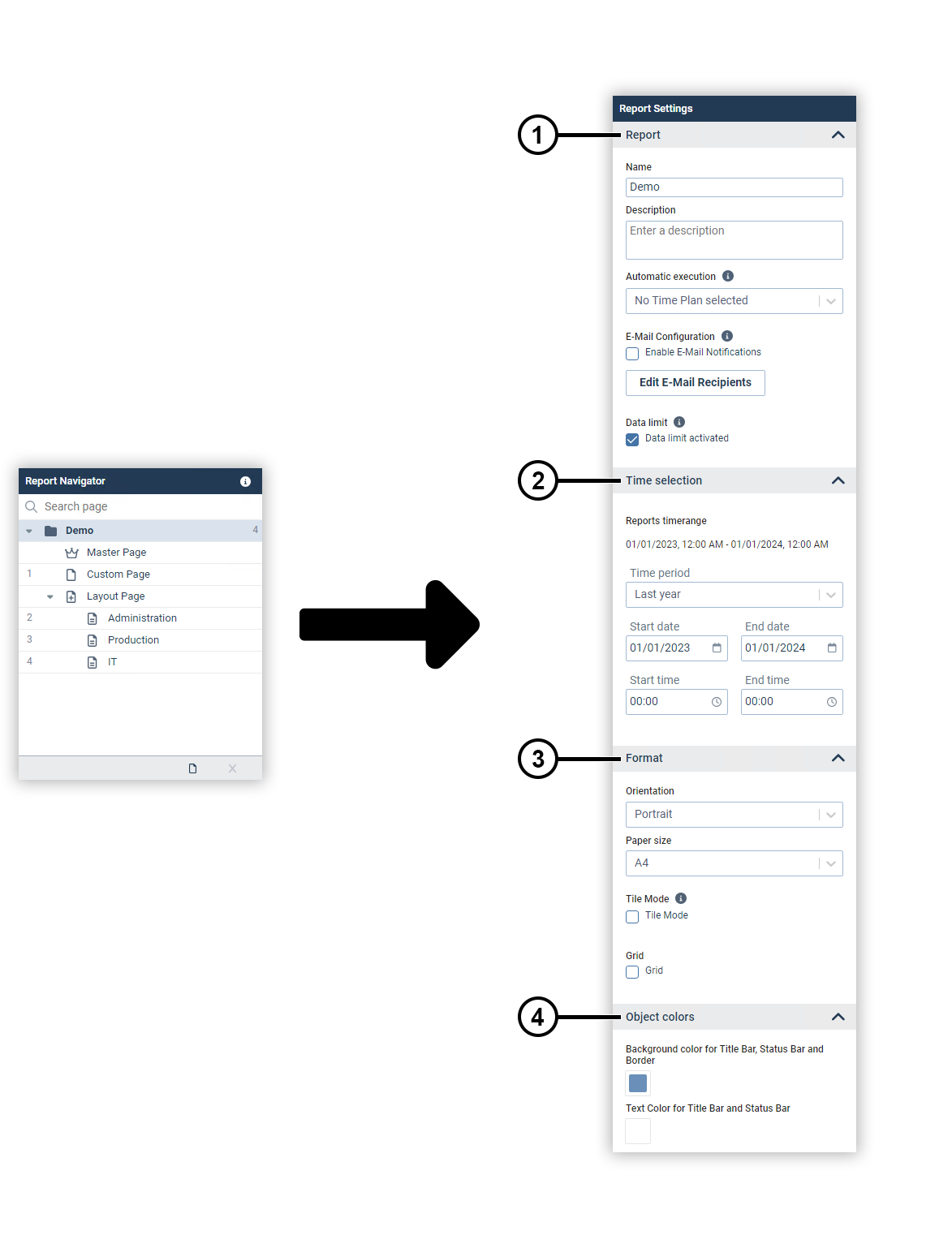
Make the global settings for your report here.
|
Position |
Description |
|
1 |
Report. You can assign a name and a description here. In addition, you can set the times at which the report is automatically executed and the recipients to whom the report is sent as an e-mail. The data limit prevents visualization objects from representing too many data points. Note
|
|
2 |
Time selection. M ake the global settings for historical values here. |
|
3 |
Format. Set the format of the report here. You can use the tile mode and the grid as positioning guides. The grid does not appear in the generated PDF document. |
|
4 |
Objekt colors . Set the background, text and border color of the report objects here. |