Device list
Activating and deactivating devices
You can deactivate and reactivate your devices in the device management overview. Deactivated devices are not included in a readout and no more settings can be made on them. Proceed as follows to activate or deactivate your devices:
Select the devices in the device management overview.
Click on the Three-dot menu (
 ).
).Select the entry Activate devices or Deactivate devices .
A confirmation window opens. Here, click the button Activate or Deactivate .
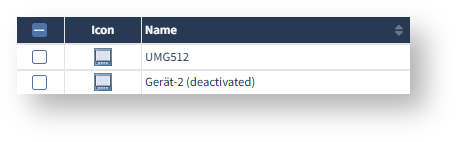
After the confirmation window has been closed, the device overview shows which devices are activated or deactivated.
Filter selection
In the filter selection, you can configure your desired filters to filter your device list according to certain properties.
Click on the f
ilter symbol
( )
to open the filter selection. By default, only filters for the configured columns of the device list are displayed. You can also use the slider
Show all filters
to display all filters.
)
to open the filter selection. By default, only filters for the configured columns of the device list are displayed. You can also use the slider
Show all filters
to display all filters.
Select and configure columns
You can configure the columns displayed in the device list using the column selection. Proceed as follows to add a new column to the device list:
Click on the column icon (
 ).
).Click on the +- symbol to add a column to the Selected columns area, or drag & drop a column into the area.
Click on Remove column or drag & drop a column out of the area to remove it.
In the area Selected columns , select the column for which you want to make more precise settings.
Configure the selected column in the Column settings area.
Finally, click on the Confirm button.
Firmware Update
You can find the current firmware version of your device in the download area on our website ( Download-Center ).
Click on the Three-dot menu (
).Select the entry Firmware upgrade . The Firmware upgrade window opens.
Click the Select firmware file button and upload the corresponding ZIP file. Alternatively, you can drag and drop the ZIP file into the window.
Click the Upload button.
Use the Ctrl key to select the devices that are to receive a firmware update.
Select the Upgrade type . The update can take place sequentially or in parallel .
Sequentially : Updates the firmware of the devices one after the other.
Parallel : Updates the firmware of the devices simultaneously.
Select the Upgrade options .
Click the Start firmware upgrade button.