Execute a Program
Note
The option Execute a Program is an interface for configurable command-line operations. This option requires advanced programming skills! Please consult an expert if necessary.
By selecting the option Execute a Program (e.g. SMS, Twitter, Modbus address, ...), you have the option of executing a configurable command-line operation for each alarm event. In the following we have selected an example that sends a message via X (Twitter).
If the alarm management should publish notifications on X (Twitter), proceed as follows:
Create X (Twitter) account.
Download twt file.
Unpack twt file to c:\Programme\twt.
Configure twt (twt -config). Here, a window in the browser will open.
Configure the alarm plan with the action Execute a Program.
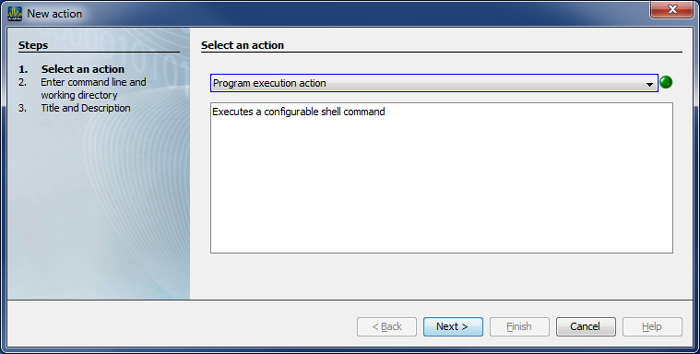
After selecting the option Execute a Program in the first step of the window New Action click on the button Continue.
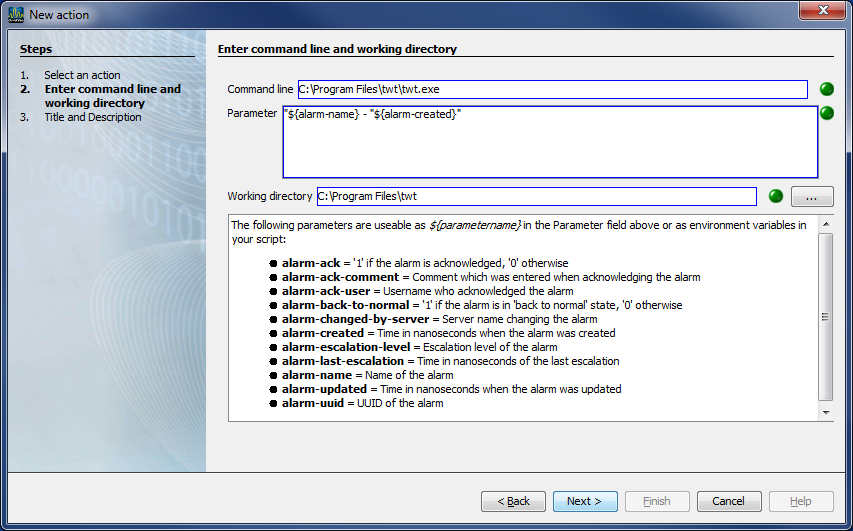
In the window New Action the second step, Enter Command Line and Working Directory, will appear.
For a Twitter message, configure the entry fields Command Line, Parameter and Working Directory as depicted.
Click on the button Continue.
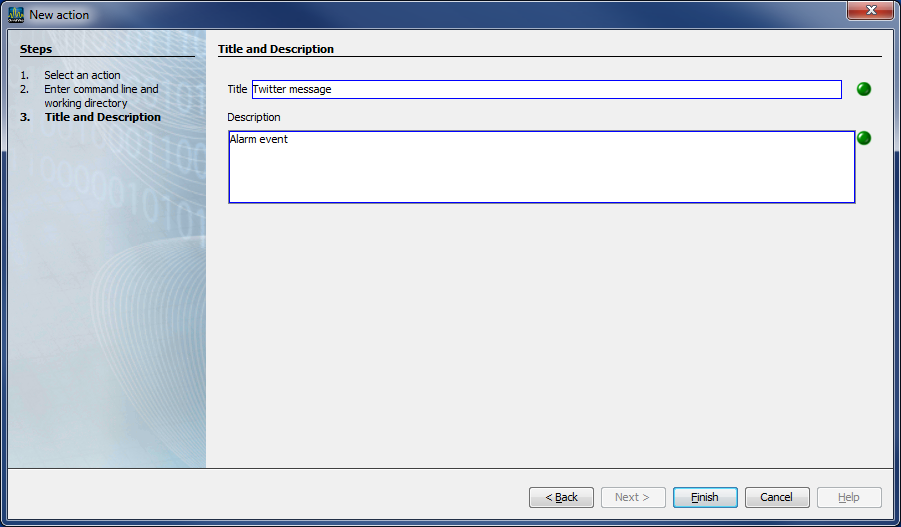
In the window New Action the third step, Title and Description, will appear.
Enter into the entry field Title the title of the program and into the entry field Description a description of the program.
Click on the button Done.
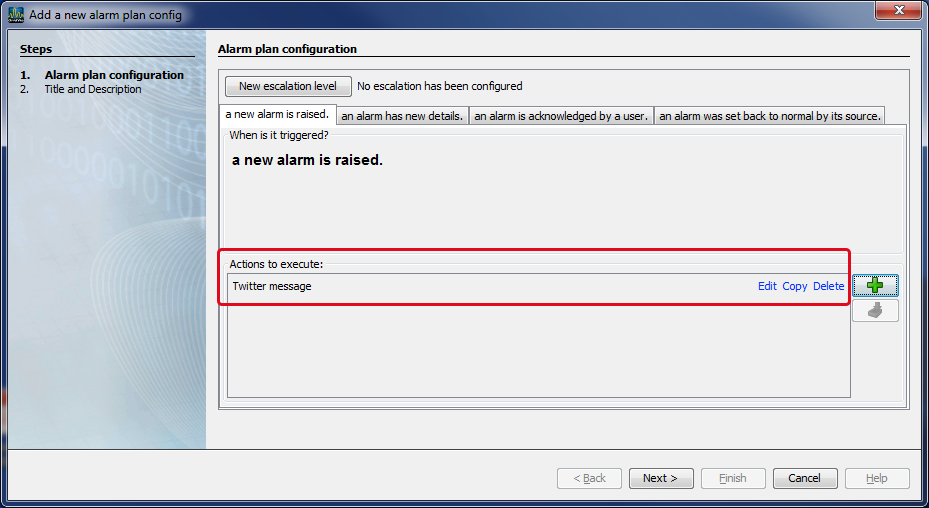
In the dialog box Create New Alarm Configuration under Actions to be Executed, the previously entered title will appear with the 3 buttons:
|
1 |
Edit |
Click on the button to edit the action Execute a Program anew. |
|
2 |
Copy |
Click on the button to copy the settings of your action Execute a Program to the cache. The settings of your action Execute a Program in the cache can be added to new actions by clicking on Copy again. |
|
3 |
Delete |
Single-clicking on the button Delete deletes the action. |
|
4 |
|
Single-clicking on the button creates a new action. |
|
5 |
|
Single-clicking on the button inserts new actions from the cache. |


Note
The above-described Actions to be Executed can be configured for each alarm event (4 tabs).
Click on the button Continue.
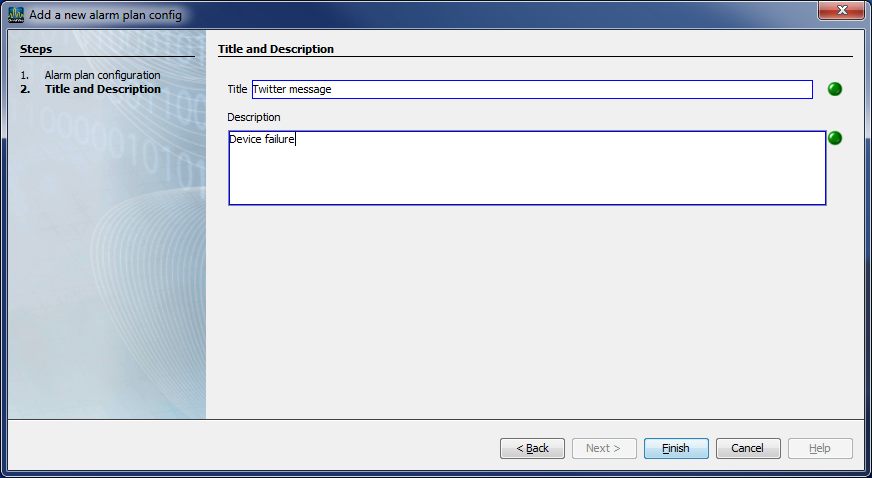
In the window New Alarm Plan Configuration, the second step, Title and Description (for the alarm plan in the alarm plan overview), will appear.
Enter into the entry field Title the title of your alarm plan (appears as Name in the alarm plan overview).
Enter into the entry field Description the description of your alarm plan (appears as Description in the alarm plan overview).
Then, finally click on the button Done.
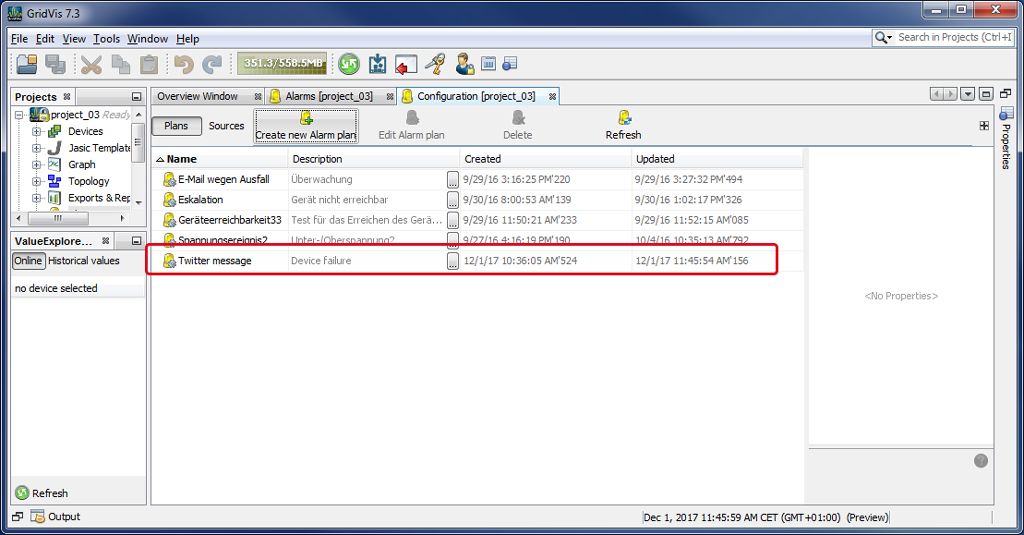
In the window (Alarm) Configuration (alarm plan overview), the alarm plan you created will appear in the list, ready to be connected with an alarm source (cf. Alarm Sources ).