New Alarm Plan
Execute a Program
Send an Email
Description
In the alarm plans you can configure the actions that will be executed if
an alarm event (at the alarm sources) or
an escalation level occurs.
Alarm plans are connected to an alarm source (measuring device) (cf. Alarm Sources ).
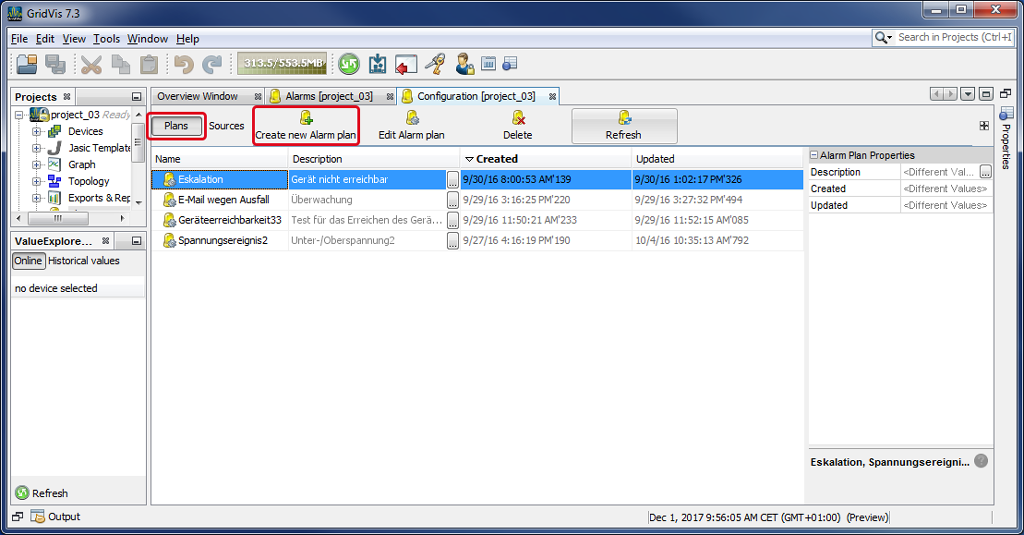
After you have opened the window (Alarm) Configuration (cf. Window (Alarm) Configuration ), click on the button Alarm Plans to activate the buttons for editing and managing the alarm plans.
Click on the button New Alarm Plan.
The dialog box Create New Alarm Plan Configuration opens.
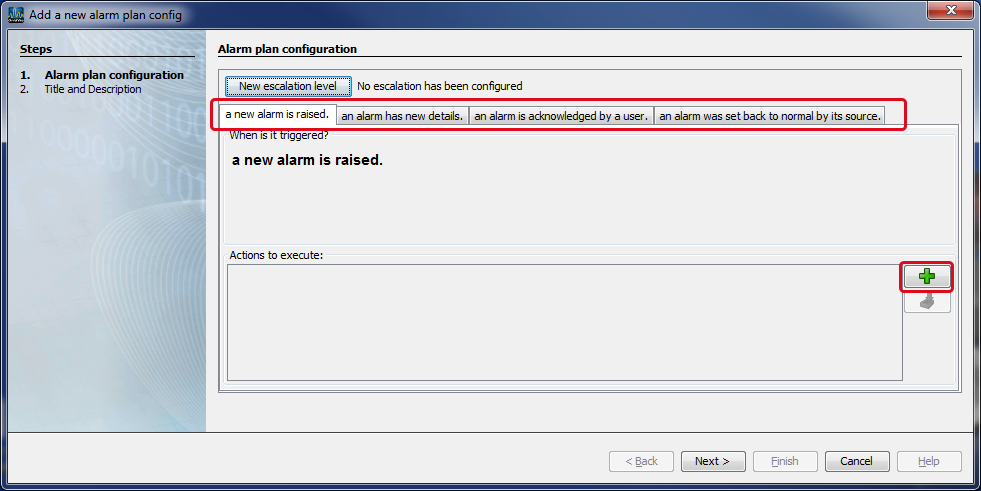
In the dialog box Create New Alarm Plan Configuration you can configure your alarm plan.
For the Actions to be Executed after the occurrence of the alarm events, there are 4 tabs for configuration.
With the button New Escalation Reason you can create - if you like - further Escalation Levels (cf. Alarm Plan - Escalation Levels )
|
|
Alarm Event |
Description |
|
1. |
A new alarm was reported |
Start (Tab) - Here you can configure the first Action to be Executed that the system performs if an alarm event (at an alarm source) occurs. |
|
2. |
An alarm has new details |
Here you can configure an Action to be Executed if the assigned alarm event contains new details. A new detail may be, for example: |
|
3. |
An alarm is acknowledged by a user |
Here you can configure an Action to be Executed, if the assigned alarm event was acknowledged (confirmed) by a user. |
|
4. |
An alarm was reset to normal by its emitter (perpetrator) |
Here you can configure an Action to be Executed, if an alarm event was reset by the emitter (perpetrator). |
In all tabs for the respective alarm events, you can use the button
 to configure the Action to be Executed.
Click on the button
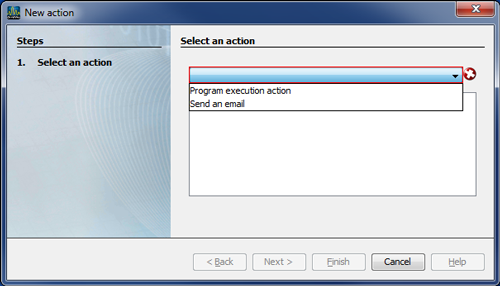
to open the window New Action.
In the window New Action, select your Action to be Executed for an alarm event in the first step.
In the options list you can choose between:
- Execute a Program
- Send an Email.