Alarm Plan - Escalation Levels
Description
Targeted escalation management (setting of escalation levels) guarantees timely intervention in the case of critical states and error states. The alarm escalates if it is not acknowledged (for a defined period of time). The number of escalation levels is arbitrary. If an alarm is not acknowledged and the next escalation level is activated, further actions are initiated.
For an existing alarm plan, you can create further escalation levels if you like (stepwise increase in the hazard level of an alarm plan).
If multiple escalation levels have been set up for one alarm (plan), the escalation levels build on one another.
Set up escalation levels enable responses to one - not acknowledged by a user - alarm.
The escalation chain can be interrupted by resetting the alarm or if a user acknowledges the alarm.
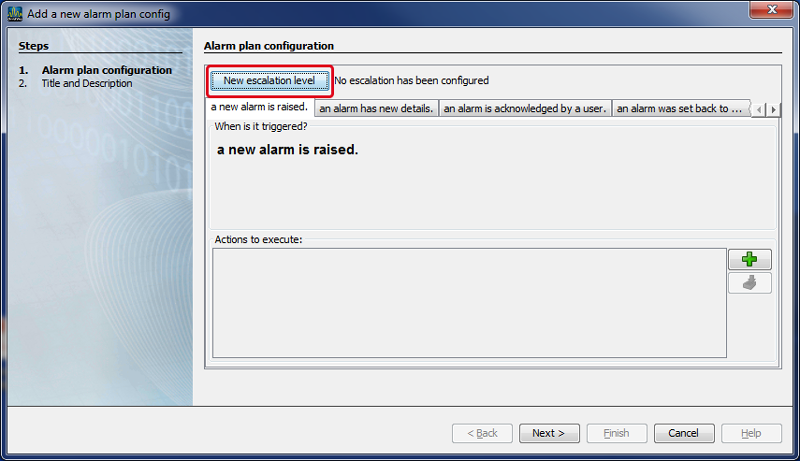
To configure your escalation levels, click on the button New Escalation Cause in the window Create New Alarm Plan Configuration or in the window Edit Existing Alarm Plan Configuration.
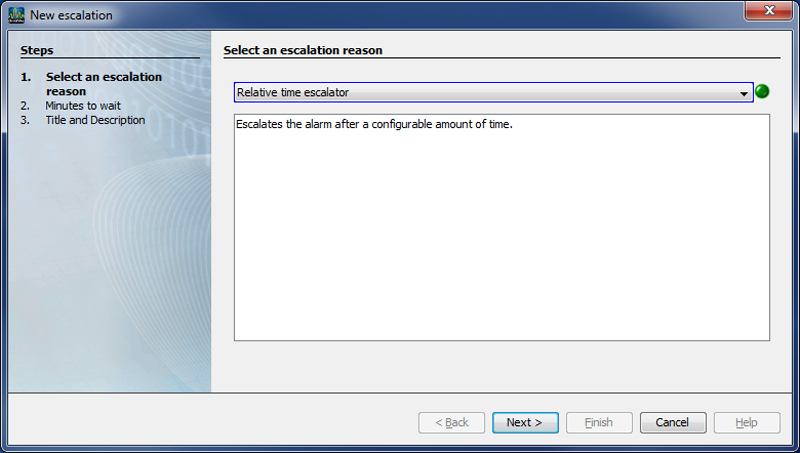
In step 1 Select Escalation Cause appears in the window New Escalation.
Select form the options list Escalation after Time Period.
Click on the button Continue.
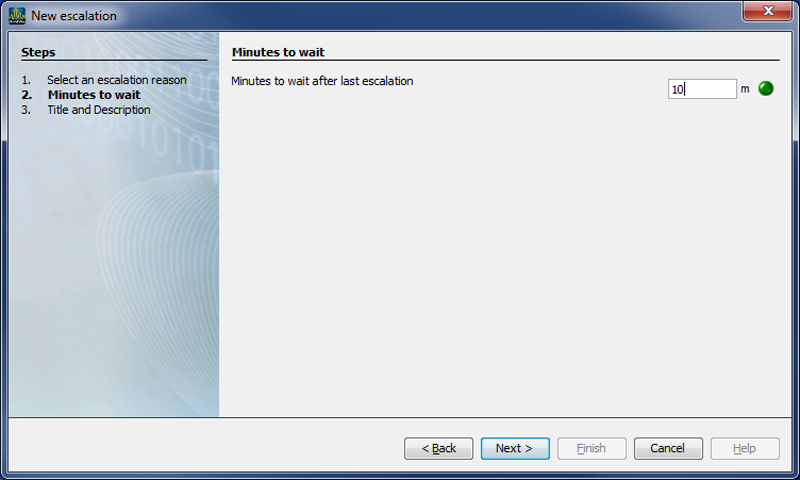
Step 2, Minutes Remaining, appears in the window New Escalation.
Enter the Minutes Remaining after the last escalation into the entry field.
Click on the button Continue.
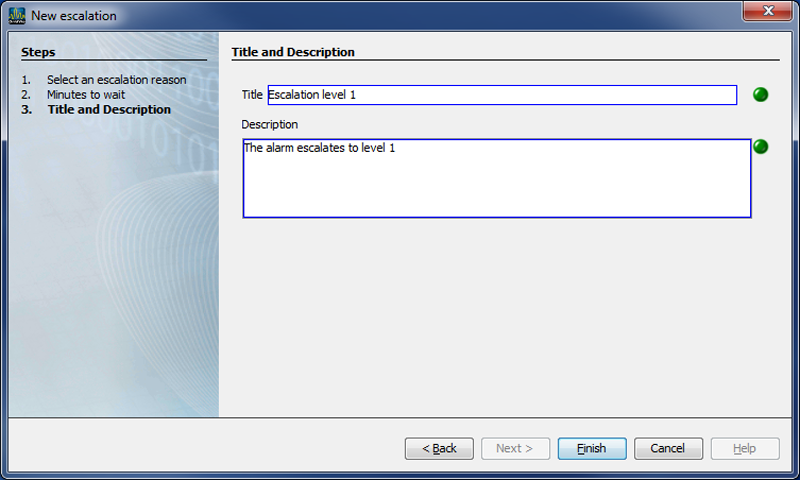
Step 3, Title and Description appears in the window New Escalation.
Enter into the entry field Title the title of the escalation and into the entry field Description a description of the escalation.
Click on the button Done.
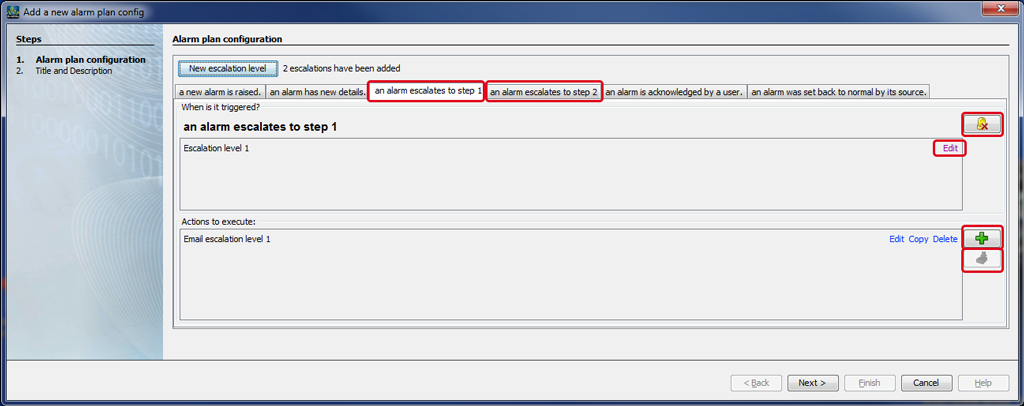
In the window Create New Alarm Plan Configuration or in the window Edit Existing Alarm Plan Configuration, your configured escalations will appear as tabs.
Functions of the buttons/symbols in the respective escalation levels:
|
|
Button/Symbol |
Description |
|
1 |
|
Single-click on the button:
|
|
2 |
|
Single-click on the button:
|
|
3 |
|
Single-click on the button:
|
|
4 |
|
Single-click on the button to insert copied actions from the cache. |
|
5 |
|
Edits, copies or deletes your action. Cf.: |



Single-click on the button Continue to go back to the window Create New Alarm Plan Configuration or to the window Edit Existing Alarm Plan Configuration.
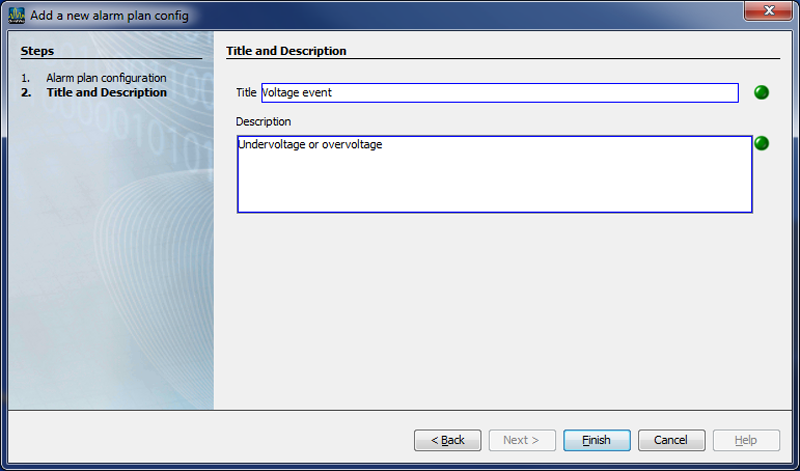
Enter into the window Create New Alarm Plan Configuration in the second step the title and description of your alarm configuration. You can change your title and description in the window Edit Existing Alarm Plan Configuration .
Exit the configuration by clicking on the button Done.