Edit Alarm Plan
Description
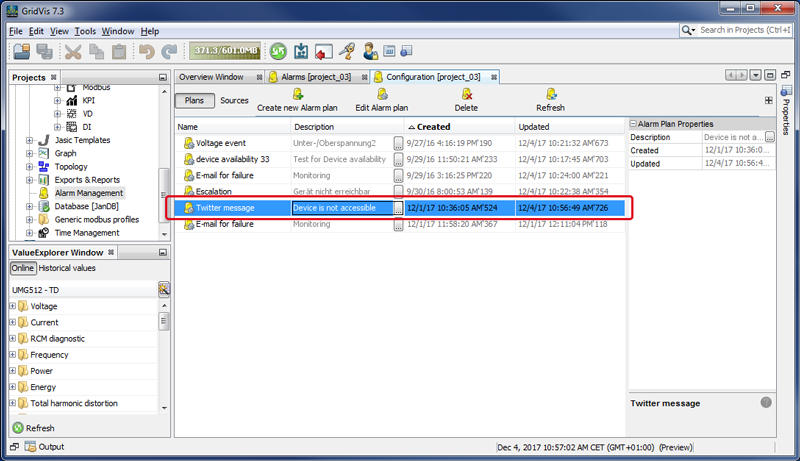
You can make subsequent changes to existing alarm plans using the button Edit Alarm Plan:
Click on the button Alarm Plans to open the alarm plan overview.
Mark the alarm plan you would like to change.
Click on the button Edit Alarm Plan.
The dialog box Edit Existing Alarm Plan Configuration will appear.
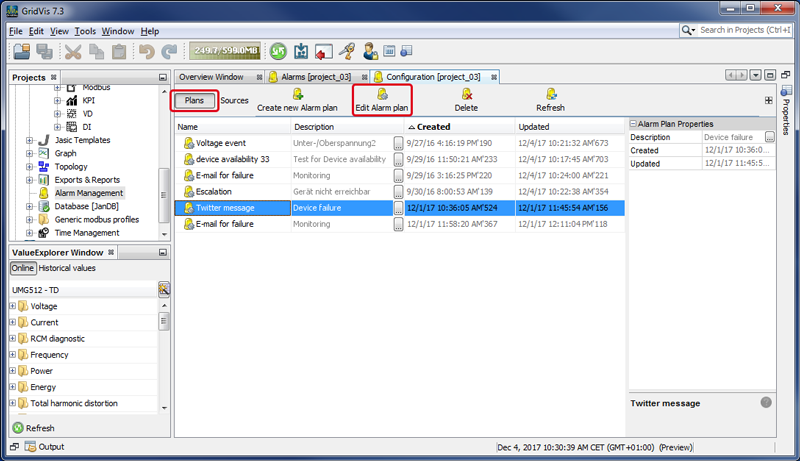
For each alarm event (4 tabs), you can change your alarm plan configuration using the buttons Edit, Copy and Delete:
|
Edit |
Click on the button to edit the action Execute a Program anew. |
|
Copy |
Click on the button to copy the settings for your action Execute a Program to the cache. The settings of your action Execute a Program in the cache, you can add new actions by clicking again on the button Copy . |
|
Delete |
Clicking on the button Delete deletes the action. |
Further steps and settings for Edit, Copy and Delete correspond to the descriptions
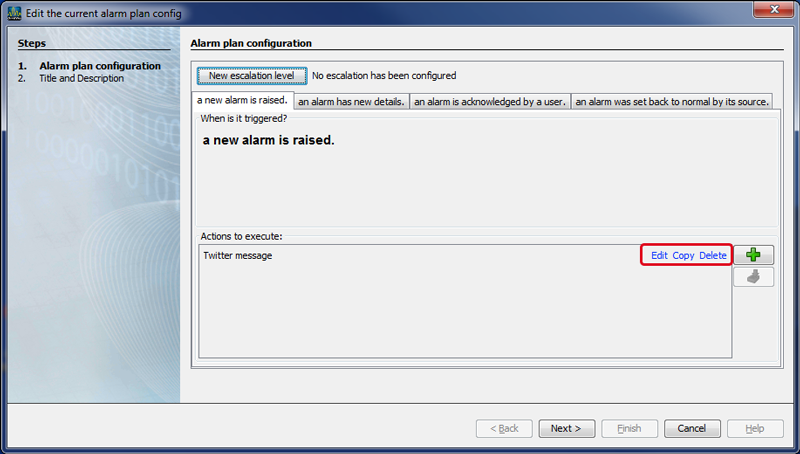
After you have edited your alarm plan configuration, press the button Continue to get to the second step, Title and Description of your alarm plan configuration. Here you can also change your entries.
Click on the button Done.
The window (Alarm) Configuration (Alarm plan overview).
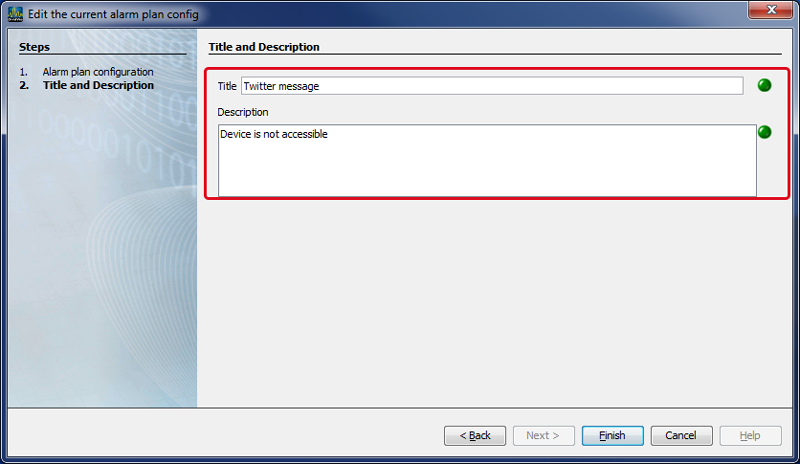
the entries previously made for Title and the Description appear as Name and Description in the alarm plan overview.