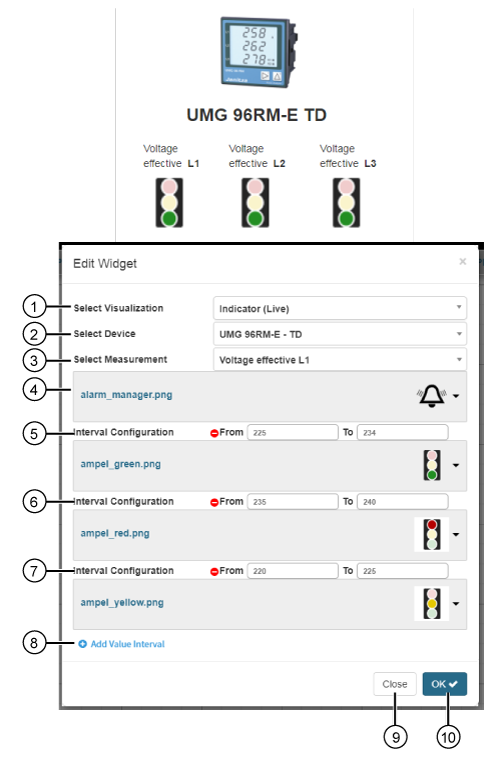
Indicator (Live)


images/download/attachments/251037647/W_indikator_live_EN-version-1-modificationdate-1519899712000-api-v2.png

Position

Description

1

  • Selection of the Widgets (visualization).

  • Indicator (Live) selected.

2

  • Select device.

  • Contains all of the devices in your project (device overview).

3

  • List of quantities, and those of the previously selected device.

4

Selection of the image for the display in

  • an uninterrupted connection to the device.

  • no connection to the device.

  • Values that are outside the entered value ranges.

5

  • Entry of the first value range with the selection of the image to be displayed.

6

  • Entry of the second value range with the selection of the image to be displayed.

7

  • Entry of the third value range with the selection of the image to be displayed.

8

  • Creates a new value range with the display of the corresponding image.

  • Configuration of up to 5 value ranges with correpsonding images.

9

  • Closes the assistant Edit Widgets without saving the entries.

10

  • Saves your configuration.

  • The Widget appears on the Dashboard.