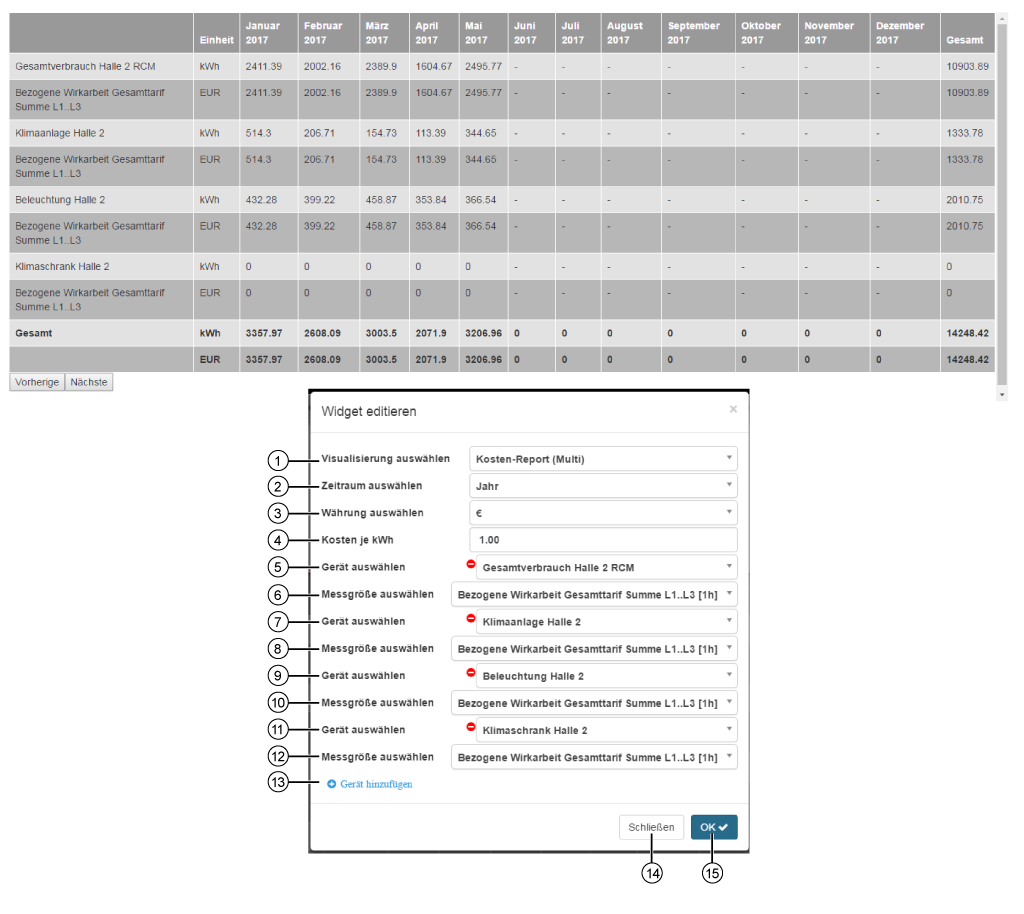
Cost Report (Multi)


images/download/attachments/251037653/kosten_report_multi-version-1-modificationdate-1517404339000-api-v2.png

Position

Description

1

  • Selection of the Widgets (visualization).

  • Cost Report (Multi) selected.

2

Entry of the timeframe to be presented in the "Cost Report (Multi)":

  • Week
    - the table appears in a weekly overview (Tuesday to Monday) with the buttons Previous (week) and Next (next week).

  • Year (see screen above)
    -
    The table appears in an annual overview (January to December) with the buttons Previous (year) and Next (next year)

3

  • Selection of Currency.

4

  • Entry of the valid energy price per kWh in your region.

5

  • Selection of the first device.

  • Includes all devices with memory (historical data) in your project.

6

  • Selection of an energy quantity, of the previously selected device.

7

  • Selection of the second device (comparator device).

  • Includes all devices with memory (historical data) in your project.

8

  • Selection of an energy quantity, of the previously selected device.

9

  • Selection of the third device (comparator device).

  • Includes all devices with memory (historical data) in your project.

10

  • Selection of an energy quantity, of the previously selected device.

11

  • Selection of the fourth device (comparator device).

  • Includes all devices with memory (historical data) in your project.

12

  • Selection of an energy quantity, of the previously selected device.

13

  • Creates a new device for your cost report (multi).

  • Configuration of up to X devices.

14

  • Closes the assistant Edit Widgets without saving the entries.

15

  • Saves your configuration.

  • The Widget appears on the Dashboard.