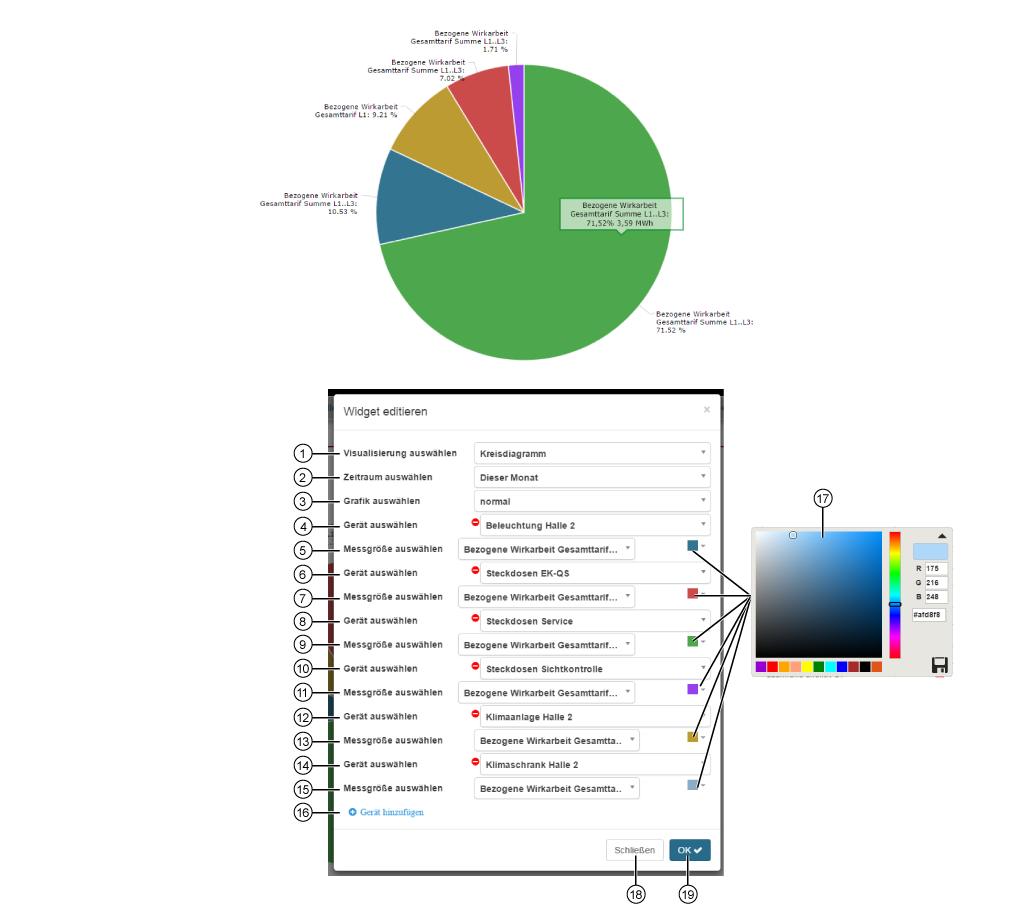
Pie Chart


images/download/attachments/251037657/Kreisdiagramm-version-1-modificationdate-1517404390000-api-v2.png

The pie chart shows:

  • quantities as a percentage of the whole.

  • A description with the details Quantity, percentage value and absolute value, if the mouse cursor is held over a sector of the circle.

Position

Description

1

  • Selection of the Widgets (visualization).

  • Pie Chart selected.

2

Selection of the timeframe presented:

  • This month

  • Last month

  • This year

  • Last year

  • Overview of the last 30 days

3

Selection of the view:

  • Normal

  • 3D

4

  • Selection of the first device (in the above screen grab, the first measurement site).

  • Includes all devices with memory (historical data) in your project.

5

  • Selection of the quantity, of the previously selected device.

  • Selection of color for the presentation of the quantity in the pie chart (cf. Pos. 17).

6

  • Selection of the second device (in the above screen grab, the second measurement site).

  • Includes all devices with memory (historical data) in your project.

7

  • Selection of the quantity, of the previously selected device.

  • Selection of color for the presentation of the quantity in the pie chart (cf. Pos. 17).

8

  • Selection of the third device (in the above screen grab, the third measurement site).

  • Includes all devices with memory (historical data) in your project.

9

  • Selection of the quantity, of the previously selected device.

  • Selection of color for the presentation of the quantity in the pie chart (cf. Pos. 17).

10

  • Selection of the fourth device (in the above screen grab, the fourth measurement site).

  • Includes all devices with memory (historical data) in your project.

11

  • Selection of the quantity, of the previously selected device.

  • Selection of color for the presentation of the quantity in the pie chart (cf. Pos. 17).

12

  • Selection of the fifth device (in the above screen grab, the fifth measurement site).

  • Includes all devices with memory (historical data) in your project.

13

  • Selection of the quantity, of the previously selected device.

  • Selection of color for the presentation of the quantity in the pie chart (cf. Pos. 17).

14

  • Selection of the sixth device (in the above screen grab, the sixth measurement site).

  • Includes all devices with memory (historical data) in your project.

15

  • Selection of the quantity, of the previously selected device.

  • Selection of color for the presentation of the quantity in the pie chart (cf. Pos. 17).

16

  • Creates a new device for your pie chart.

  • Configuration of up to X devices.

17

Selection of the quantity color in the pie chart.

  • RGB and Hex entry.

  • Color spectrum slider.

  • Color suggested is the last selected color.

  • Save your color configuration in the color picker by clicking on the save symbol (

    images/download/thumbnails/251037657/speichern-version-1-modificationdate-1517404390000-api-v2.png

    ).

18

  • Closes the assistant Edit Widgets without saving the entries.

19

  • Saves your configuration.

  • The Widget appears on the Dashboard.