Line Chart (Historical)

images/download/attachments/251037666/Liniendiagramm_histo-version-1-modificationdate-1517404445000-api-v2.png

Position

Description

1

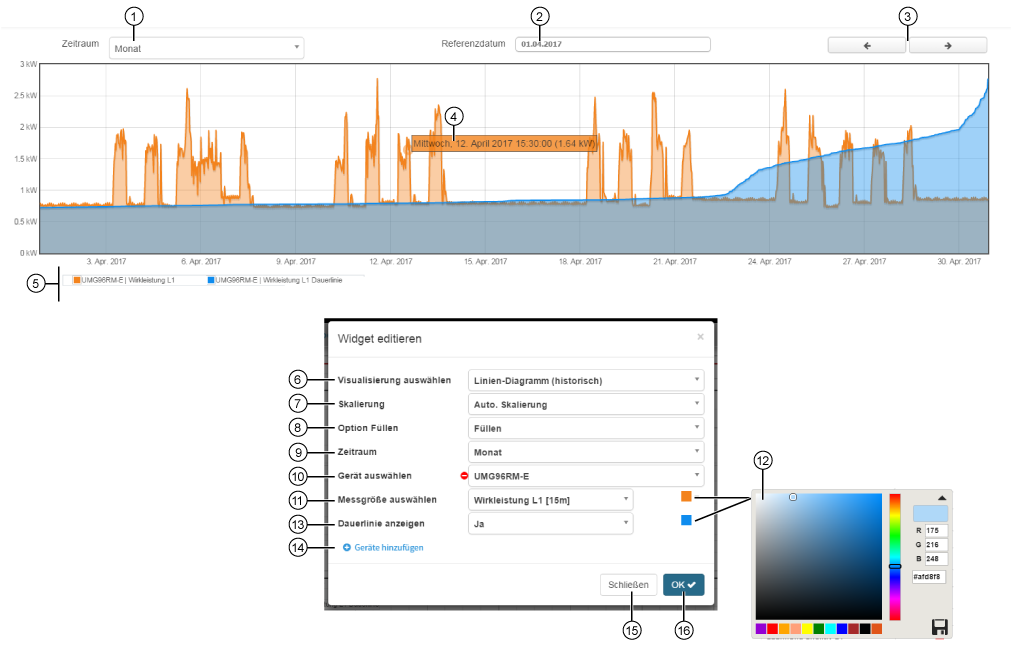
  • Display of the recorded timeframe (cf. Setting Timeframe Pos. 9) for the quantity.

  • Settings: minute, hour, day, week, month, year.

  • The display starts at Reference Date (Pos. 2).

  • You can zoom into the presentation by pulling the mouse cursor while holding down the button over a certain area of the line chart.

2

  • Starting time (Starting date) for the presentation in the line chart (of the quantity).

  • Entry options: Keyboard or Date Picker.

  • Depending on the Timeframe (cf. Pos. 1 and 9).

3

  • Previous (<) or Next (>) timeframe (depending on the timeframe setting - Pos. 1).

4

  • Hold the mouse cursor over the line chart.

  • Shows the Timepoint and Measurement Value of the quantity in the set frame color (Pos. 12).

5

  • Symbols and colors used for showing the measuring devices and quantities in the line chart.

6

  • Selection of the Widgets (visualization).

  • Line Chart (Historical) selected.

7

Units in which the line chart displays your quantity:

  • Automatic scaling

  • No scaling

  • Milli (m)

  • Kilo (k)

  • Mega (M)

  • Giga (G)

8

Color of the area under the quantity curve:

  • Do not fill - transparent.

  • Fill - full-color.

9

  • Standard setting for the display in the recorded timeframe (cf. Pos. 1 Timeframe).

  • Units: minute, hour, day, week, month, year.

10

  • Selection of the first device.

  • Contains all devices with storage (historical data) of your project.

11

  • Selection of a quantity, of the previously selected device.

12

Selection of the quantity color in the line chart.

  • RGB and Hex entry.

  • Color spectrum slider.

  • Color suggested is the last selected color.

  • Save your color configuration in the color picker by clicking on the save symbol (

    images/download/thumbnails/251037666/speichern-version-1-modificationdate-1517404445000-api-v2.png

    ).

13

The duration curve makes the frequencies of high and low measurements visible. Settings:

  • No -The line chart shows only the measurement values.

  • Yes -The line chart shows the measurement values and the duration curve.

  • Only duration curve -The line chart shows only the duration curve.

14

  • Creates a new device (with quantity selection) to display in the line chart (historical).

  • Configuration of up to 10 devices (with their respective quantity selection).

15

  • Closes the assistant Edit Widgets without saving the entries.

16

  • Saves your configuration.

  • The Widget appears on the Dashboard.