Measurement Values (Live)

images/download/attachments/251037669/W_messwerte_live_EN-version-1-modificationdate-1519906781000-api-v2.png

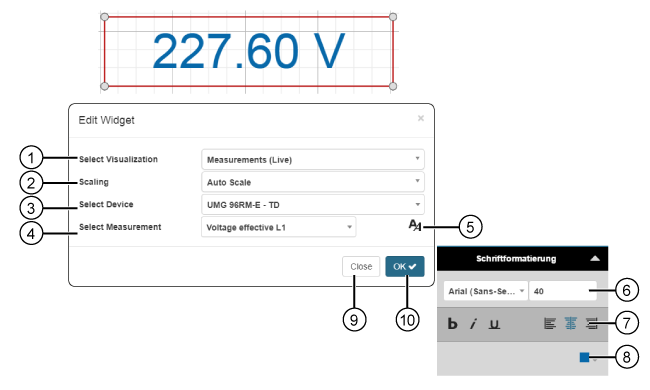
Position

Description

1

  • Selection of the Widgets (visualization).

  • Measurement Values selected.

2

Settings:

  • Automatic scaling - The system determines the scaling of the units of your quantity.

  • No scaling - The system shows the quantity in its basic units (e.g. voltage in V, current in A, power in W, etc.).

  • Milli (m) - Presentation of the quantity in m (e.g. mV, mA, mW)

  • Kilo (k)

  • Mega (M)

  • Giga (G)

3

  • Select device.

  • Contains all of the devices in your project (device overview).

4

  • List of quantities, and those of the previously selected device.

5

  • Opens the assistant Font Formatting.

  • Single-clicking on the triangle (upper right) in the assistant Font Formatting closes the window.

6

Selection of the

  • Font types (Times New Roman, Arial or Courier New).

  • Font size in pt.

7

Selection of the

  • Formatting (bold, italics and/or underlined).

  • Alignment in widget frames (left-justified, centered, or right-justified).

8

Selection of text color

  • RGB and Hex entry.

  • Color spectrum slider.

  • Color suggested is the last selected color.

  • Save your color configuration in the color picker by clicking on the save symbol (

    images/download/thumbnails/251037669/speichern-version-1-modificationdate-1517404464000-api-v2.png

    ).

9

  • Closes the assistant Edit Widgets without saving the entries.

10

  • Saves your configuration.

  • The Widget appears on the Dashboard.