Image


images/download/attachments/251037630/W_bild_EN-version-1-modificationdate-1519825509000-api-v2.png

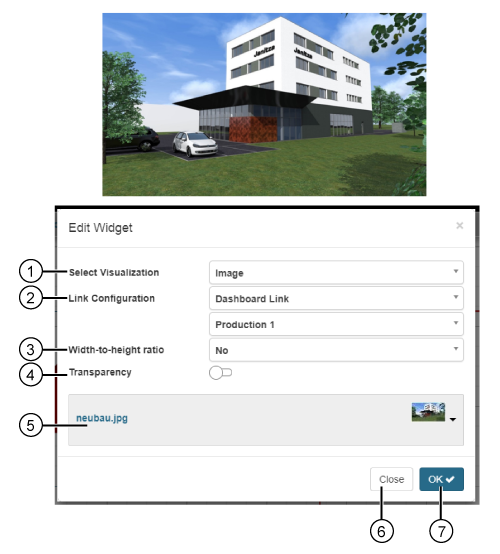
Position

Description

1

  • Selection of the Widget (of the visualization).

  • Image selected.

2

Choose between 3 entries:

  • No linking

  • Dashboard link with the option list Dashboard:
    Single-click on the image and the browser view to switch to the selected Dashboard.

  • External link with the entry field url (website address, e.g. http://www.janitza.de):
    Single-click on the image and the browser view to switch to the entered website address.

3

  • Yes:
    Image fills the frame proportionally - Aspect ratio maintained.

  • No:
    Image fills the frame - Aspect ratio is distorted.

4

  • For empty frames, e.g. to subsequently link other widgets (visualizations).

5

  • Selection of images from Image Management .

  • Allowed image formats: jpg. png, gif, svg.

6

  • Closes the assistant Edit Widget without saving what you have entered.

7

  • Saves your configuration.

  • The Widget appears on the Dashboard.